

The Apple Pencil has become an indispensable tool for artists, students, and professionals alike, offering precision, versatility, and seamless integration with Apple devices. However, like any electronic device, the Apple Pencil can encounter issues from time to time, leaving users frustrated and unsure of what to do next. In this comprehensive troubleshooting guide, we’ll explore common reasons why your Apple Pencil may not be working and provide step-by-step solutions to help you get back to creating, writing, and drawing with ease.
Common Issues with the Apple Pencil
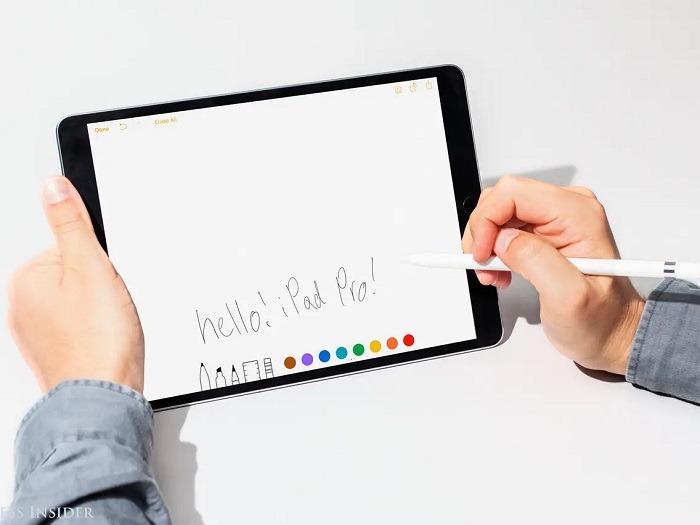
Before we delve into troubleshooting steps, let’s identify some common issues that users may encounter with their Apple Pencil:
- Unresponsive or erratic behavior: The Apple Pencil may fail to respond to touch input or exhibit erratic behavior, such as skipping or lagging while drawing or writing.
- Connectivity problems: The Apple Pencil may have difficulty pairing or staying connected to the iPad or iPhone, resulting in intermittent or lost functionality.
- Charging issues: The Apple Pencil may not charge properly or fail to hold a charge, preventing it from being used effectively.
- Physical damage: Accidental drops or mishandling can result in physical damage to the Apple Pencil, such as a cracked tip or broken casing, which can affect its performance.
Now that we’ve identified some common issues, let’s explore potential solutions for each problem.
Troubleshooting Steps for Unresponsive or Erratic Behavior
If your Apple Pencil is exhibiting unresponsive or erratic behavior, try the following troubleshooting steps:
- Restart your iPad or iPhone: Sometimes, a simple restart can resolve minor software glitches that may be causing the issue. To restart your device, press and hold the power button until the “Slide to Power Off” slider appears, then slide to power off. Once your device has powered off, press and hold the power button again until the Apple logo appears to restart it.
- Check for software updates: Ensure that your iPad or iPhone is running the latest version of iOS or iPadOS. To check for updates, go to Settings > General > Software Update and follow the on-screen instructions to download and install any available updates.
- Re-pair your Apple Pencil: If your Apple Pencil is having trouble staying connected to your device, try unpairing and re-pairing it. Go to Settings > Bluetooth on your iPad or iPhone, find your Apple Pencil in the list of devices, and select “Forget This Device.” Then, turn off Bluetooth, wait a few seconds, and turn it back on. Finally, re-pair your Apple Pencil by connecting it to your device’s Lightning port.
- Replace the Apple Pencil tip: If your Apple Pencil’s tip is worn down or damaged, it may not register touch input correctly. Try replacing the tip with a new one by unscrewing the old tip and screwing on a fresh one. You can purchase replacement tips from the Apple Store or authorized retailers.
- Contact Apple Support: If none of the above steps resolve the issue, it’s possible that your Apple Pencil may be experiencing a hardware problem. Contact Apple Support or visit an Apple Store for further assistance and possible repair or replacement options.
Troubleshooting Steps for Charging Issues
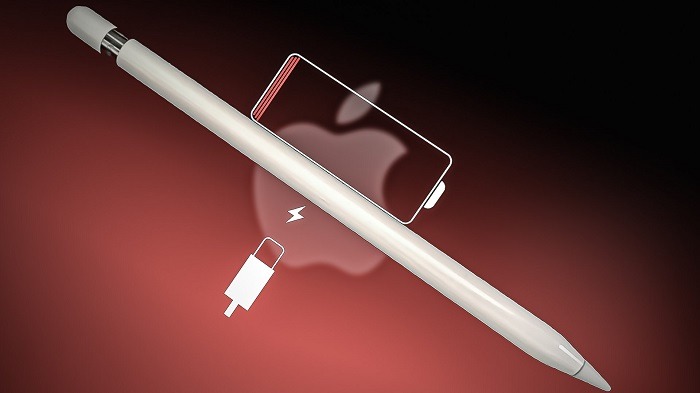
If your Apple Pencil is not charging properly or failing to hold a charge, try the following troubleshooting steps:
- Check the charging connection: Ensure that your Apple Pencil is securely connected to your iPad or iPhone’s Lightning port when charging. If the connection is loose or not properly aligned, the Apple Pencil may not charge correctly.
- Clean the charging port: Dirt, dust, or debris in the charging port can interfere with the charging process. Use a soft, dry brush or compressed air to gently clean the Lightning port on your iPad or iPhone, being careful not to damage the connectors.
- Use a different charging cable or adapter: If you’re experiencing charging issues, try using a different Lightning cable or adapter to charge your Apple Pencil. Sometimes, a faulty cable or adapter can cause charging problems.
- Restart your iPad or iPhone: As mentioned earlier, restarting your device can sometimes resolve minor software glitches that may be affecting the charging process.
- Charge from a different power source: Try charging your Apple Pencil from a different power source, such as a different USB port on your computer or a wall outlet. Sometimes, the problem may be with the power source rather than the Apple Pencil itself.
- Contact Apple Support: If you’ve tried the above steps and are still experiencing charging issues, it’s possible that your Apple Pencil may be defective. Contact Apple Support or visit an Apple Store for further assistance and possible repair or replacement options.
Related Post:
Unlocking the Power of Education with Apple: A Comprehensive Guide for Students
The Ultimate Guide to Apple Desktops: Exploring the Evolution, Features, and Best Options
Exploring Apple’s Presence and Impact in the Spanish-Speaking World
Encountering issues with your Apple Pencil can be frustrating, but with the right troubleshooting steps, you can often resolve the problem and get back to using your device as intended. Whether you’re experiencing unresponsive behavior, connectivity problems, or charging issues, the steps outlined in this guide can help you diagnose and address the issue effectively. If you’re unable to resolve the problem on your own, don’t hesitate to contact Apple Support or visit an Apple Store for assistance. With a little patience and perseverance, you’ll be back to creating, writing, and drawing with your Apple Pencil in no time.