

In today’s fast-paced digital world, keeping your MacBook Pro up to date is crucial for optimal performance, security, and compatibility with the latest software and hardware. Whether you’re a seasoned Mac user or new to the platform, understanding how to update your MacBook Pro efficiently is essential. In this comprehensive guide, we’ll walk you through everything you need to know about updating your MacBook Pro, from checking for software updates to managing system upgrades.
Why Update Your MacBook Pro?
Before diving into the specifics of updating your MacBook Pro, it’s essential to understand why staying up to date is so important. Here are some key reasons:
- Security: Software updates often include patches for security vulnerabilities, protecting your MacBook Pro from potential threats like malware and hackers.
- Performance: Updates may include performance improvements and bug fixes, ensuring that your MacBook Pro runs smoothly and efficiently.
- Compatibility: Updating your MacBook Pro ensures compatibility with the latest software applications and peripherals, allowing you to take advantage of new features and functionalities.
- Stability: By staying up to date, you can minimize the risk of encountering system crashes and errors, providing a more stable computing experience.
Checking for Software Updates
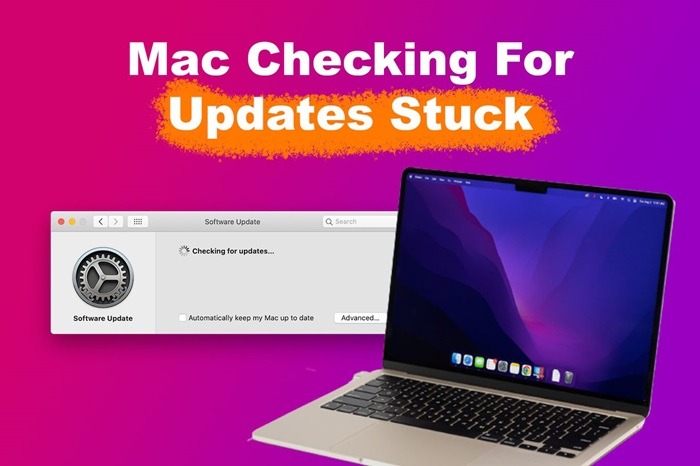
The first step in updating your MacBook Pro is to check for available software updates. Follow these steps to ensure that your system is up to date:
- Open System Preferences: Click on the Apple menu in the top-left corner of your screen and select “System Preferences.”
- Select Software Update: In the System Preferences window, click on the “Software Update” icon. Your MacBook Pro will then check for available updates.
- Install Updates: If updates are available, click the “Update Now” button to begin the installation process. Depending on the size of the updates, this may take some time.
- Restart Your MacBook Pro: Once the updates are installed, you may be prompted to restart your MacBook Pro to complete the process. Be sure to save any open documents before restarting.
Managing System Upgrades
In addition to software updates, you may also encounter major system upgrades, such as macOS updates. Here’s how to manage these upgrades effectively:
- Check Compatibility: Before installing a major system upgrade, ensure that your MacBook Pro is compatible with the new macOS version. You can find compatibility information on Apple’s website or in the App Store.
- Backup Your Data: Before proceeding with a system upgrade, it’s essential to backup your important data to prevent any potential loss during the installation process. You can use Time Machine or third-party backup solutions for this purpose.
- Download macOS Installer: Once you’ve verified compatibility and backed up your data, you can download the macOS installer from the App Store. The installer will guide you through the upgrade process.
- Follow Installation Instructions: After downloading the macOS installer, follow the on-screen instructions to complete the installation process. This may involve restarting your MacBook Pro and waiting for the installation to complete.
- Post-Upgrade Checks: After upgrading to a new macOS version, it’s a good idea to perform some post-upgrade checks to ensure that everything is working correctly. Test essential functions such as internet connectivity, applications, and peripherals to verify compatibility and functionality.
Tips for Smooth Updates
To ensure a smooth updating process for your MacBook Pro, consider the following tips:
- Connect to a Stable Internet Connection: A stable internet connection is essential for downloading updates and upgrades efficiently. Connect your MacBook Pro to a reliable Wi-Fi network before checking for updates.
- Charge Your MacBook Pro: It’s recommended to have your MacBook Pro connected to a power source during the updating process to prevent any interruptions due to battery drain.
- Free Up Disk Space: Before installing system upgrades, ensure that you have sufficient free disk space on your MacBook Pro. Delete any unnecessary files or applications to make room for the installation.
- Keep Backup Drives Handy: In case of any unforeseen issues during the updating process, it’s always a good idea to have backup drives or external storage devices on hand to safeguard your data.
Keeping your MacBook Pro up to date is essential for maintaining security, performance, and compatibility with the latest software and hardware. By following the steps outlined in this comprehensive guide, you can ensure that your MacBook Pro remains optimized and up to date at all times. Remember to regularly check for software updates, manage system upgrades carefully, and follow best practices for a smooth updating experience. With a well-maintained MacBook Pro, you can enjoy a reliable and efficient computing experience for years to come.
Optimizing Your MacBook Pro for Updates
While keeping your MacBook Pro up to date is essential, there are additional steps you can take to optimize your system for updates and ensure a smooth updating experience. Let’s explore some advanced tips and techniques:
Enable Automatic Updates:
To streamline the updating process, consider enabling automatic updates on your MacBook Pro. With automatic updates enabled, your system will automatically download and install software updates in the background, ensuring that you’re always running the latest software versions. Here’s how to enable automatic updates:
- Open System Preferences and select “Software Update.”
- Check the box next to “Automatically keep my Mac up to date.”
- From the options provided, you can choose to automatically download and install updates, or only download updates and manually install them later.
By enabling automatic updates, you can ensure that your MacBook Pro stays current without needing manual intervention.
Utilize macOS Recovery:
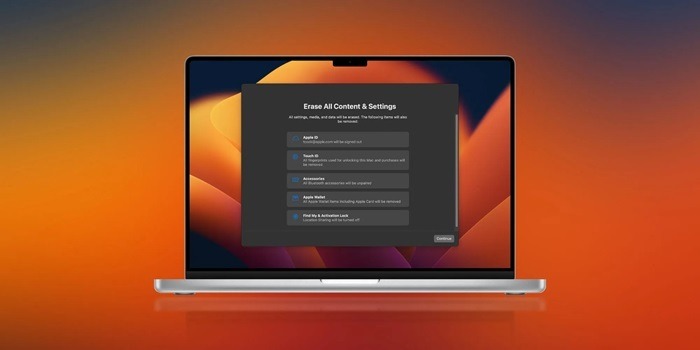
In the event that your MacBook Pro encounters issues during the updating process, macOS Recovery can be a valuable tool for troubleshooting and resolving problems. macOS Recovery provides several options for repairing your system, reinstalling macOS, restoring from a Time Machine backup, and more. Here’s how to access macOS Recovery:
- Restart your MacBook Pro and hold down Command (⌘) + R during startup.
- Keep holding the keys until you see the Apple logo or a spinning globe.
- Release the keys when you see the macOS Utilities window.
From macOS Recovery, you can choose the appropriate option to troubleshoot and resolve any issues that may arise during the updating process.
Monitor System Resources:
During the updating process, your MacBook Pro may experience increased resource usage, including CPU, memory, and disk activity. Monitoring system resources can help you identify any performance bottlenecks or issues that may arise during updates. You can use Activity Monitor, a built-in utility in macOS, to monitor system resource usage in real-time. Activity Monitor provides detailed information about CPU usage, memory usage, disk activity, and more, allowing you to identify any processes or applications that may be consuming excessive resources.
Schedule Updates During Off-Peak Hours:
To minimize disruption to your workflow, consider scheduling software updates and system upgrades during off-peak hours when you’re less likely to be using your MacBook Pro. You can use the Energy Saver settings in System Preferences to schedule your MacBook Pro to wake up or start up at a specific time and then automatically install updates. By scheduling updates during off-peak hours, you can ensure that your MacBook Pro remains up to date without interrupting your productivity.
Stay Informed About Updates:
Stay informed about updates and new releases by regularly checking Apple’s website, developer documentation, and tech news sources. Apple frequently releases software updates, security patches, and new macOS versions to address vulnerabilities, improve performance, and introduce new features. By staying informed about updates, you can ensure that your MacBook Pro remains secure and up to date with the latest software advancements.
Keeping your MacBook Pro up to date is essential for maintaining security, performance, and compatibility with the latest software and hardware. By implementing the advanced tips and techniques outlined in this guide, you can optimize your MacBook Pro for updates and ensure a smooth updating experience. From enabling automatic updates to utilizing macOS Recovery and monitoring system resources, these strategies will help you keep your MacBook Pro running smoothly and efficiently for years to come. Stay informed, stay proactive, and enjoy the benefits of a well-maintained MacBook Pro.