


In an age where mobility is paramount, the battery life of your MacBook Pro can be the difference between seamless productivity and frustrating interruptions. Whether you’re a student, a creative professional, or a business executive, optimizing your MacBook Pro’s battery life is essential for staying connected and getting work done on the go. In this comprehensive guide, we’ll explore the various strategies and techniques to help you extend and maximize the battery life of your beloved MacBook Pro.
Understanding Your MacBook Pro Battery
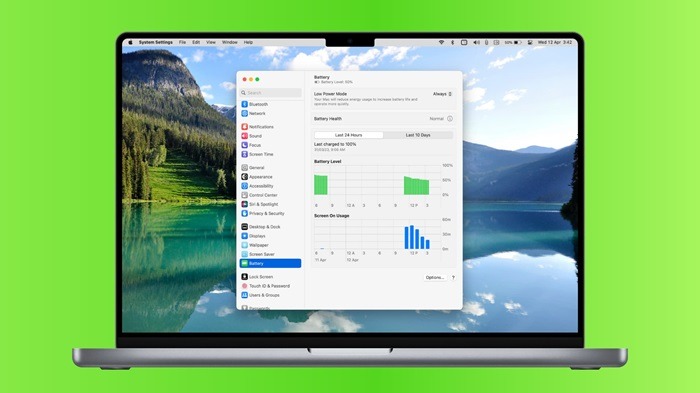
Before diving into optimization techniques, it’s crucial to understand the basics of your MacBook Pro’s battery. Apple typically uses lithium-ion batteries in its laptops, including the MacBook Pro lineup. These batteries are renowned for their energy density and relatively low self-discharge rate, making them ideal for portable devices.
Battery Health: The Key to Longevity
Just like any other electronic device, your MacBook Pro’s battery health deteriorates over time. Understanding how to maintain and preserve battery health is fundamental to maximizing its lifespan and performance.
Avoid Extreme Temperatures
Extreme temperatures, both hot and cold, can significantly impact your MacBook Pro’s battery health. Avoid exposing your device to direct sunlight or leaving it in a freezing car overnight. High temperatures can accelerate the chemical aging process of the battery, while cold temperatures can temporarily reduce its performance.
Optimal Charging Practices
Contrary to popular belief, fully draining your MacBook Pro’s battery before charging it isn’t necessary and can even be detrimental. Lithium-ion batteries prefer partial discharge cycles over full discharges. Aim to keep your battery level between 20% and 80% for optimal longevity. Additionally, avoid leaving your MacBook Pro plugged in for extended periods once it reaches full charge, as this can contribute to battery degradation over time.
Update macOS Regularly
Apple frequently releases software updates that include optimizations and improvements for battery life. Ensuring that your MacBook Pro is running the latest version of macOS can help enhance energy efficiency and overall performance.
Monitor Battery Usage
macOS provides tools to monitor battery usage and identify apps or processes that are consuming excessive power. Keep an eye on the Battery section in System Preferences to identify any anomalies and take necessary actions to minimize power consumption.
Maximizing Battery Life: Practical Tips and Techniques
Now that we’ve covered the fundamentals of battery health, let’s delve into practical tips and techniques to maximize the battery life of your MacBook Pro in everyday usage scenarios.
Adjust Display Brightness
The display is one of the most power-hungry components of your MacBook Pro. Lowering the brightness level can significantly extend battery life, especially when working in dimly lit environments. Consider enabling auto-brightness in System Preferences to allow your MacBook Pro to adjust the display brightness based on ambient light conditions automatically.
Manage Background Processes
Background processes and applications can consume valuable system resources and drain your MacBook Pro’s battery faster. Close unnecessary apps and disable resource-intensive processes running in the background to conserve power. You can use Activity Monitor to identify and terminate resource-hungry processes effectively.
Utilize Energy Saver Preferences
macOS offers built-in Energy Saver preferences that allow you to customize power-saving settings according to your preferences. Experiment with options such as “Put hard disks to sleep when possible” and “Wake for Wi-Fi network access” to optimize power usage without compromising functionality.
Enable Power Nap Sparingly
Power Nap is a feature that allows your MacBook Pro to perform tasks such as receiving emails, software updates, and iCloud syncing while in sleep mode. While convenient, enabling Power Nap can lead to increased power consumption, especially if your MacBook Pro isn’t connected to a power source. Consider disabling Power Nap when running on battery power to conserve energy.
Manage Wireless Connectivity
Wireless connectivity features such as Wi-Fi, Bluetooth, and cellular data can contribute to battery drain when not in use. Disable these features when they’re not needed, especially when working offline or in airplane mode. Additionally, consider using Ethernet instead of Wi-Fi when available to reduce power consumption.
Empower Your MacBook Pro

Your MacBook Pro is a powerful tool designed to empower you in your personal and professional endeavors. By understanding the nuances of battery health and implementing practical optimization techniques, you can unlock the full potential of your MacBook Pro and enjoy extended battery life without compromising performance. Remember, small adjustments and mindful usage habits can make a significant difference in maximizing the longevity and efficiency of your MacBook Pro’s battery. So, go ahead, seize the day, and let your MacBook Pro be your trusted companion on your journey to success.
With these strategies and techniques at your disposal, you can confidently navigate your daily tasks knowing that your MacBook Pro’s battery life is optimized to support you every step of the way. So, charge up, power on, and make the most of every moment with your MacBook Pro by your side.
Advanced Optimization Techniques
While the previously discussed strategies are effective for improving battery life in most situations, there are additional advanced techniques that can further enhance the efficiency of your MacBook Pro’s battery.
Use Safari for Web Browsing
Safari, Apple’s native web browser, is optimized for energy efficiency and typically consumes less power compared to third-party browsers like Chrome or Firefox. Consider using Safari as your primary web browser to minimize battery drain while browsing the internet.
Employ Keyboard Shortcuts
Minimizing reliance on the trackpad or mouse can help conserve battery life by reducing unnecessary power consumption. Learning and utilizing keyboard shortcuts for common tasks and navigation can significantly improve efficiency and extend battery runtime.
Optimize Energy Settings for Specific Tasks
Certain tasks may require different energy settings to strike a balance between performance and battery life. For example, if you’re working on intensive tasks such as video editing or gaming, you may want to prioritize performance over battery life temporarily. Conversely, when engaging in less demanding activities such as word processing or web browsing, opting for energy-saving settings can help prolong battery runtime.
Manage System Preferences
macOS offers a plethora of system preferences that allow you to fine-tune various aspects of your MacBook Pro’s performance and power usage. Explore and customize settings related to display, keyboard, trackpad, and accessibility to tailor your MacBook Pro’s behavior according to your preferences and usage patterns.
Opt for SSD Storage
Solid-state drives (SSDs) are known for their energy efficiency compared to traditional hard disk drives (HDDs). If you have the option when purchasing or upgrading your MacBook Pro, consider investing in an SSD for faster performance and improved battery life.
Monitor Resource Usage in Real-Time
Third-party utilities such as iStat Menus or CoconutBattery provide real-time monitoring of system resource usage and battery health. By keeping tabs on CPU, memory, and disk activity, you can identify and address any anomalies that may be contributing to excessive power consumption.
Consider External Peripherals
While external peripherals such as monitors, keyboards, and mice can enhance productivity, they also consume additional power when connected to your MacBook Pro. Disconnect or power off unnecessary peripherals when not in use to minimize energy drain and maximize battery life.
Calibrate Your Battery Periodically
Calibrating your MacBook Pro’s battery involves fully discharging it, followed by a full recharge, to recalibrate the battery capacity indicator. This process helps ensure accurate reporting of remaining battery life and can help prolong battery longevity over time.
Empowering Efficiency
By incorporating these advanced optimization techniques into your daily workflow, you can take your MacBook Pro’s battery life to the next level. From fine-tuning system preferences to mastering keyboard shortcuts, every adjustment contributes to a more efficient and sustainable computing experience.
Remember, optimizing battery life is not just about extending runtime; it’s about maximizing productivity and minimizing environmental impact. With a mindful approach to energy usage and a commitment to efficiency, you can unleash the full potential of your MacBook Pro while minimizing your carbon footprint.
So, whether you’re tackling deadlines, unleashing your creativity, or simply staying connected on the go, empower yourself with the knowledge and tools to make the most of your MacBook Pro’s battery life. With careful attention to detail and a willingness to adapt, you can enjoy a seamless and uninterrupted computing experience wherever your journey takes you.
Harness the power of optimization, embrace the efficiency of your MacBook Pro, and embark on a path of productivity and sustainability. Your battery life, your productivity, and the planet will thank you for it.