

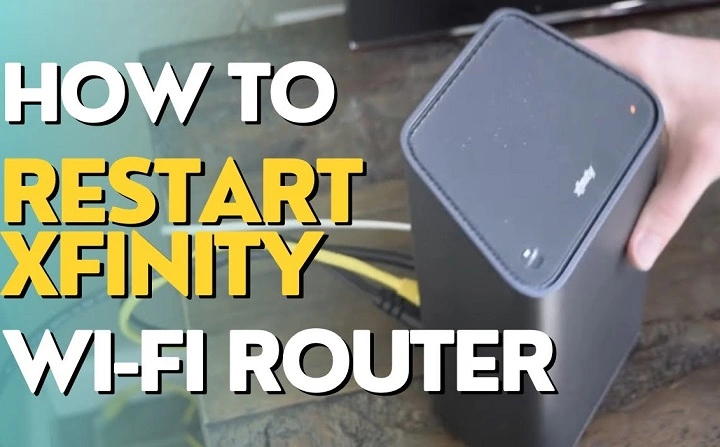
Is the Internet acting up? Slow speeds, dropped Wi-Fi, or buffering problems can all point to one solution rebooting your Xfinity router. A simple restart can refresh the connection, clear temporary glitches, and restore your network’s stability. In this guide, you’ll learn multiple ways to reboot your Xfinity router properly, troubleshoot issues, and keep your internet running smoothly.
Understanding the Reboot Process
Why Rebooting Helps
Rebooting your Xfinity router clears cached data, resets internal memory, and re-establishes a fresh connection to your ISP. It’s like giving your router a quick refresh to fix minor performance issues without resetting your settings.
When Should You Reboot?
- Internet is slow or laggy
- Devices keep disconnecting
- Streaming or gaming interruptions
- After a firmware update
- New equipment added to the network
How to Reboot Your Xfinity Router (Standard Methods)
1. Manual Reboot (Power Cycle)
The easiest and most effective way to restart your Xfinity router is a manual reboot.
- Unplug the power cord from the back of the router or modem-router combo.
- Wait for 60 seconds to allow internal memory to clear.
- Plug it back in and wait 2–5 minutes for all lights to stabilize.
This method works for most performance issues and doesn’t affect your Wi-Fi settings.
2. Reboot Using Xfinity App
If you use the Xfinity app, you can reboot remotely.
- Open the Xfinity app on your phone.
- Sign in to your account.
- Tap WiFi or Internet.
- Select your router/modem from the list.
- Tap Restart this device.
This is a quick way to restart your router without getting up, especially useful when you’re away from home.
3. Reboot Through Xfinity Website
Prefer using a browser? You can reboot through your Xfinity account online.
- Go to xfinity.com/myaccount and sign in.
- Click on Services > Internet.
- Choose your device under Devices.
- Click Restart Modem and confirm.
Wait a few minutes while the modem reboots remotely. You’ll lose the internet for a short time while it restarts.
Advanced Reboot Options
Reboot via Admin Gateway Page
Your router has a local admin page where you can manually restart it.
- Open a browser and type 10.0.0.1 in the address bar.
- Log in using the default credentials (usually admin / password unless changed).
- Navigate to Troubleshooting > Reset/Restore Gateway.
- Choose Restart Router or Reboot.
This method is helpful for advanced users who want more control over their network.
Use Xfinity Voice Remote (For Xfinity Gateways)
If you have an Xfinity Voice Remote:
- Say “Restart my Gateway” into the remote.
- Follow on-screen prompts to confirm the restart.
This method only works for compatible Xfinity gateways connected to X1 TV boxes.
Troubleshooting: When Rebooting Doesn’t Work
1. Router Doesn’t Restart
- Double-check the power source and cable.
- Make sure the power outlet is working.
- Try pressing the Reset button for a quick refresh (not factory reset).
2. Still No Internet After Reboot
- Wait at least 5 minutes for the modem to fully boot.
- Check if lights on the router indicate proper connection.
- Use the Xfinity app to run a diagnostic scan.
- Ensure cables are tightly connected to the wall jack and modem.
3. Router Stuck in Boot Loop
If your router keeps restarting:
- Unplug it for 10 minutes.
- Reconnect directly to the wall without surge protectors.
- If the issue persists, contact Xfinity support or consider replacing the unit.
Reset vs. Reboot: Know the Difference

Reboot
- Restarts the router
- Keeps all custom settings
- Used for fixing temporary issues
Reset
- Erases all settings
- Returns router to factory defaults
- Use only when troubleshooting persistent problems or changing owners
To factory reset your Xfinity router:
- Press and hold the Reset button (usually a small pinhole) for 30 seconds.
- Wait for it to reboot and reconfigure your network.
Use this only if instructed by support or you’re ready to set up from scratch.
Tips to Avoid Frequent Reboots
1. Place Router Properly
Keep your router in a central, open space—not hidden in cabinets or near electronics that interfere with the signal.
2. Update Firmware
Xfinity routers receive updates automatically, but occasional reboots help apply them fully.
3. Avoid Overloading with Devices
Too many devices can slow your network. Disconnect unused devices and reboot occasionally to free up bandwidth.
4. Use Mesh or Extenders
If signal issues persist even after reboots, consider using xFi Pods or third-party extenders to boost coverage.
FAQs
How often should I reboot my Xfinity router?
Once every 1–2 weeks can help maintain performance and prevent connection drops.
Will rebooting my router erase my Wi-Fi name and password?
No. A reboot only restarts the router—it doesn’t delete your custom settings.
How long does it take for the router to reboot?
Typically 2 to 5 minutes, depending on your device model.
Can I reboot from my phone?
Yes. Use the Xfinity app to restart your modem or gateway remotely.
Why does my Wi-Fi still act slow after rebooting?
There may be interference, too many devices connected, or outdated equipment. Run diagnostics using the Xfinity app for more help.