


Is your internet slow, cutting out, or lagging during streaming? Rebooting your Fios router can help restore a stable and fast connection. Whether you’re using a Verizon Fios Quantum Gateway, G3100, or any other Fios router model, restarting the device can clear glitches, refresh the connection to the ISP, and fix temporary performance issues—without erasing your Wi-Fi settings. This step-by-step guide shows all the best ways to safely reboot your Fios router.
Understanding the Reboot Process
Why Rebooting Helps
Rebooting your Fios router clears the internal cache, resets background processes, and re-establishes a fresh internet connection. It can resolve issues like slow speeds, dropped Wi-Fi, device disconnections, or streaming interruptions—without affecting your custom network settings.
When Should You Reboot?
- Internet speed suddenly drops
- Devices keep disconnecting from Wi-Fi
- You’ve installed a firmware or software update
- Streaming or gaming performance becomes unstable
- Wi-Fi signal is weak in parts of your home
- After changing cables, equipment, or moving the router
How to Reboot Fios Router (Standard Methods)
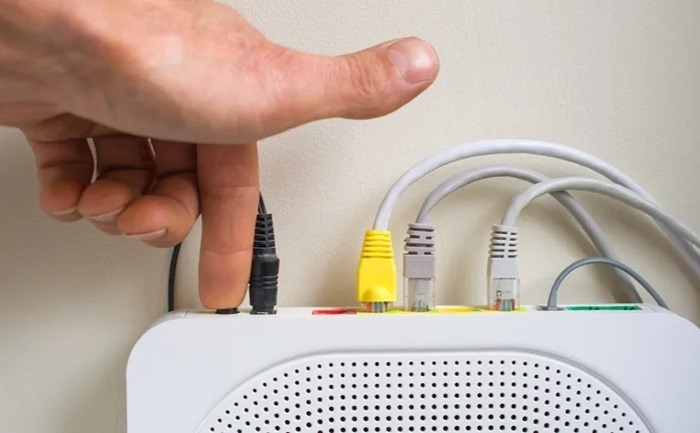
Manual Power Cycle (Recommended)
This is the simplest and most effective reboot method.
- Locate your Fios router and unplug the power cable from the back
- Wait 60 seconds to allow the device to fully power down
- Plug the power cable back into the router
- Wait 2–5 minutes for the router to fully reboot and lights to stabilize
This does not delete your Wi-Fi name, password, or settings—just gives your router a fresh start.
Restart Using My Verizon App
If you’re away from the router or prefer remote access:
- Open the My Verizon app on your smartphone
- Tap on Internet
- Select your Fios router from the list of devices
- Tap Reboot Router
- Confirm your action and wait a few minutes for the restart to complete
This is convenient when you’re troubleshooting from another room or location.
Restart Through Verizon Web Portal
You can also reboot your router using your online Verizon account.
- Visit verizon.com/myverizon
- Sign in to your account
- Go to Internet > Devices
- Choose your router from the list
- Click Reboot Router and follow the prompts
This remote reboot works well if you’re using a PC or laptop to troubleshoot.
Advanced Reboot Options
Use the Router’s Admin Interface
For more control, you can reboot via your router’s local IP interface.
- Open a web browser and go to 192.168.1.1 or myfiosgateway.com
- Enter your router’s admin credentials (default is usually admin and the password is on the router label)
- Navigate to Advanced > Utilities > Reboot Router
- Click Reboot and confirm
This method gives you access to other advanced settings and diagnostics too.
Use Fios TV Voice Remote (If Applicable)
If your Fios setup includes a Voice Remote and TV box:
- Say “Reboot my router” into the remote
- Follow the on-screen prompts to confirm
- Wait for the device to fully restart
This feature is limited to specific setups that integrate the router with the Fios TV box.
Troubleshooting: When Rebooting Doesn’t Work

Router Won’t Power On
- Ensure the power cord is fully plugged into both the router and outlet
- Try a different wall outlet or surge protector
- Check for damage on the power cable
- Press and hold the Power button (if available) for a few seconds
Internet Still Not Working After Reboot
- Wait at least 5 minutes for a full reboot
- Check router lights—ensure the Power, Internet, and Wi-Fi indicators are solid
- Run a diagnostic scan using the My Verizon app
- Ensure the Ethernet or coaxial cable from the wall is secure
Router Keeps Rebooting Automatically
If your router is stuck in a loop:
- Unplug the router for 10 minutes
- Plug it directly into a wall outlet (avoid surge protectors)
- Disconnect unnecessary devices to reduce load
- If the issue continues, contact Verizon Support or request a replacement
Reset vs. Reboot: Know the Difference
Reboot
- Simply restarts the router
- Keeps your current settings, Wi-Fi name, and passwords
- Recommended for general troubleshooting
Reset
- Returns the router to factory settings
- Erases all custom settings and configurations
- Use only if you’re facing major issues or preparing to return/sell the router
How to Factory Reset a Fios Router
- Locate the Reset button on the back (small pinhole)
- Use a paperclip to press and hold for 10–15 seconds
- Release when the router lights begin blinking
- The router will reboot and reset to default settings
You’ll need to reconfigure your Wi-Fi network afterward.
Tips to Keep Your Fios Router Running Smoothly
1. Reboot Periodically
Restart the router every 1–2 weeks to prevent slowdowns and memory buildup.
2. Keep Firmware Updated
Fios routers usually update automatically, but restarting helps apply updates fully.
3. Place Router in a Good Spot
Keep it in a central, elevated, and open space—away from walls and electronic interference.
4. Avoid Overloading
Too many connected devices can reduce performance. Disconnect unused gadgets when possible.
5. Consider Mesh Extenders
Use Fios Extenders or compatible mesh systems for large homes or Wi-Fi dead zones.
FAQs
How often should I reboot my Fios router?
About once every 1–2 weeks is ideal to maintain network performance.
Will rebooting erase my settings?
No. A reboot won’t delete your custom Wi-Fi name, password, or configurations.
How long does it take for a Fios router to reboot?
It usually takes 2 to 5 minutes, depending on your model and connection.
Can I reboot my Fios router from my phone?
Yes. Use the My Verizon app to restart your router remotely.
What should I do if rebooting doesn’t fix my issue?
Check for loose cables, run a diagnostic through the app, or contact Verizon Support for help.