


For music lovers around the world, Apple iTunes has long been a trusted companion, providing access to a vast library of songs, albums, and playlists. Whether you’re streaming your favorite tracks, purchasing new releases, or organizing your digital music collection, iTunes offers a seamless and intuitive experience. However, before you can unlock the full potential of iTunes, you’ll need to log in to your Apple account. In this comprehensive guide, we’ll walk you through everything you need to know about the Apple iTunes login process, from creating an account to troubleshooting common login issues.
What is Apple iTunes?
Before we delve into the login process, let’s briefly discuss what Apple iTunes is and why it’s such a popular platform for music lovers. iTunes is a media player, media library, and online store developed by Apple Inc. It allows users to purchase, download, and organize digital media such as music, movies, TV shows, and podcasts. With its user-friendly interface and extensive catalog of content, iTunes has become a go-to destination for millions of users worldwide.
Creating an Apple ID: Your Ticket to iTunes
To access iTunes and all of its features, you’ll need to have an Apple ID, which serves as your unique identifier within the Apple ecosystem. If you don’t already have an Apple ID, you can easily create one by following these steps:
- Visit the Apple ID account creation page on the Apple website.
- Enter your personal information, including your name, email address, and password.
- Choose security questions and answers to help verify your identity in case you forget your password.
- Agree to the terms and conditions, and then click “Create Apple ID” to complete the process.
Once you’ve created your Apple ID, you’ll be ready to log in to iTunes and start exploring its vast array of content.
Logging in to iTunes: Step-by-Step Guide
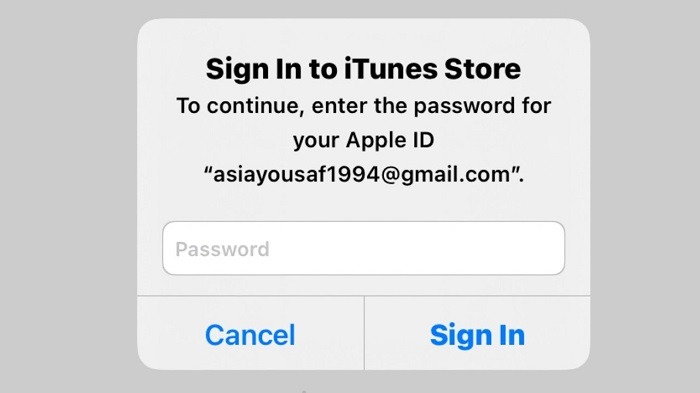
Logging in to iTunes is a straightforward process, but if you’re new to the platform, it’s helpful to have a step-by-step guide. Here’s how to log in to iTunes:
- Launch the iTunes application on your computer or open the iTunes Store app on your iOS device.
- Click on the “Account” menu at the top of the screen (on macOS) or tap on the profile icon at the top of the screen (on iOS).
- Select “Sign In” from the dropdown menu.
- Enter your Apple ID and password in the appropriate fields.
- Click “Sign In” or tap “Sign In” to complete the login process.
Once you’ve successfully logged in, you’ll have access to your iTunes library, as well as the iTunes Store, where you can browse, purchase, and download music, movies, and more.
Troubleshooting Login Issues: Tips and Tricks
While logging in to iTunes is usually a smooth process, there may be times when you encounter issues or difficulties. Here are some troubleshooting tips to help you resolve common login issues:
- Check your internet connection: Make sure you have a stable internet connection before attempting to log in to iTunes. If your connection is slow or unreliable, you may experience login problems.
- Verify your Apple ID and password: Double-check that you’ve entered your Apple ID and password correctly. Remember that passwords are case-sensitive, so be sure to use the correct capitalization.
- Reset your password: If you’ve forgotten your password or are having trouble logging in, you can reset your password using the “Forgot Apple ID or password” link on the login screen.
- Update iTunes: Make sure you’re using the latest version of iTunes, as outdated software can sometimes cause login issues. You can check for updates by clicking on the “Account” menu and selecting “Check for Updates” (on macOS) or by going to the App Store app and navigating to the Updates tab (on iOS).
- Contact Apple Support: If you’ve tried the above steps and are still experiencing login issues, you may need to contact Apple Support for further assistance. They can help diagnose the problem and provide guidance on next steps.
Related Post:
Exploring the Anticipation and Expectations Surrounding Apple’s iPhone 14
Unveiling the Future: What to Expect from the Apple Watch Series 8 Release Date
Elevate Your Style: The Ultimate Guide to Gucci Apple Watch Bands
Logging in to iTunes is a simple process that allows you to access a world of digital media content at your fingertips. By creating an Apple ID, following the step-by-step login guide, and troubleshooting common issues, you can unlock the full potential of iTunes and enjoy all that it has to offer. Whether you’re streaming your favorite songs, downloading new releases, or organizing your music library, iTunes provides a seamless and intuitive experience for music lovers of all ages. So log in, tune in, and let the music play!