

The Apple Pencil is a versatile tool that enhances the user experience on iPads, allowing for precise drawing, note-taking, and creative expression. However, like any electronic device, it can encounter connectivity issues from time to time. If you find yourself facing the frustrating situation where your Apple Pencil won’t connect to your iPad, fear not. In this comprehensive troubleshooting guide, we’ll explore the common reasons why your Apple Pencil may fail to connect and provide step-by-step solutions to help you get it working again.
Understanding the Apple Pencil Connectivity
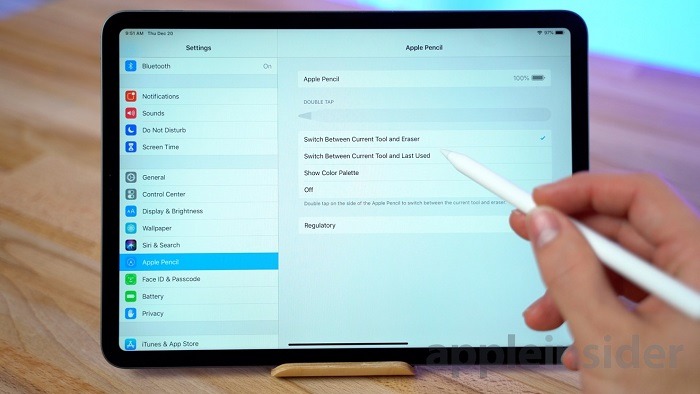
Before diving into troubleshooting, it’s essential to understand how the Apple Pencil connects to your iPad. The Apple Pencil uses Bluetooth technology to establish a wireless connection with your iPad, allowing for seamless communication between the two devices. When functioning correctly, the Apple Pencil should connect automatically when brought into proximity with your iPad and remain connected as long as the iPad is powered on and within range.
Common Reasons Why Your Apple Pencil Won’t Connect
There are several potential reasons why your Apple Pencil may fail to connect to your iPad. Some of the most common causes include:
- Low Battery: If the battery level of your Apple Pencil is depleted, it may not have enough power to establish a connection with your iPad.
- Bluetooth Connectivity Issues: Problems with the Bluetooth connection between your iPad and Apple Pencil can prevent them from pairing successfully.
- Software Glitches: Occasionally, software glitches or bugs within the iPad’s operating system can interfere with the connection process.
- Hardware Malfunction: In rare cases, hardware issues with either the Apple Pencil or iPad can prevent them from connecting properly.
Step-by-Step Troubleshooting Solutions
Now that we’ve identified some potential causes let’s explore step-by-step troubleshooting solutions to help you resolve the issue and get your Apple Pencil connected again.
Charge Your Apple Pencil
If your Apple Pencil isn’t connecting, the first step is to ensure that it has enough battery power. Connect your Apple Pencil to your iPad or a power source using the included Lightning adapter and allow it to charge for at least 15-30 minutes. Once fully charged, try connecting it to your iPad again.
Check Bluetooth Settings
Ensure that Bluetooth is enabled on your iPad by navigating to Settings > Bluetooth and toggling the switch to the On position. If Bluetooth is already enabled, try toggling it off and then back on again to reset the connection. Next, remove your Apple Pencil from the Bluetooth device list by selecting the “i” icon next to its name and choosing “Forget This Device.” Then, re-pair your Apple Pencil by bringing it close to your iPad and waiting for the connection prompt to appear.
Restart Your iPad
Sometimes, a simple restart can resolve connectivity issues. Press and hold the Power button until the “slide to power off” slider appears on the screen. Slide the slider to power off your iPad, then press and hold the Power button again until the Apple logo appears to restart it. Once your iPad has restarted, attempt to connect your Apple Pencil again.
Update iOS Software
Ensure that your iPad is running the latest version of iOS by navigating to Settings > General > Software Update and following the on-screen instructions to install any available updates. Updating your iOS software can resolve compatibility issues and bugs that may be preventing your Apple Pencil from connecting.
Reset Network Settings
If Bluetooth connectivity issues persist, you may need to reset your iPad’s network settings. This will reset all network-related settings, including Wi-Fi and Bluetooth connections. To do this, navigate to Settings > General > Reset > Reset Network Settings and enter your passcode if prompted. Confirm your decision by selecting “Reset Network Settings,” then reconnect to your Wi-Fi network and attempt to pair your Apple Pencil again.
Contact Apple Support
If none of the above solutions work, there may be a hardware issue with your Apple Pencil or iPad that requires further assistance. Contact Apple Support or visit an Apple Store or authorized service provider for troubleshooting and repair options.
Related Post:
Exploring Digital Convenience: Does Cook Out Accept Apple Pay?
Exploring Payment Convenience: Does Burlington Accept Apple Pay?
Unleash the Power of Connectivity: Exploring T-Mobile’s Apple Watch Plan
Dealing with a non-connecting Apple Pencil can be frustrating, but by following these troubleshooting steps, you can often resolve the issue and get back to using your device as intended. Remember to start with simple solutions like charging your Apple Pencil and checking Bluetooth settings before moving on to more advanced troubleshooting steps. If all else fails, don’t hesitate to reach out to Apple Support for further assistance. With a little patience and persistence, you’ll have your Apple Pencil connected and ready to use in no time.