

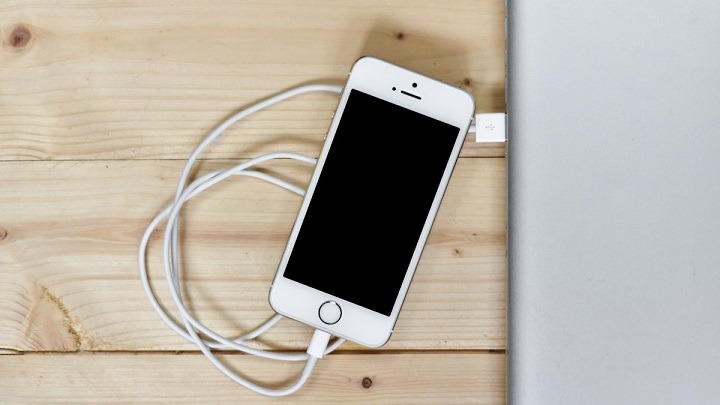
In today’s interconnected world, the ability to seamlessly sync your iPhone with your MacBook is essential for productivity, convenience, and efficiency. Whether you’re transferring files, syncing data, or simply mirroring your screen, knowing how to connect your iPhone to your MacBook opens up a world of possibilities. In this comprehensive guide, we’ll walk you through the various methods and best practices for establishing a reliable connection between your Apple devices.
Understanding the Connection Options
Before diving into the specifics of connecting your iPhone to your MacBook, it’s important to understand the various connection options available. Apple offers multiple methods for linking your devices, each with its own advantages and use cases.
Wired Connection via USB
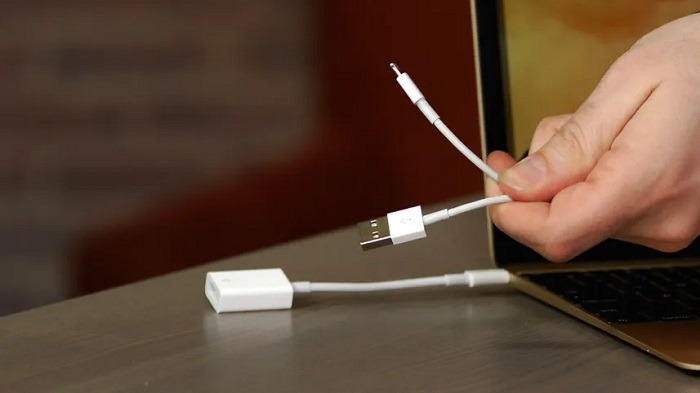
The most straightforward method of connecting your iPhone to your MacBook is through a wired USB connection. This method offers a fast and reliable way to transfer data between devices and is particularly useful for tasks such as syncing media files or performing backups.
Wireless Connection via Wi-Fi
Alternatively, you can establish a wireless connection between your iPhone and MacBook using Wi-Fi. This method allows for seamless syncing of data without the need for physical cables, providing greater flexibility and convenience.
Bluetooth Connection
Bluetooth offers another wireless option for connecting your iPhone to your MacBook. While typically slower than Wi-Fi, Bluetooth connections are useful for tasks such as sharing files or using your iPhone as a remote control for your MacBook.
iCloud Syncing
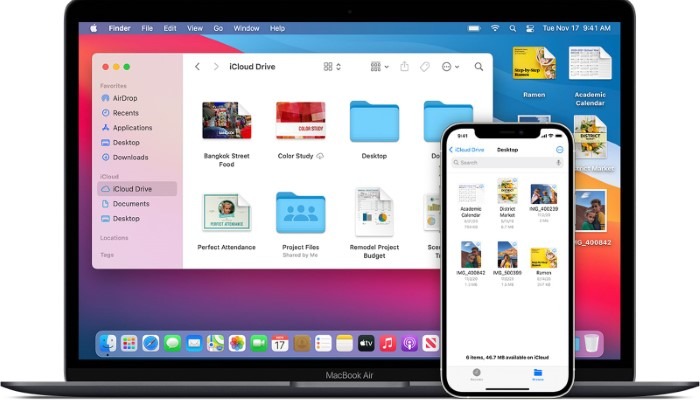
Apple’s iCloud service enables automatic syncing of data across your devices, including your iPhone and MacBook. By enabling iCloud syncing, you can ensure that your photos, contacts, calendars, and other data are always up to date across all your Apple devices.
Connecting Your iPhone to Your MacBook
Now that you’re familiar with the different connection options, let’s explore how to actually connect your iPhone to your MacBook using each method.
Wired Connection via USB
To connect your iPhone to your MacBook using a USB cable, follow these steps:
- Use the Lightning cable that came with your iPhone to connect it to your MacBook’s USB port.
- If prompted, unlock your iPhone and trust the connected device.
- Your iPhone should now appear in the Finder sidebar or iTunes (if using macOS Mojave or earlier). You can now transfer files, sync media, or perform backups as needed.
Wireless Connection via Wi-Fi
To establish a wireless connection between your iPhone and MacBook via Wi-Fi, proceed as follows:
- Ensure that both your iPhone and MacBook are connected to the same Wi-Fi network.
- On your iPhone, go to Settings > Wi-Fi and enable Wi-Fi.
- On your MacBook, click on the Wi-Fi icon in the menu bar and ensure that Wi-Fi is enabled.
- Open Finder on your MacBook and locate your iPhone under the Locations section. Alternatively, you can use AirDrop to wirelessly transfer files between devices.
Bluetooth Connection
To connect your iPhone to your MacBook via Bluetooth, follow these steps:
- On your iPhone, go to Settings > Bluetooth and enable Bluetooth.
- On your MacBook, go to System Preferences > Bluetooth and ensure that Bluetooth is turned on.
- On your iPhone, select your MacBook from the list of available devices to pair them.
- Follow any additional prompts to complete the pairing process. Once connected, you can share files or use your iPhone as a remote control for your MacBook.
iCloud Syncing
To enable iCloud syncing between your iPhone and MacBook, simply follow these steps:
- On your iPhone, go to Settings > [Your Name] > iCloud and sign in with your Apple ID.
- Enable iCloud for the types of data you want to sync, such as Photos, Contacts, Calendars, and more.
- On your MacBook, go to System Preferences > iCloud and sign in with the same Apple ID.
- Enable iCloud syncing for the same types of data you selected on your iPhone.
- Your data will now automatically sync across your devices whenever they are connected to the internet.
Best Practices for Maintaining a Reliable Connection
While connecting your iPhone to your MacBook is relatively straightforward, there are some best practices you can follow to ensure a stable and reliable connection:
Keep Your Devices Updated
Regularly updating your iPhone and MacBook to the latest software versions can help ensure compatibility and stability when connecting the two devices.
Use Genuine Apple Cables and Accessories
When connecting your iPhone to your MacBook via USB, always use genuine Apple Lightning cables and adapters to avoid compatibility issues and ensure reliable connections.
Check Your Wi-Fi Network
If you’re experiencing issues with wireless connections, such as Wi-Fi or Bluetooth, try switching to a different Wi-Fi network or restarting your router to troubleshoot connectivity issues.
Disable Interfering Apps or Settings
Certain apps or settings on your iPhone or MacBook may interfere with the connection between the two devices. Try disabling any unnecessary apps or settings to see if it resolves the issue.
Restart Your Devices
If all else fails, restarting both your iPhone and MacBook can often resolve connectivity issues by resetting their network settings and clearing temporary glitches.
Connecting your iPhone to your MacBook opens up a world of possibilities for seamless syncing of data, files, and media between your devices. Whether you prefer a wired USB connection, a wireless Wi-Fi connection, or iCloud syncing, knowing how to connect your iPhone to your MacBook is essential for maximizing productivity and convenience in your daily workflow. By following the steps and best practices outlined in this guide, you can establish a reliable connection between your Apple devices and unlock the full potential of your iPhone and MacBook ecosystem.
Exploring Advanced Connection Techniques
While the basic methods of connecting your iPhone to your MacBook cover most use cases, there are advanced techniques and tips that can further enhance your connectivity experience.
Utilizing Continuity Features
Apple’s Continuity features allow for seamless integration between your iPhone and MacBook, enabling tasks such as Handoff, Universal Clipboard, and Instant Hotspot. To take advantage of these features, ensure that both your iPhone and MacBook are signed in to the same Apple ID and have Bluetooth and Wi-Fi enabled. With Handoff, you can start a task on one device and pick up right where you left off on the other. Universal Clipboard allows you to copy text, images, photos, and videos on one device and paste them on another. Instant Hotspot lets you easily share your iPhone’s cellular connection with your MacBook when Wi-Fi connectivity is limited.
Exploring Third-Party Apps and Services
In addition to Apple’s built-in connectivity options, there are numerous third-party apps and services available that can further enhance the connection between your iPhone and MacBook. For example, apps like Pushbullet and AirDroid allow for seamless file sharing, notification mirroring, and even remote control of your devices. Similarly, cloud storage services such as Dropbox, Google Drive, and OneDrive offer convenient ways to sync files and documents across your devices.
Troubleshooting Common Connectivity Issues
Despite Apple’s best efforts to streamline the connection process, users may still encounter occasional connectivity issues. Common issues include devices not appearing in Finder or iTunes, slow file transfer speeds, or intermittent disconnections. If you encounter any such issues, try the following troubleshooting steps:
- Restart Both Devices: A simple restart can often resolve temporary glitches and restore connectivity.
- Check Cable and Ports: If using a wired connection, ensure that the Lightning cable and USB port are in good condition and free from debris.
- Reset Network Settings: On your iPhone, go to Settings > General > Reset > Reset Network Settings. This will clear all saved Wi-Fi networks and Bluetooth connections, which can sometimes resolve connectivity issues.
- Update Software: Ensure that both your iPhone and MacBook are running the latest software updates, as compatibility issues can sometimes arise with older software versions.
- Reset Location & Privacy Settings: On your iPhone, go to Settings > General > Reset > Reset Location & Privacy. This will reset location and privacy settings to their default values, which can resolve certain connection issues related to permissions.
Enhancing Security and Privacy
When connecting your iPhone to your MacBook, it’s important to prioritize security and privacy. Avoid connecting to unsecured Wi-Fi networks, as these can pose risks to your data and personal information. Additionally, consider enabling features such as Two-Factor Authentication and Find My iPhone/iPad/Mac to add an extra layer of security to your devices. Finally, be cautious when granting permissions to third-party apps and services, and regularly review and manage app permissions to protect your privacy.
Future Developments and Trends
As technology continues to evolve, so too will the ways in which we connect and interact with our devices. Apple is constantly innovating and introducing new features and technologies that further enhance the connectivity experience between iPhones and MacBooks. Keep an eye out for future software updates and product releases, as these may introduce new connectivity features and improvements that enhance productivity and convenience.
Related Post:
Mastering MacBook Air: Your Ultimate Guide to Seamless Updates
Refreshing Your MacBook Air: A Comprehensive Guide to Clearing Cache and Boosting Performance
Unplugged Woes: Troubleshooting Your MacBook Pro’s Charging Woes
Mastering the art of connecting your iPhone to your MacBook is essential for unlocking the full potential of your Apple devices. By understanding the various connection options, exploring advanced techniques and troubleshooting tips, and prioritizing security and privacy, you can ensure a seamless and reliable connection experience. Whether you’re transferring files, syncing data, or simply mirroring your screen, knowing how to connect your iPhone to your MacBook empowers you to make the most of your Apple ecosystem.