

Your HP laptop starts lagging, freezing, or just doesn’t feel right. Whether you’re dealing with software glitches, unresponsive apps, or updates not applying correctly, a simple reboot can solve most problems. In this complete guide, you’ll learn how to properly reboot your HP laptop, including standard restarts, force shutdowns, and advanced troubleshooting steps when things don’t go as expected.
Understanding HP Laptop Reboot Basics
What Happens During a Reboot?
Rebooting clears temporary files, restarts the system memory, and resets stuck processes. It’s a safe way to refresh your device without losing personal files or installed programs.
When Should You Reboot?
- Laptop is frozen or slow
- Apps aren’t responding
- After software or system updates
- Network or display issues
- BIOS or hardware driver problems
Standard Ways to Reboot an HP Laptop
1. Reboot from Start Menu (Windows 10/11)
The easiest way to reboot your HP laptop is from the Start Menu.
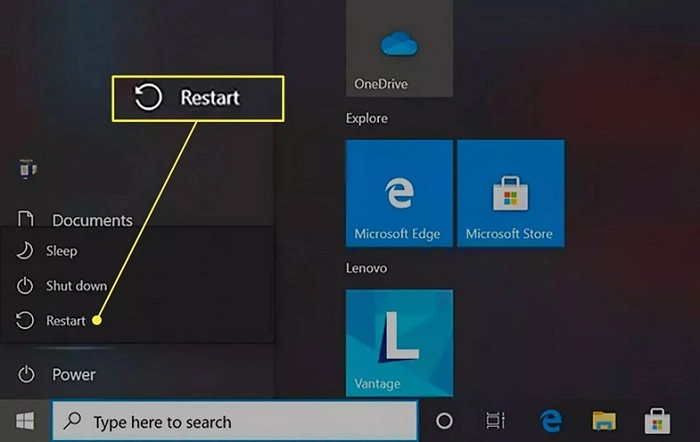
- Click the Start button (Windows icon) on the taskbar.
- Select the Power icon.
- Click Restart.
This is the preferred method when your system is functioning normally.
2. Use Keyboard Shortcut
You can also restart using keyboard controls.
- Press Ctrl + Alt + Delete.
- Click the Power icon in the bottom-right corner.
- Select Restart from the menu.
This shortcut is helpful if the screen is lagging but still responsive.
How to Force Reboot an HP Laptop
1. Hard Reboot Using the Power Button
If your HP laptop is completely unresponsive:
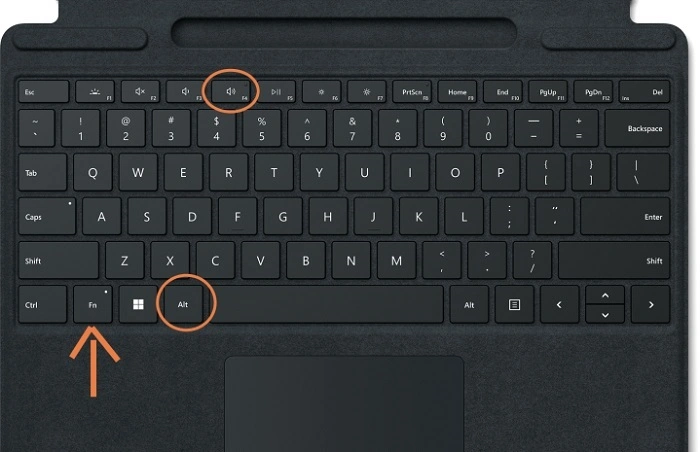
- Press and hold the Power button for about 5–10 seconds until the screen turns off.
- Wait a few seconds.
- Press the Power button again to turn it back on.
This method forces the system to shut down and reboot without accessing software menus.
2. Remove the Battery (For Models with Removable Battery)
If holding the power button doesn’t work:
- Turn off the laptop and unplug the charger.
- Flip the laptop over and remove the battery.
- Hold the Power button for 15 seconds to drain any residual charge.
- Reinsert the battery and turn the laptop back on.
This method performs a full power cycle and is useful for older HP models.
Reboot via Advanced Options (Windows Recovery)
1. Restart in Safe Mode
If your HP laptop has issues during normal boot:
- Click Start > Settings > Update & Security > Recovery.
- Under Advanced Startup, click Restart now.
- Select Troubleshoot > Advanced Options > Startup Settings > Restart.
- After restart, press 4 or F4 for Safe Mode.
Safe Mode allows you to reboot with only essential system drivers running.
2. BIOS/UEFI Reboot
To reboot into BIOS for hardware configuration:
- Restart your laptop.
- Immediately press Esc or F10 (depending on your model) repeatedly.
- This takes you to the BIOS/UEFI settings.
Use this if you’re updating firmware, changing boot order, or checking hardware.
What to Do if HP Laptop Won’t Reboot
1. Power Button Doesn’t Work
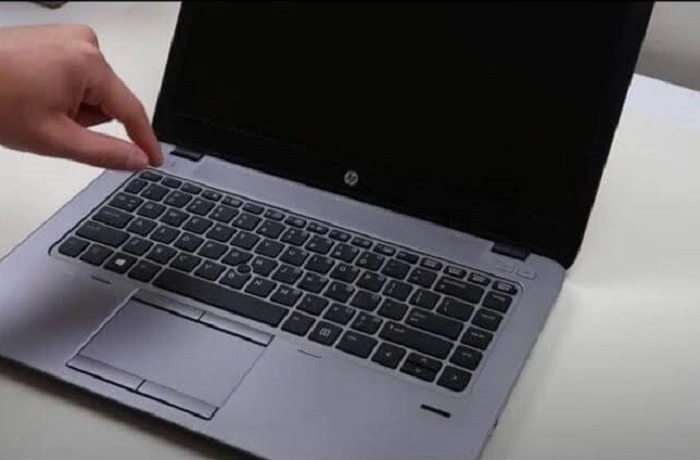
- Plug in the charger and wait 10 minutes.
- Try Power button + F2 or Power + Esc to trigger diagnostics.
- If still unresponsive, test the charger or try removing peripherals.
2. Laptop Stuck on HP Logo
If your laptop freezes on boot:
- Do a hard shutdown (hold Power button).
- Restart and press F11 repeatedly to enter recovery mode.
- Choose Startup Repair or restore from a backup.
3. Blue or Black Screen After Reboot
- Restart in Safe Mode.
- Uninstall recently installed drivers or apps.
- Run System File Checker:
Open Command Prompt as Admin and type:
sfc /scannow
This scans and repairs corrupt system files that may block rebooting.
Extra Tips for Keeping Your HP Laptop Running Smooth
Restart After Updates
Always restart your device after major Windows updates or driver installations to apply changes fully.
Close Background Apps
Too many apps running at once can slow down performance. Use Task Manager (Ctrl + Shift + Esc) to close unused programs before rebooting.
Check Battery Health
Use HP’s Battery Check tool via HP Support Assistant to monitor battery condition. Power issues can affect reboot reliability.
Update BIOS and Drivers
Outdated BIOS or system drivers can cause boot and performance problems. Use HP Support Assistant or visit the official HP website to keep everything current.
FAQs
Is restarting and shutting down the same?
Not exactly. Restarting clears the system memory more thoroughly than a shutdown, especially in Windows 10/11.
Will I lose files after rebooting?
No. A reboot won’t delete your personal files or installed apps. But make sure to save any open work first.
How long does it take to reboot an HP laptop?
Usually between 30 seconds to 2 minutes, depending on your hardware and startup apps.
Why does my HP laptop freeze on restart?
This could be due to corrupted drivers, updates stuck during install, or overheating. Use Safe Mode or Recovery Mode to troubleshoot.
Can I reboot without the screen working?
Yes. Try holding the Power button or removing the battery. You can also connect to an external monitor if needed.