

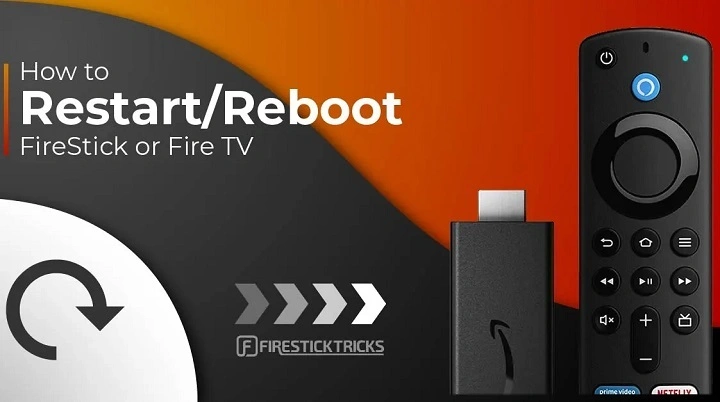
Your Firestick lags, the apps won’t load, or it randomly freezes mid-stream—annoying, right? One of the simplest yet most effective solutions is rebooting your Firestick. Whether you’re using a Fire TV Stick 4K, Firestick Lite, or an older model, this complete guide will show you all the ways to restart your device properly and troubleshoot reboot issues.
Understanding Fire Stick Rebooting
Why Rebooting Helps
Rebooting your Firestick clears out temporary data and memory (cache), refreshes background services, and helps resolve minor software glitches. It’s like giving your device a quick power nap to wake up refreshed.
When Should You Reboot?
- Apps crashing or freezing
- Firestick becoming unresponsive
- Network connection problems
- Audio/visual glitches
- After installing updates or sideloaded apps
Simple Ways to Reboot Your Firestick
1. Reboot Using Remote Shortcuts
The fastest way to reboot your Firestick is with the remote control.
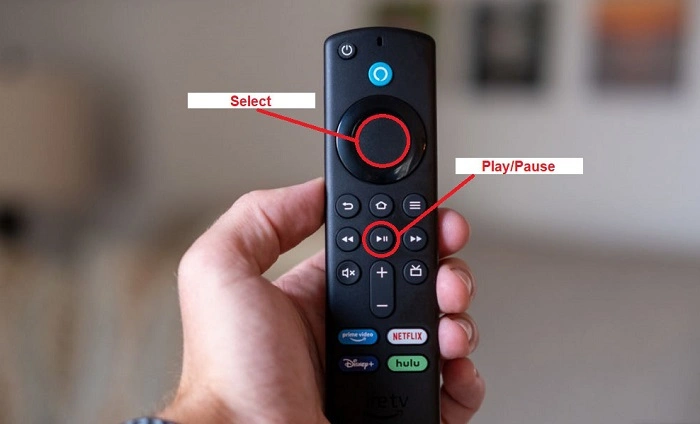
- Press and hold the Select (center button) + Play/Pause buttons together for 5 seconds.
- Your Firestick will begin restarting automatically.
This method is great for quick reboots when your screen is still responsive.
2. Reboot Through Settings Menu
If your Firestick is still responding, you can restart it through the settings interface.
- Go to Settings from the home screen.
- Scroll to My Fire TV or Device & Software (depending on version).
- Select Restart.
- Confirm when prompted.
This is the official and safest method to reboot your Firestick when the UI is accessible.
How to Force Restart Firestick
1. Unplug from Power Source
If your Firestick is completely frozen and won’t respond to remote commands:
- Unplug the Firestick from the power outlet.
- Wait for 30–60 seconds.
- Plug it back in and allow it to reboot.
This method works when the screen is black, stuck, or completely unresponsive.
2. Use a Smart Plug (Optional)
If you’ve connected your Firestick to a smart plug, simply turn the plug off and back on via the app or voice command. It’s a handy option for remote reboots when you’re not near the device.
Troubleshooting Firestick Reboot Issues
1. Firestick Won’t Restart or Stays Frozen
If your Firestick gets stuck during reboot or fails to show the logo:
- Unplug for 60 seconds and try again.
- Use a different power adapter (official Amazon adapter recommended).
- Ensure HDMI connection is secure.
2. Remote Not Working to Reboot
If your remote isn’t responding:
- Replace the batteries.
- Try repairing the remote: Press and hold the Home button for 10 seconds.
- Use the Fire TV app on your smartphone to control the device and reboot it via settings.
3. Screen Stuck on Boot Logo
If your device is stuck on the Fire TV logo:
- Unplug it for at least a minute.
- Try plugging it into a different HDMI port.
- Reset the Firestick if the issue persists (more on that below).
Advanced Rebooting and Reset Options
Reset to Factory Settings (Last Resort)
If rebooting doesn’t solve persistent problems, consider a factory reset.
- Go to Settings > My Fire TV > Reset to Factory Defaults.
- Confirm your choice.
OR, use the remote shortcut:
- Press and hold Back + Right directional button together for 10 seconds.
- Follow on-screen instructions to proceed with the reset.
Warning: This erases all downloaded apps, settings, and personal data.
Use ADB Commands (Advanced Users)
If you’re tech-savvy, you can reboot your Firestick via ADB (Android Debug Bridge) on your PC:
- Connect both your Firestick and PC to the same Wi-Fi.
- Enable ADB debugging under Settings > My Fire TV > Developer Options.
- From your PC terminal, run:
adb connect [IP Address]
adb reboot
Only use this method if you’re familiar with ADB tools and networking.
Pro Tips for Maintaining Fire Stick Performance
Restart Weekly
Make it a habit to restart your Firestick once a week to clear cache and prevent lag.
Close Background Apps
Use the Background Apps and Process List app (available from the Amazon Appstore) to stop apps running in the background and free up memory.
Keep Firestick Cool
Overheating can slow performance. Make sure the Firestick has ventilation and is not enclosed behind the TV without airflow.
Update Regularly
Always check for updates to improve stability:
- Go to Settings > My Fire TV > About > Check for Updates.
- Install if available and then restart.
FAQs
Is rebooting the same as resetting Firestick?
No. Rebooting restarts your device without deleting data. Resetting erases everything and returns it to factory state.
Will rebooting delete my apps?
No. A reboot keeps all your apps, logins, and settings intact.
Why does my Firestick need to be rebooted often?
This may be due to low storage, too many background apps, or outdated software.
How long does a Firestick take to reboot?
Typically 30–60 seconds, depending on model and app load.
Can I reboot Firestick without the remote?
Yes. You can unplug the power or use the Fire TV app on your smartphone to reboot via settings.