

Your iPhone 11 starts acting up, apps freeze, the screen lags, or it just doesn’t respond like it used to. In such cases, rebooting your iPhone 11 can resolve most temporary issues. Whether you’re new to the iOS ecosystem or just need a refresher, this guide covers all the proper ways to reboot your iPhone 11, from soft restarts to forced reboots and troubleshooting help when your phone won’t respond.
Understanding iPhone Reboot Basics
What Does a Reboot Do?
Rebooting your iPhone 11 clears temporary memory, resets minor glitches, and allows iOS to start fresh. It doesn’t delete your apps, photos, or files just gives your device a chance to refresh.
iPhone 11 Button Layout
To reboot properly, it helps to know your iPhone’s buttons:
- Volume Up button on the left side
- Volume Down button below it
- Side button (also known as Power button) on the right side
These buttons are used in combination to restart or force reboot your iPhone 11.
How to Reboot iPhone 11 the Standard Way
1. Soft Restart (Using Buttons)
A soft restart is a safe, regular way to reboot your iPhone 11.
- Press and hold the Side button and either Volume Up or Volume Down button together.
- Wait until the “slide to power off” screen appears.
- Drag the slider to the right to turn off your iPhone.
- After the screen goes completely black, press and hold the Side button again until you see the Apple logo.
This method is ideal for routine reboots or after software updates.
2. Restart from Settings Menu
You can also restart your iPhone directly through iOS settings:
- Open the Settings app.
- Tap General.
- Scroll down and select Shut Down.
- Slide the power off the slider.
- Turn your iPhone back on by holding the Side button until the Apple logo appears.
This method is helpful if you prefer not to use the physical buttons.
How to Force Restart iPhone 11
1. When the Screen Is Unresponsive
If your iPhone 11 is frozen or won’t respond to touch:
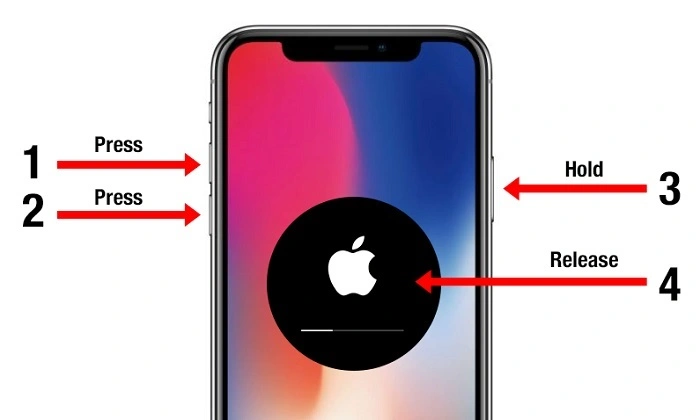
- Quickly press and release the Volume Up button.
- Quickly press and release the Volume Down button.
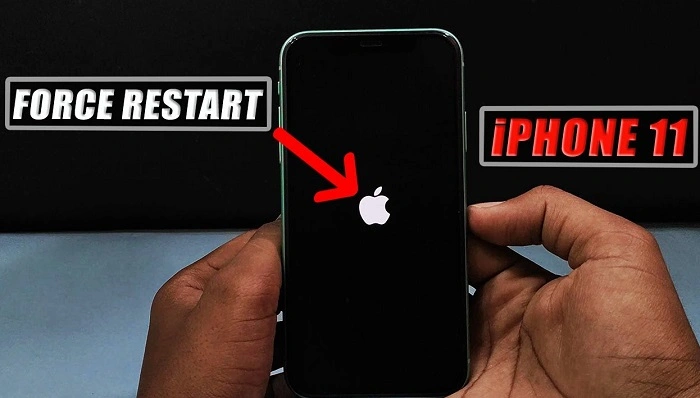
- Then press and hold the Side button until the Apple logo appears.
This won’t delete your data. It’s simply a hard reboot for when your iPhone gets stuck.
2. After a Crash or App Freeze
Sometimes, a misbehaving app can freeze the entire phone. A force restart ensures all processes are halted and gives iOS a fresh start without affecting your files.
Force restarting is especially useful when the screen is black but the phone is still on.
iPhone Won’t Reboot? Try These Fixes
1. Check for Physical Button Issues
If one of the volume or side buttons is stuck or damaged, it could prevent a proper reboot.
- Try rebooting from Settings > General > Shut Down.
- If that fails, consider using AssistiveTouch to restart (see below).
2. Use AssistiveTouch for Reboot
If your physical buttons aren’t working:
- Go to Settings > Accessibility > Touch > AssistiveTouch and turn it on.
- Tap the floating AssistiveTouch button on screen.
- Tap Device > More > Restart, and confirm.
This is a great alternative if your buttons are broken or unresponsive.
3. Recharge Your iPhone
If your iPhone won’t turn on or reboot, the battery may be dead.
- Connect it to a charger and wait at least 10–15 minutes.
- Try rebooting again once the charging indicator appears.
4. Update iOS
If glitches persist, check for a software update:
- Go to Settings > General > Software Update.
- If an update is available, install it and reboot after completion.
Many bugs and performance issues are resolved with the latest updates.
When to Use DFU or Recovery Mode
Recovery Mode
Use Recovery Mode if your iPhone is stuck on the Apple logo or not updating properly.
- Connect your iPhone to a computer with iTunes or Finder.
- Perform the force restart steps.
- Keep holding the Side button until the Recovery Mode screen appears.
- From there, choose to update or restore your device.
DFU Mode (Device Firmware Update)
This is a deeper reset that completely uninstalls iOS.
- Only use DFU if your iPhone can’t be fixed any other way.
- It erases all content and should be done with caution.
Unless you’re an advanced user or working with Apple Support, avoid DFU mode unless necessary.
Pro Tips to Avoid Frequent Reboots
1. Keep iOS Updated
Regular updates prevent bugs that can cause your iPhone to freeze or malfunction.
- Check Settings > Software Update frequently.
2. Restart Occasionally
Even if there are no issues, restarting once a week helps performance.
3. Clear RAM
While there’s no button for this, you can force restart periodically to clear background memory.
4. Avoid Extreme Apps or Rogue Extensions
Some apps can overwork your system. Uninstall suspicious or malfunctioning apps that repeatedly freeze your device.
5. Monitor Battery Health
Go to Settings > Battery > Battery Health & Charging to check for battery issues that might affect performance.
FAQs
What is the difference between a soft and force restart?
A soft restart uses the standard power-off process. A force restart is used when the phone is frozen or unresponsive.
Will rebooting my iPhone delete any data?
No. A reboot won’t delete apps, messages, photos, or data.
How often should I reboot my iPhone 11?
Once a week is a good rule of thumb to maintain optimal performance.
What do I do if my iPhone is stuck on the Apple logo?
Try a force restart. If it doesn’t work, enter Recovery Mode and restore the device through iTunes or Finder.
Can I reboot my iPhone without the side button?
Yes, by enabling AssistiveTouch, you can restart your iPhone without using physical buttons.