


You press buttons, but nothing seems to refresh your Chromebook. Maybe it’s frozen, sluggish, or simply acting strange. Whether you’re new to Chrome OS or just need a quick fix, knowing how to reboot your Chromebook properly can save time and frustration. In this complete guide, you’ll learn all the different ways to reboot your Chromebook, why it matters, and what to do if it won’t restart normally.
Understanding Chromebook Basics
How Chrome OS Manages Reboots
Unlike traditional operating systems, Chrome OS is designed to be lightweight and efficient. This means most tasks—including reboots—happen faster. Rebooting helps clear temporary files, refresh system memory, and resolve small bugs without needing deeper repairs.
Reasons You Might Need to Reboot
1. System Freezes or Becomes Unresponsive
If your Chromebook is lagging or not responding to clicks, a reboot is often the first step to fix the problem.
2. Software or App Glitches
Some apps may cause system hiccups or crash unexpectedly. Restarting can help close rogue processes and restore stability.
3. After a System Update
Many updates require a full reboot to finish installation and apply system improvements.
4. Network or Connectivity Problems
Restarting your device can reset the Wi-Fi module and resolve many network-related issues.
Simple Ways to Reboot a Chromebook
1. Using the Power Button
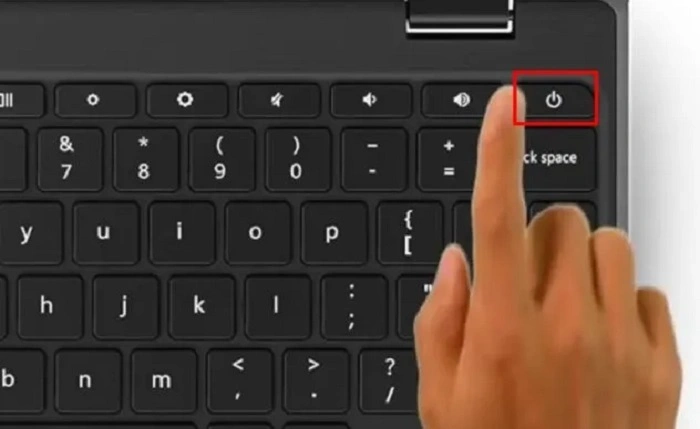
The easiest way to reboot your Chromebook is by using the power button.
- Press and hold the Power button (usually located on the top-right corner of your keyboard).
- A menu will appear; select Power off.
- After the device shuts down, press the Power button again to turn it back on.
This method works for most Chromebooks and is especially useful for quick manual control.
2. Keyboard Shortcut
For a faster method, use the built-in keyboard shortcut:
- Press Ctrl + Shift + Q twice.
- This signs you out of your Chromebook.
- From the login screen, press Power to shut down and then restart the device.
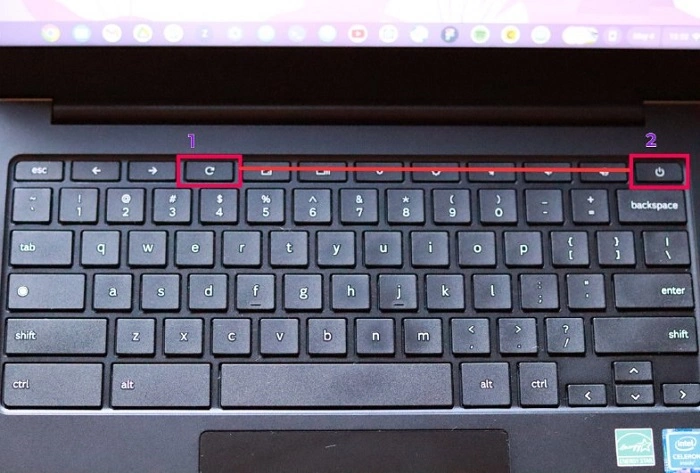
You can also press Ctrl + Refresh + Power to force a hard reboot if the system is frozen.
3. Reboot from the Quick Settings Panel
- Click the clock in the bottom-right corner.
- Tap the Power icon from the quick settings menu.
- Wait for the device to power off completely, then turn it back on using the power button.
This is a clean way to shut down and restart, especially after software updates.
When a Normal Reboot Isn’t Enough
Forced Reboot
If your Chromebook is completely frozen and doesn’t respond:
- Press and hold Power + Refresh (⟳) for about 10 seconds.
- The device will shut down and restart automatically.
This is equivalent to a “hard reboot” and can clear many frozen-state issues without damaging files.
Reboot After a Crash
If the Chromebook crashes unexpectedly and won’t respond:
- Hold down the Power button until the screen goes black.
- Wait a few seconds.
- Press the Power button again to turn it on.
Always allow it a few moments to boot back into Chrome OS safely.
Advanced Reboot Options
Powerwash: Factory Reset
If your Chromebook constantly fails to perform even after rebooting, consider a Powerwash. This factory reset option wipes all local data and restores the Chromebook to original settings.
- Open Settings.
- Scroll to Advanced > Reset Settings.
- Click Powerwash > Restart.
- Follow on-screen prompts.
Note: This deletes all locally stored data. Make sure your files are backed up to Google Drive before proceeding.
Developer Mode Reboot
If you’re using Developer Mode for advanced configurations or Linux (Beta), reboots may behave differently.
- Some background tasks may delay shutdown.
- Make sure to exit developer processes and save your work before rebooting.
Developer Mode can be unstable. Reboots in this mode may take slightly longer.
Preventing the Need for Frequent Reboots
Keep Chrome OS Updated
Chromebooks automatically install updates in the background. Regularly rebooting ensures these updates are applied correctly.
- Open Settings > About Chrome OS.
- Click Check for updates.
- Restart if prompted.
Close Unused Tabs and Apps
Too many tabs or apps can slow performance and create memory overloads. Rebooting helps, but so does managing active tasks.
- Use Task Manager (Search + Esc) to close heavy apps before rebooting.
Monitor Extensions
Sometimes, browser extensions can cause system lag. Disable suspicious extensions and see if reboots are still needed.
- Go to chrome://extensions and toggle off or remove as needed.
Troubleshooting: Chromebook Won’t Reboot
1. No Response from Power Button
- Ensure the battery isn’t fully drained.
- Plug in your charger and wait 5–10 minutes.
- Try the Power + Refresh combo again.
2. Chromebook Stuck on Logo
If the device is frozen at startup:
- Hold the Power button for 10–15 seconds to force shut down.
- Restart again after waiting briefly.
If this happens repeatedly, a system recovery may be needed using a USB recovery drive.
3. Battery Indicator Shows But No Boot
If charging but not powering on:
- Unplug, hold Power + Volume Up (if available) to try recovery boot.
- Try another charger to rule out adapter issues.
Best Practices for Chromebook Maintenance
Handle Power Cycles Gently
Avoid repeatedly powering off your Chromebook using force. Always use soft shutdown options from the menu when possible.
Don’t Let the Battery Fully Drain Often
Frequent full discharges can reduce battery life. Try to keep your battery between 20% and 80% when rebooting or shutting down.
Restart Regularly
Even though Chromebooks are designed for efficiency, a regular reboot every few days clears background processes and boosts performance.
FAQs
Can I restart my Chromebook like a Windows PC with Ctrl+Alt+Del?
No. Chrome OS uses different shortcuts. Use Ctrl + Shift + Q (twice) to sign out instead.
Is it safe to reboot during updates?
It’s best to let updates finish installing before rebooting. Wait for prompts or confirmation messages.
What does “Powerwash” do?
It resets your Chromebook to factory settings, deleting all local data. Useful for major errors or selling the device.
Why does my Chromebook take so long to reboot?
This could be due to active processes, outdated software, or too many background apps.
Do I lose data after a regular reboot?
No. A regular reboot keeps your files and settings intact. Only a Powerwash removes local data.