

Experiencing freezing, lagging, or unresponsive programs on your HP laptop? A quick reboot can often fix these problems without needing advanced troubleshooting. Whether you’re using an HP Pavilion, Envy, Spectre, or HP EliteBook, restarting helps refresh system memory, close background processes, and improve performance. This step-by-step guide walks you through all the safe ways to reboot your HP laptop—manually or with built-in tools.
Understanding the Reboot Process
Why Rebooting Helps
Rebooting an HP laptop clears the system RAM, stops background apps, and applies system updates that may have been pending. It helps fix temporary glitches, software slowdowns, and connectivity problems without affecting your files or personal settings.
When Should You Reboot?
- Laptop is running slower than usual
- Programs are freezing or not responding
- After installing new software or updates
- Network or Bluetooth stops working
- Cursor or screen is frozen
- Before and after troubleshooting a technical issue
How to Reboot a HP Laptop (Standard Methods)
Soft Reboot Using Start Menu (Recommended)
This is the easiest and most common method.
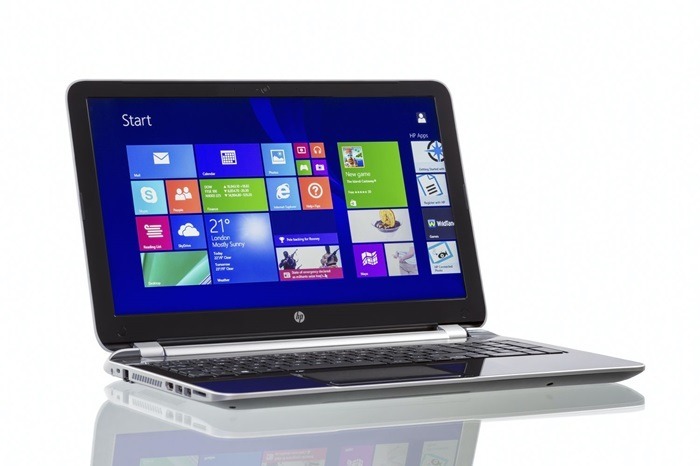
- Click on the Start button (Windows logo)
- Select the Power icon
- Choose Restart
- Wait for the laptop to shut down and start again automatically
This process ensures open programs are properly closed and system processes restart smoothly.
Use the Ctrl + Alt + Delete Shortcut
If the screen is frozen but the system is still responsive:
- Press Ctrl + Alt + Delete together
- On the screen that appears, click the Power icon at the bottom-right
- Select Restart
Useful when the Start menu is not working or you need a quick keyboard method.
Reboot Through Command Prompt
For advanced users or scripted restarts:
- Open the Command Prompt (Search > type cmd > right-click > Run as Administrator)
Type the following and press Enter:
bash
CopyEdit
shutdown /r /t 0
- The /r switch means restart, and /t 0 sets the timer to zero seconds
This is useful for scheduled or remote restarts.
Forced Reboot (When Screen Is Frozen)
Manual Power Button Restart
Use this method only when the system is completely unresponsive.
- Press and hold the Power button for about 10 seconds
- Wait until the laptop fully powers off
- Release the button and press it again to power on
This is called a hard reboot. It can stop problematic processes, but unsaved work will be lost.
Rebooting with Updates (Windows Update Restarts)
Restart After Windows Updates
Sometimes your laptop will prompt a restart to complete an update.
- Click Start > Power > Update and Restart
- Allow the update process to complete (do not unplug or power off manually)
- Wait for it to reboot and install all components properly
Interrupting a Windows update reboot can cause system errors or boot issues.
Advanced Reboot Options
Reboot in Safe Mode (For Troubleshooting)
If your HP laptop is not starting correctly:
- Press Shift + Restart from the Start > Power menu
- Select Troubleshoot > Advanced Options > Startup Settings
- Click Restart
- On the list of options, press 4 or F4 to enable Safe Mode
Safe Mode restarts the system with minimal drivers and helps identify software conflicts.
Restart from HP BIOS/UEFI (For Firmware Issues)
If your laptop isn’t booting into Windows:
- Power off the laptop
- Press Esc repeatedly right after pressing the Power button
- Select F10 to enter BIOS
- Choose Save and Exit > Exit Saving Changes
- Confirm and the system will reboot
This is useful after making BIOS or firmware changes.
Troubleshooting: When Rebooting Doesn’t Work
Laptop Won’t Turn Back On
- Check if the power adapter is properly connected
- Look for charging light near the port
- Try a different outlet or charger
- Press and hold the Power button for 10–15 seconds to perform a hard reset
Laptop Gets Stuck While Restarting
- Wait a few minutes to see if it completes
- If stuck for over 10 minutes, hold the Power button to force a shutdown
- After powering down, wait 30 seconds and restart manually
Frequent Automatic Restarts
- Check for pending Windows updates
- Run the HP Support Assistant tool
- Scan for malware using Windows Security
- If issue persists, consider performing a system restore or contacting HP Support
Reboot vs. Reset: Know the Difference
Reboot
- A temporary restart of the system
- Keeps files and installed programs intact
- Solves performance and software glitches
Reset
- Returns the laptop to factory default
- Erases apps, settings, and sometimes files
- Only use if facing serious system corruption or preparing to sell
How to Factory Reset a HP Laptop
- Go to Start > Settings > System > Recovery
- Under “Reset this PC,” click Reset PC
- Choose Keep my files or Remove everything
- Follow on-screen prompts to complete the reset
Use this only if rebooting, updating, and troubleshooting do not resolve your issue.
Tips to Keep Your HP Laptop Running Smoothly
- Restart Regularly
Avoid running your laptop for weeks without a reboot—restart it every few days. - Keep Windows and Drivers Updated
Use Windows Update and HP Support Assistant to stay current. - Avoid Overloading
Close unused tabs and apps to reduce memory and CPU usage. - Use Antivirus Protection
Malware can cause performance issues and prevent proper shutdowns or restarts. - Clean Startup Programs
Use Task Manager (Ctrl + Shift + Esc > Startup tab) to disable unnecessary items.
FAQs
How do I reboot my HP laptop manually?
Click Start > Power > Restart. Or, hold the Power button for 10 seconds to force a reboot.
Will rebooting delete my files?
No. Restarting your HP laptop won’t delete any personal files or apps.
How long does it take to reboot an HP laptop?
Usually 1–3 minutes, depending on your laptop model and open processes.
Can I reboot my HP laptop using the keyboard?
Yes. Press Ctrl + Alt + Delete > Power icon > Restart.
What if my HP laptop won’t restart at all?
Try holding the Power button for a hard reboot. If it still doesn’t respond, check power supply and contact HP Support if needed.