

Facing a black screen on your HP laptop can be alarming, especially when nothing seems to respond. Whether it’s caused by a startup glitch, display driver issue, or system crash, there are several proven ways to safely reboot your HP laptop and bring it back to life. This guide walks you through step-by-step methods to restart your HP device—even when the screen is blank or unresponsive.
Understanding the Black Screen Issue

Why Does the Screen Go Black?
A black screen can occur due to several reasons, including:
- Incomplete system boot or software crash
- Corrupted or outdated display drivers
- Battery or power supply failure
- Loose display cables or hardware issues
- Windows update errors or system glitches
Signs You Need to Reboot
- Laptop powers on but shows no display
- You hear fan noise or see lights but nothing on screen
- Keyboard lights or power button is on but screen remains black
- No BIOS or startup logo appears
- Frozen system after sleep or hibernate
How to Reboot HP Laptop with Black Screen (Quick Methods)
Force Reboot Using Power Button
This is the first and most basic recovery method.
- Press and hold the Power button for 10–15 seconds
- Wait until the laptop shuts down completely
- Release the button, then press it again to power on
This method helps if the system is stuck in a crash loop or fails to boot correctly.
Perform a Hard Reset (Battery Drain Method)
A hard reset can clear out internal memory glitches.
- Shut down the laptop using the Power button
- Unplug the charger and remove the battery (if removable)
- Press and hold the Power button for 15–30 seconds to drain residual charge
- Reconnect the battery and charger
- Press the Power button again to reboot
This method works well for older HP models or those with removable batteries.
Advanced Reboot Options for Persistent Black Screen
External Monitor Test
To check if the issue is with your screen:
- Connect your HP laptop to an external monitor or TV using HDMI or VGA
- Power on the laptop
- Press Fn + F4 (or relevant key with monitor icon) to toggle display output
- If display shows on external screen, the issue may be your laptop’s screen or inverter
This helps confirm whether the problem is screen-related or system-based.
Boot into Safe Mode (Blind Navigation Method)
If your screen is black but the system is on:
- Hold Power button to turn off laptop
- Power on and immediately press the F8 key repeatedly (on older models) or hold Shift + F8
- If successful, you’ll enter the Advanced Startup Options
- Press arrow keys to navigate to Safe Mode (you may need external screen if display remains off)
Safe Mode loads only essential drivers and can help isolate driver conflicts.
Disconnect Peripherals and Restart
External devices can cause conflicts during startup.
- Turn off the laptop
- Unplug all connected devices (USB drives, printers, mouse, external displays)
- Hold the Power button for 10 seconds
- Turn the laptop back on
If successful, plug in devices one at a time to find the source of the problem.
Reboot Using BIOS or UEFI Recovery
Boot into BIOS (For Firmware Checks)
- Hold Power to turn off the device
- Turn it back on and immediately press Esc repeatedly
- Press F10 to enter BIOS Setup
- Press F9 to load setup defaults
- Save and exit to reboot the system
This is helpful if system settings are corrupted or not allowing boot.
Use HP Startup Menu for Diagnostics
- Turn off your HP laptop
- Turn it on and tap Esc key repeatedly
- Select F2 for System Diagnostics
- Run a Quick Test or Display Test
You can identify and fix potential hardware problems through this menu.
When the Screen is Still Black
Try BIOS Recovery (HP Key Combination)
If your BIOS is corrupted:
- Turn off the laptop
- Press and hold Windows + B keys, then press and hold the Power button for 3–5 seconds
- Release the Power button but continue holding Windows + B
- Wait for BIOS recovery screen
This method helps restore the BIOS on supported HP laptops.
Use Recovery USB (If Screen Turns On Briefly)
If the screen flashes or works intermittently:
- Create a Windows recovery USB on another PC
- Insert it into your HP laptop
- Power it on and press Esc > F9 to enter boot options
- Select USB device to start recovery or system repair
You can perform a system restore, startup repair, or even reset.
Reboot vs. Reset: Know the Difference
Reboot
- Shuts down and restarts the system
- Does not erase files or change settings
- Used for temporary glitches or black screen issues
Reset
- Restores system to factory defaults
- Deletes apps and settings (optionally keeps files)
- Use only if reboot and repair don’t fix the problem
How to Reset HP Laptop from Black Screen (If Needed)
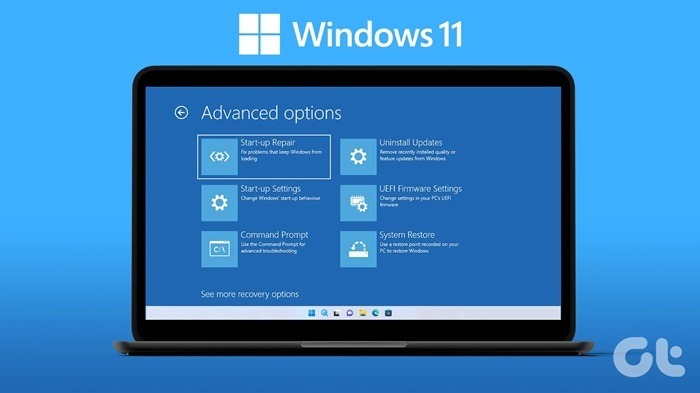
- Use external monitor or blind navigation to access Windows Recovery Environment
- Navigate to Troubleshoot > Reset this PC
- Choose Keep my files or Remove everything
- Follow prompts to complete the reset
Note: If nothing works and the screen stays black, professional repair may be needed.
Tips to Prevent Future Black Screen Issues
- Update Graphics Drivers
Keep display drivers updated through HP Support Assistant or Windows Update. - Avoid Sudden Shutdowns
Don’t force shutdown unless necessary—use the Restart option from Start Menu when possible. - Check Sleep Settings
Misconfigured sleep/hibernate can lead to black screen. Adjust via Settings > Power & Sleep. - Run Virus and Malware Checks
Malware can corrupt boot files or graphics drivers. - Keep BIOS and Firmware Updated
Use HP’s BIOS update utility to maintain hardware compatibility and performance.
FAQs
Why is my HP laptop screen black but the power is on?
It could be due to a graphics driver issue, BIOS problem, or hardware failure.
How do I restart an HP laptop when the screen is black?
Hold the Power button for 10–15 seconds to force shutdown, then power it on again.
Can I fix a black screen without losing data?
Yes. A reboot or BIOS recovery doesn’t delete your files. Only resetting erases data.
What keys can I press to bring back the display?
Try Fn + F4 to switch displays or Windows + Ctrl + Shift + B to reset the graphics driver.
Should I take it to a technician if the screen stays black?
Yes, if all reboot methods fail, you may need screen replacement or motherboard diagnostics.