

If your iPhone is lagging, freezing, or behaving oddly, a quick reboot can often solve the issue without affecting your data. Whether you’re using an iPhone 15, iPhone 14, iPhone SE, or an older model, restarting the device helps clear temporary glitches, refresh background processes, and improve performance. This guide walks you through all safe and effective ways to reboot your iPhone.
Understanding the Reboot Process
Why Rebooting Helps
Rebooting your iPhone clears system memory, closes frozen apps, and resets active processes—without erasing personal files or settings. It’s one of the quickest fixes for touchscreen issues, app crashes, slow response, or network glitches.
When Should You Reboot?
- iPhone is unresponsive or frozen
- Apps are crashing or not loading
- Screen becomes black or touchscreen stops working
- Cellular, Wi-Fi, or Bluetooth won’t connect
- After installing an iOS update
- Battery drains unusually fast
How to Reboot Your iPhone (Standard Methods)
Restart with Buttons (Model Specific)
iPhone X, 11, 12, 13, 14, 15 Series
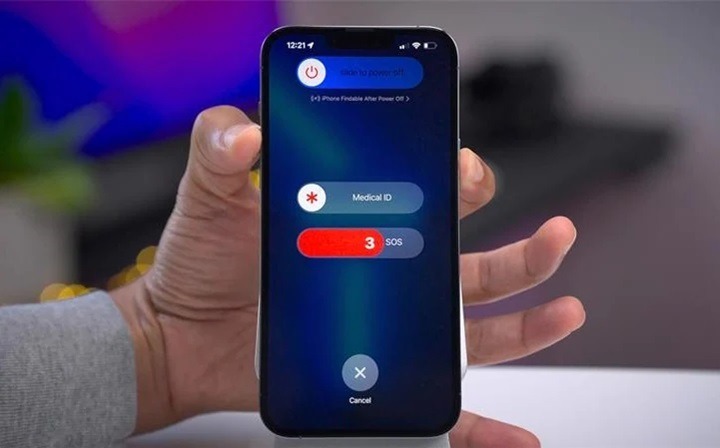
- Press and hold the Side button and either Volume button
- When the power-off slider appears, drag it to turn off the iPhone
- Wait for 30 seconds
- Press and hold the Side button again to turn the phone back on
iPhone SE (2nd and 3rd Gen), iPhone 8, 7, 6
- Press and hold the Side button until the power slider appears
- Slide to power off
- Wait a few seconds
- Press and hold the Side button again to power on
iPhone SE (1st Gen), iPhone 5s and Earlier
- Hold the Top button until the power slider appears
- Slide to power off
- After 30 seconds, press the Top button again to restart
This method performs a soft reboot and is ideal for minor bugs or slowdowns.
Restart from Settings (iOS 16 and Later)
If your screen is working normally:
- Open the Settings app
- Tap General
- Scroll down and tap Shut Down
- Use the slider to turn off
- Wait a few seconds, then press the Side button to restart
This method provides a clean system shutdown without button use.
Force Restart (When Screen is Frozen or Unresponsive)
iPhone 8 and Later (Including iPhone SE 2nd/3rd Gen)
- Quickly press and release the Volume Up button
- Quickly press and release the Volume Down button
- Press and hold the Side button until the Apple logo appears
iPhone 7 and 7 Plus
- Press and hold Volume Down and Side button at the same time
- Keep holding until the Apple logo appears
iPhone 6s, 6s Plus, and iPhone SE (1st Gen)
- Press and hold the Home button and Top (or Side) button
- Keep holding until you see the Apple logo
This force reboot method is useful when your iPhone screen goes black, freezes, or becomes unresponsive.
Reboot with AssistiveTouch (No Buttons Needed)
If your hardware buttons are broken or not working:
- Go to Settings > Accessibility > Touch > AssistiveTouch
- Turn on AssistiveTouch to enable the floating menu
- Tap the AssistiveTouch button
- Go to Device > More > Restart
- Confirm the reboot
This is especially useful for users with hardware issues or accessibility needs.
Rebooting After iOS Update or System Crash
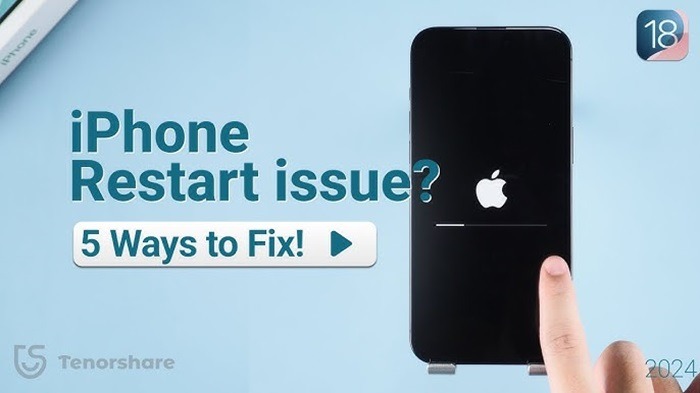
iPhone Stuck on Apple Logo or Update Screen
- Perform a force restart based on your model
- If that doesn’t work, connect to a PC or Mac
- Use iTunes (on Windows/macOS Mojave) or Finder (on macOS Catalina and later)
- Choose Update (not Restore) to repair the system
This method can fix update-related glitches without data loss.
When Rebooting Doesn’t Work
iPhone Won’t Turn On
- Charge the device for at least 30 minutes
- Check cable and adapter functionality
- Perform a force restart after charging
- If the Apple logo doesn’t appear, contact Apple Support
Screen Still Black After Reboot
- Make sure brightness isn’t too low
- Try connecting to a computer to see if it recognizes the device
- Use iTunes/Finder to run diagnostics
- Consider screen replacement if unresponsive after force restarts
Reboot vs. Reset: Know the Difference
Reboot
- Temporarily shuts down and restarts the iPhone
- Does not delete apps, files, or settings
- Solves most common issues like freezing or lag
Reset
- Erases all content and settings from the device
- Used for major issues, selling your device, or starting fresh
- Found under Settings > General > Transfer or Reset iPhone
How to Factory Reset Your iPhone
- Go to Settings > General > Transfer or Reset iPhone
- Tap Erase All Content and Settings
- Enter your passcode and Apple ID if prompted
- Confirm and allow the process to complete
Make sure to back up your data via iCloud or iTunes before performing a reset.
Tips to Keep Your iPhone Running Smoothly
- Restart Occasionally
A reboot once a week can prevent system lag and app glitches. - Update iOS Regularly
Keeping your software current reduces bugs and improves security. - Close Unused Apps
Prevent background overload by swiping up to close unused apps. - Monitor Storage Space
Free up space by deleting unused apps, photos, or videos. - Avoid Extreme Temperatures
Overheating or freezing can affect iPhone performance.
FAQs
How do I reboot my iPhone?
Use the physical buttons or Settings > General > Shut Down, then power it back on.
Will rebooting my iPhone delete anything?
No. A reboot only restarts the system and keeps your apps, files, and settings intact.
What if my iPhone won’t respond to touch?
Try a force restart by pressing the correct button combination for your model.
Can I restart my iPhone without using the buttons?
Yes. Enable AssistiveTouch in Accessibility and use the on-screen Restart option.
How long does it take to reboot an iPhone?
Usually 30 seconds to 1 minute depending on the model and system status.