

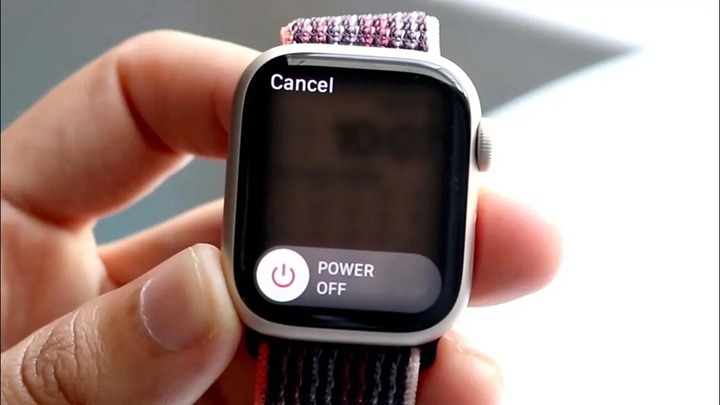
The Apple Watch has proven to be Apple’s favorite product. It tracks your workout, receives calls, makes Apple Pay transactions, and even saves your life with SOS alerts. But at other times, the simplest thing to do shutting off the Apple Watch is baffling to new users. Since iPhones all share a single power button, the Apple Watch employs a series of buttons and gestures that are not so intuitive.
Why in the world would you ever switch off your Apple Watch? Maybe you’re doing a test. Maybe you need to save battery when you travel. Or maybe you simply don’t want to be disturbed in the dead of night. Whatever your reason, it is worth your time learning how to switch off and reset your Apple Watch.
This tutorial will walk you through all the how’s, why’s, and when’s of power downing your Apple Watch a Series 3, SE, Ultra, or Series 10.
Why Power Down Your Apple Watch?
You’re no doubt thinking: why power down? Everyone is wearing them 24/7, right? Well, there are good reasons:
- Battery Saving – On flight, power-downing conserves power.
- Troubleshooting – Rebooting fixes most problems of glitches, lag, or sync issues.
- Privacy – All of the notified or activity monitored will be stored by keeping it turned off.
- Storage or Transport – Weeks at a time away is ideal.
- Software Updates – Periodic reboot will be needed in order to complete installation.
Buttons You Need to Know
There are only two buttons on the Apple Watch, but they accomplish much:
- Side Button – The one below the Digital Crown. Shows Dock, SOS, and power menu.
- Digital Crown – Side rotating button. To rotate and press.
Apple Watch shutdown is a matter of proper utilization of the Side Button.
How to Turn Off Apple Watch (Default Way)
Utilized on almost every Apple Watch model:
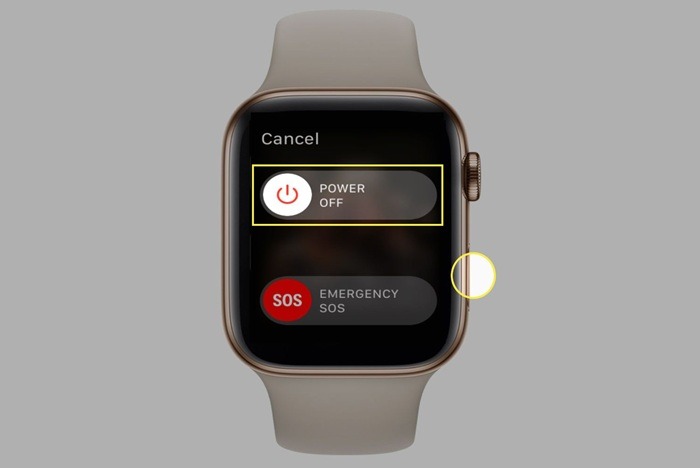
- Press and hold the Side Button (the round button below the Digital Crown).
- A screen with three sliders will pop up:
- Power Off
- Medical ID
- Emergency SOS
- Swipe the Power Off slider to the right.
Your Apple Watch will shut down entirely. Once it has been powered down, the screen goes dark and will not turn on again until the watch has been restarted.
How to Turn On Apple Watch Again
To restart the watch:
- Press and hold the Side Button until the Apple logo shows on the screen.
- Release the button and wait about 30 seconds.
- Your watch will restart to the Home screen.
Restart vs. Force Restart
There is a difference between a restart and force restart.
Normal Restart
- Used if all is well.
- It is a power down through the Power Off slider and powering it back up.
Force Restart (Hard Reset)
- Used when watch is hung or frozen.
- Steps:
- Press Side Button + Digital Crown together.
- Press for 10–15 seconds.
- Release both of them when you notice the Apple logo.
⚠️ Apple warns not to force restart too many times as it should only be done when really necessary.
Can You Disable Apple Watch Without Buttons
Yes, but to some degree. In case your side button is not working:
- Battery Drain Method – Allow battery to drain to zero.
- Accessibility Settings – Some have AssistiveTouch or Shortcuts set to activate shut-down.
- iPhone Watch App – It can’t be turned off straight away, but its Bluetooth and alert functions can be deactivated, limiting its use until the battery depletes.
Apple Watch Won’t Turn Off
Occasionally the side button will not work. Why:
- Watch is charging – Cannot be turned off in charging state.
- Frozen software – Force restart.
- Physical button faults – Hardware repair solution.
Solution: Pull from charger, retry, or force restart.
How to Set Apple Watch To Power Reserve Mode
If you do not wish to shut down entirely but rather save battery:
- Swipe up from watch face to reach Control Center.
- Tap Battery Percentage icon.
- Turn Power Reserve on/off.
In Power Reserve:
- Only time shows when you press side button.
- All smart features are turned off.
To shut down, press and hold side button until Apple logo appears.
Apple Watch Airplane Mode vs Turning Off

| Mode | Function | Battery Effect | Connectivity |
| Turn Off | Shuts off the watch entirely | Best for saving | No connections at all |
| Airplane Mode | Turns Wi-Fi, Bluetooth, Cellular, GPS off | Some saving | Operates offline only |
| Power Reserve | Displays only time | Extreme saving | No smart features |
Series Differences: How It Works Between Models
- Apple Watch Series 3–SE (2017–2020) – Same button drill, slow boot.
- Apple Watch Series 7–9 (2021–2023) – Quick shutdown menus, fast boot.
- Apple Watch Ultra 1 & 2 – Pretty much the same in terms of function, although side button slightly larger by a hair.
- Apple Watch Series 10 (2024) – Restart easiness speeds and more Power Reserve integration.
When You Have to Restart or Shut Down
- Before flight if airlines do this requirement
- When selling or trading your device in
- After beta updates installation
- Apps freezing and crashing repeatedly
- Before long-term storage (holiday, repair)
Troubleshooting Shutdown Issues
- Apple Logo Freezes → Force restart. If hung, re-pair and un-pair iPhone.
- Power Off Slider not Showing → watchOS bug. Update to latest release.
- Watch Won’t Start Again → Charge for 30 minutes and try again. If still dead, likely battery or hardware failure.
Battery Health and Power Management
To conserve battery life in the long run, switching off your watch occasionally may prove beneficial. Lithium-ion batteries last longer if not kept constantly charged.
If storing:
- Keep battery at ~50%
- Switch off completely
- Store in cool, dry environment
Frequently Asked Questions (FAQs)
Q1: Can Apple Watch be switched off while it is being charged?
A: No, switch off charger first.
Q2: Does the alarm ring when watch is switched off?
A: No. Alarms only work in Power Reserve or normal mode.
Q3: Is power off more battery-saving than Power Reserve?
A: Power off shuts off all battery usage, Power Reserve an incredibly small amount.
Q4: Do I restart my Apple Watch frequently?
A: Weekly or every other every few weeks, good habit, since you reset your iPhone.
Q5: Does Siri turn off my Apple Watch?
A: No, it won’t. You’ll need the side button.
Turning off the Apple Watch can be simple, but it has differing methods, reasons, and benefits depending on situation. Saving battery life, fixing a crashed screen, or simply a break from technology for a while, side button trick and force restart are your two chief tools.
With newer models, Apple has made shutdowns smoother. But knowing these basics ensures you’ll never be stuck with an unresponsive device. Remember: restart gently when possible. Use force restarts sparingly. And explore Power Reserve for smart battery management.
The Apple Watch is designed to run all day, every day but sometimes, the smartest move is to simply turn it off.