

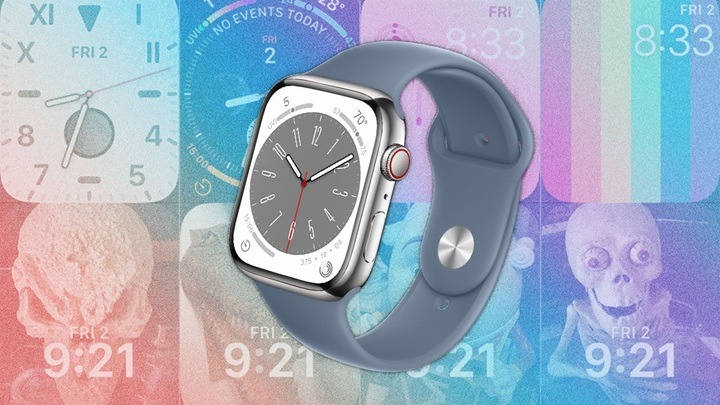
Apple Watch is more than a smartwatch; it is an expression of you. You glance at it, and you see the time, your rings of activity, the weather, your heart rate, calendar notifications, or even your favorite photo. What truly makes Apple Watch yours, however, is the watch face.
Faceshifting your Apple Watch enables you to let your personality shine, convey your mood, or design a screen that’s suitable for work, fitness, or weekends. And here’s the best part: you can change faces in seconds or spend minutes to totally redesign one.
In this step-by-step tutorial, we’ll take you through all the ways to change your Apple Watch face, from effortless wrist swipes to advanced customization in the Watch app. Whether your taste is for minimalist digital faces, classic analog appearance, or fun animated ones, you’ll learn where to find it, how to install it, and how to customize it.
Why Change Your Apple Watch Face?
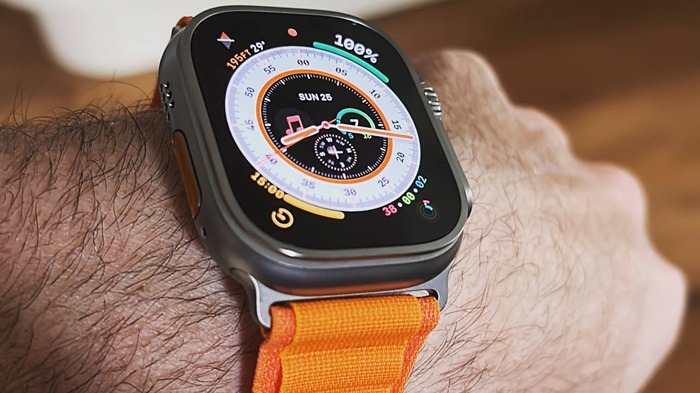
There are some reasons you’d ever want to switch watch faces:
- Style & Personality – From indulging in stylish numbers to energetic companions such as Mickey Mouse, the watch face conveys personality.
- Functionality – Need quick access to workouts? A fitness face is perfect. Working on the job? More appropriate is a modular or calendar-type face.
- Seasonal Feel – Seasonal, holiday, or special occasion moods can convey the way you feel.
- Accessibility – High-contrast faces or big text make it visible.
- Productivity – Complications have reminders, weather, and activity in a snap.
How to Change Apple Watch Face
There are three broad methods of changing your watch face:
- Directly on the Watch (quickest)
- From the Watch App on iPhone (most customization)
- Through Face Gallery (looking through them all)
Change Apple Watch Face Directly on the Watch
Quick Swipe
- Wake your Apple Watch.
- Swipe left or right from edge to edge.
- Each swipe cycles through your saved watch faces.
- This is ideal when you’ve already set up multiple faces.
Long Press (Force Touch Style)
- Touch and hold the current watch face.
- You’ll see it shrink with an Edit option.
- Swipe left or right to choose another saved face.
- Tap it to set.
Replace Watch Face with iPhone Watch App
The iPhone Watch app gives more specific control:
- Open iPhone Watch app.
- Click on Face Gallery tab at the bottom.
- Scroll through faces that are available.
- Choose one, customize colors, style, complications.
- Click Add to add it directly to your Apple Watch.
This is ideal for browsing through faces you haven’t used before.
Method 3: Save Multiple Faces with Personalization
Once you have selected a face, you can customize it:
- Long press the watch face.
- Tap Edit.
- Customize using the Digital Crown:
- Colors
- Dial style
- Complications (widgets)
- Press the crown again to save.
Examples of multiple versions:
- A Work face with calendar + email complications.
- A Fitness face with workout + heart rate + music.
- A Weekend face with weather + photos.
Popular Apple Watch Faces in 2025
Apple continues to include faces annually. Some of the most popular are:
- Modular – Personalizable with data-rich complications.
- California – Elegant analog watch face.
- Infograph – Up to 8 complications.
- Portraits – Custom portrait pictures.
- Astronomy – Beautiful real-time Earth, Moon, or Solar System.
- Activity Digital – Best for activity tracking.
- Mickey & Minnie Mouse – Playful animated pals.
- Photos – Use your own photos.
Comparison Table: Top Faces by Use Case
| Need | Recommended Face | Why It Works |
| Fitness & Activity | Activity Digital, Modular | Instant access to health data |
| Work Productivity | Infograph, Modular Duo | Lots of info at a glance |
| Classic Elegance | California, Chronograph | Analog watch face look |
| Travel & Weather | Astronomy, Meridian | World clocks and real-time information |
| Personal Expression | Photos, Portraits | Emphasizes special moments |
| Fun & Playful | Memoji, Mickey/Minnie | Personifies with personality |
Adding, Removing, and Reordering Faces
Add New Face on Watch
- Long press > swipe to far right > tap + New.
- Scroll through faces > tap to add.
Delete a Face
- Long press > swipe to the face you want to delete.
- Swipe up > tap red Trash button.
Reorder Faces
- In your iPhone Watch app, tap My Faces.
- Tap Edit and drag faces to reorder.
Advanced Customization
Colors and Styles
Each face includes color themes (classic black, bold red, neon green, etc.).
Complications
Small widgets displaying app information. Examples:
- Weather
- Calendar
- Heart Rate
- Music Controls
- Stocks
- Reminders
Complications can transform a bland face into a productivity powerhouse.
Troubleshooting: When You Can’t Change Face
- Touch not working? Restart watch.
- Only one face shown? Add more with Face Gallery.
- New faces not shown? Update to latest watchOS.
- Complications not shown? Check if app complication is available.
Accessibility Features for Watch Faces
Apple has designed watch faces considering accessibility features:
- X-Large face for readability.
- High Contrast mode.
- Color filters for color blindness.
- VoiceOver support for navigation through face.
Tips for Picking the Ideal Face
- Match your lifestyle – Teacher may like calendar-filled faces, athlete uses activity-filled faces.
- Think evening – Some faces are lighter; use darker ones in the evening.
- Replace faces – Keep different faces for different occasions.
- Use photos – Personalized faces are more interesting.
The Future of Apple Watch Faces
Apple is rumored to push watch face customization to a whole new level:
- Third-party face store.
- Interactive and animated faces.
- AI-generated watch faces from calendar, activity, or mood.
This translates to you being able to view fully dynamic, personalized faces that change throughout a day by 2026.
Frequently Asked Questions on Apple Watch Face Changing
Q1: Can we save more than one watch face?
A: You can save an arbitrary number; Apple does not provide a number, though it may impact performance with too many.
Q2: Can we download third-party watch faces?
A: Not yet. Apple does not support unofficial faces, but third-party apps support custom complications.
Q3: Why don’t I have the ability to swipe to change faces?
A: Ensure “Swipe to Switch Watch Faces” is enabled in Settings > Clock.
Q4: Do faces drain the battery?
A: Animated faces (e.g., Astronomy or Memoji) use more power than static faces.
Q5: Is it possible to share my customized watch face with others?
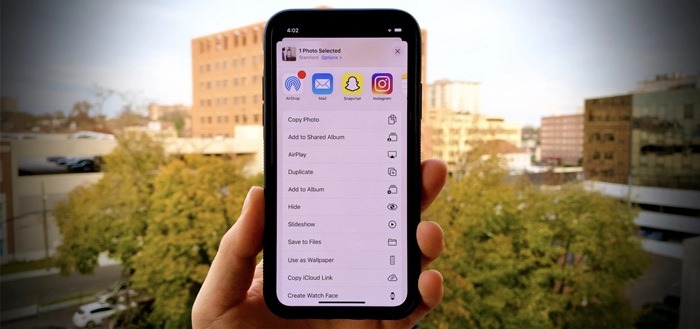
A: Yes. Long press face > tap share > share via iMessage or AirDrop.
The easiest and one of the best ways to make the Apple Watch personalized is by switching up the face. Apple has a face for each style and attitude, whether classy, productive, or fun. And you can save, customize, and even share faces. You can make the Apple Watch from a tech device to your own expression.
So the next time you’re bored of your current look, just swipe, press, or open the Watch app—you’ll discover a fresh new way to see time.