

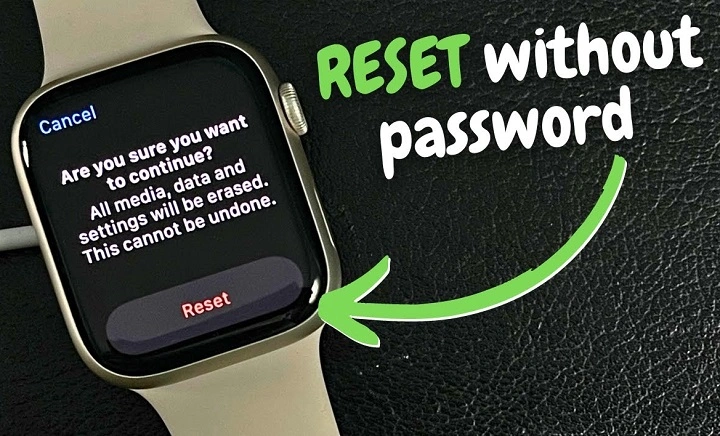
Apple Watch is wonderful. It’s always on your wrist, tracking your health, and even unlocking your iPhone or Mac. But it’s safe—under a passcode protecting your information. That’s all right until the moment you forget it.
It is a nightmare for all to forget the Apple Watch passcode. You glance down, hit numbers incorrectly multiple times, and the next thing you know is that you have that horrible message: “Apple Watch is disabled. Try again later.”
Don’t panic. You’re not alone in this—and your Apple Watch is not lost forever. Apple designed it to reset and restore it safely with or without your paired iPhone still available. In this 3000-word tutorial, you’ll have all the steps to unlock your Apple Watch after you’ve forgotten your passcode, back up your information, reset the watch, and restore it later.
Your Apple Watch ends up at the end—new, unlocked, and on your wrist.
Why Apple Watch Needs a Passcode
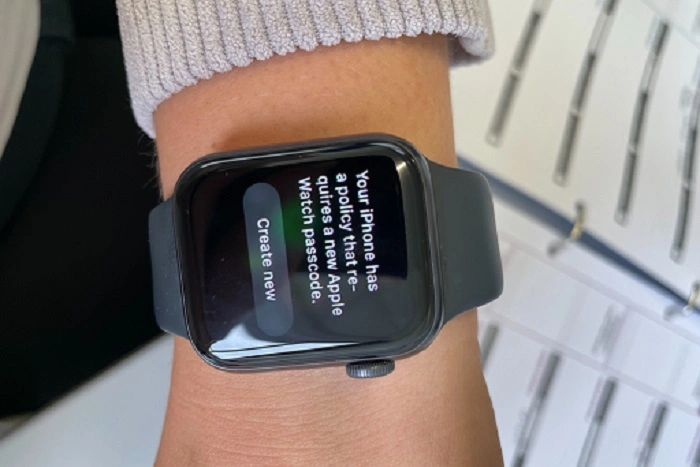
Your Apple Watch contains personal information—messages, Apple Pay cards, health and fitness information, location information, and more. The passcode keeps it safe from that:
- Your information is secure in case the watch is lost or stolen.
- Apple Pay and Wallet are secure.
- Find My Apple Watch functions securely in your Apple ID.
- Unauthorized individuals can’t unpair or erase your watch.
- Read-only access is protected by the passcode.
The passcode simply secures your identity and your digital wallet.
What You’ll Have Occurred If You Try to Use the Wrong Passcode Too Many Times
If you try the wrong passcode six times, your Apple Watch becomes locked. It automatically clears all after 10 attempts for security reasons.
That is why you must use the correct reset procedure before it gets to that. Although yes, it will erase, you can always restore everything later from your latest backup.
Resetting Apple Watch When You Don’t Have Passcode
There are two normal methods of resetting your Apple Watch:
- Using your paired phone.
- Using the watch independently (no phone).
Let us discuss the two step by step.
Method 1: Reset Apple Watch from Your iPhone
The most secure and easiest method. You will need your paired iPhone.
Step-by-Step
- Put your Apple Watch and iPhone side by side.
- Open the Watch app from iPhone.
- Navigate to My Watch > General > Reset.
- Navigate to Erase Apple Watch Content and Settings.
- Tap when prompted to authenticate.
- If you have a cellular model, choose to continue or cancel plan.
Once confirmed, the watch starts to wipe all data and settings—your forgotten passcode included.
Once done, the watch re-installs from scratch.
After Reset: Re-pair and Restore
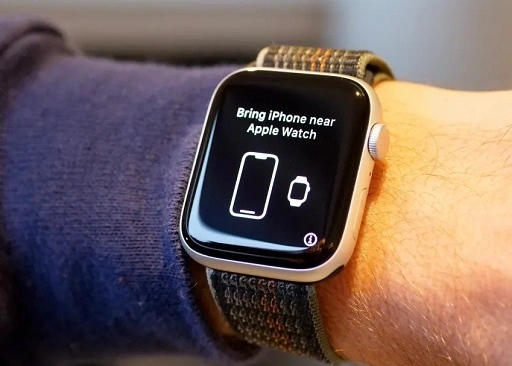
- Place your iPhone alongside the watch.
- When prompted to “Use your iPhone to set up this Apple Watch,” tap Continue.
- Follow the onscreen instructions.
- Select Restore from Backup if it is available.
- Sign in to restore iCloud and Find My using your Apple ID.
This will reinstate all of the apps, settings, and information you had backed up beforehand.
Method 2: Reset Apple Watch Without iPhone
In case your iPhone isn’t within reach—or is no longer with you—you can reset the watch independently.
Step-by-Step
- Put your Apple Watch on a charger.
- Press and hold the Side Button (the one at the bottom right of the Digital Crown).
- Wait a second or so until the Power Off screen appears.
- Press and hold the Digital Crown firmly.
- The other new option appears: Erase all of your content and settings.
- Tap it, then accept.
- The watch will start erasing itself. Won’t take longer than a few minutes.
After the reset, the Apple Watch reboots to the setup screen—time to pair once more.
If Activation Lock Shows
When you restore, you may find Activation Lock appearing. That’s because your Apple Watch remains associated with your Apple ID.
To turn it on:
- Log in with the same Apple ID and password you used previously.
- If you’d forgotten your Apple ID and password, you can recover them at iforgot.apple.com.
You can’t skip this step—Activation Lock is an anti-theft feature.
How to Back Up Apple Watch Before Erasing
Apple Watch backs up automatically whenever you sync with your iPhone. But double-check just in case:
- Put devices side by side.
- Go to Watch app > General > Reset > Erase Apple Watch Content and Settings.
- The iPhone will back up first before it erases the watch.
You can confirm this backup at a later time when restoring your Apple Watch.
Restoring Apple Watch After Reset
Your Apple Watch will restart after which you’ll be walked through setup:
- Select Language and Region.
- Keep your iPhone nearby and complete the pairing process.
- If prompted, tap on Restore from Backup.
- Enable iCloud services with Apple ID again.
Restoration also takes a few minutes depending on the backup size. Your fitness, faces, and apps are restored afterward.
Common Issues and Solutions
Apple Watch Won’t Pair After Reset
- Make sure Bluetooth and Wi-Fi are enabled in your iPhone.
- Restart both devices and try again.
- Update iOS and watchOS to latest.
Unable to Erase Apple Watch Without Charger
- Reset will not work if the watch has no charge. Charge the watch first and reset via buttons.
Apple ID Password Forgotten During Activation Lock
- Enter iforgot.apple.com.
- Reset credentials, then return to setup.
Erase Option Not Possible on iPhone Watch App
- Unpair manually: Watch App > My Watch > (Your Watch) > “i” > Unpair Apple Watch.
- Re-pair after restore.
Cellular Plan Active After Restore
- Call the carrier to modify or cancel the plan if devices were upgraded or replaced.
Precluding Future Passcode Catastrophes
One forgetfulness is all it takes. These are the habits avoiding the recurrence:
Use an Easy But Random Passcode
- Avoid birthdays and sequential numbers, yet make it easy to recall.
Turn On Unlock with iPhone
- Watch app > Passcode > Unlock with iPhone.
Auto Unlock with iPhone
- Leave it to do that, and your watch will automatically unlock every time your iPhone unlocks—you won’t even need a passcode.
Turn Off Erase Data After 10 Failed Attempts
- In case you ever forget memory for codes, disable this in Settings > Passcode.
Use Biometric Unlock (for iPhone)
- Face ID or Touch ID authenticates the paired device to lock the watch securely.
Regular Backups
- Automated backups protect your data even if you must remove the watch again.
Apple Watch Security

Apple Watch security is integrated with overall protection within the Apple ecosystem. In addition to an iPhone, it is also safeguarded by encryption keys and authentication using your Apple ID. This is why unpair or reset will always prompt that account—preventing stolen watches from being resold.
Even Apple Support won’t be able to access your watch without verification of ownership or a valid Apple ID. That way your device is safeguarded from unauthorized use.
Factory Reset vs Erase: What’s the Difference?
| Feature | Factory Reset | Erase All Content & Settings |
| Removes Passcode | ✅ | ✅ |
| Removes Apple ID | ❌ | ❌ (Activation Lock is still active) |
| Removes Data | ✅ | ✅ |
| Removes Pairing | ✅ | ✅ |
| Avoids Activation Lock | ❌ | ❌ |
There is no method to bypass Activation Lock other than by logging in with your Apple ID credentials.
Frequently Asked Questions (FAQs)
Can I recover my initial passcode without restoring Apple Watch?
No. Apple will not restore and back up your passcode for security reasons. Reset and reset up is the best you can do.
Will health and fitness data be lost entirely?
Only if you didn’t back up first. Apple Watch data is included in iCloud and iPhone backups.
Can I reset the watch?
Yes. You can reset it from the watch itself by employing the charger method.
Does Apple Support unlock watches without proof of ownership?
No. Purchase receipt or Apple ID must be presented in order to disable Activation Lock.
How long will it take to reset?
Typically 5–10 minutes. Restore from backup is Wi-Fi speed dependent.
Final Thoughts
It’s maddening to forget your passcode on Apple Watch, but the world isn’t going to come to an end. Apple made it simple and secure to reset. You can wipe, restore, and unlock your watch in a few minutes with or without your iPhone securely.
The secret is to be ready for it—back up now and then, enable “Unlock with iPhone,” and store your Apple ID information somewhere safe. That way, even when you once more lose the passcode, you will always be ready to restore in a second.
Your Apple Watch is the most intimate of devices. With these steps, you can lock it, unlock it, and return to monitoring your life—with not a moment lost.