

Apple Wallet is meant to simplify your life by holding your cards, passes, tickets, and more in one place. But what happens when it fails? If you’ve ever found yourself asking, why is my Apple Wallet not working, you’re not alone. Whether it’s refusing to open, not showing cards, or not responding at payment terminals, this guide will help you diagnose and fix the issue step-by-step.
This blog explores the most common Apple Wallet problems, how to solve them, and tips to keep everything working smoothly.
What Is Apple Wallet and Why It Matters
Apple Wallet, previously known as Passbook, is an app on iPhones and Apple Watches that stores your boarding passes, payment cards, student IDs, tickets, and more. It integrates with Apple Pay to allow fast, secure purchases and NFC-based interactions. When Apple Wallet stops working, it can disrupt travel plans, purchases, or access to events.
Why Is My Apple Wallet Not Working? Common Reasons
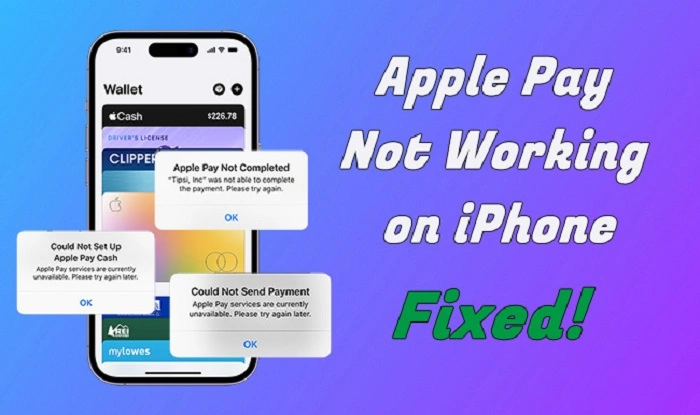
Understanding the core causes of Apple Wallet issues can help you fix the problem faster. Below are some of the most frequent reasons users experience problems.
1. iOS Is Outdated
Running an old iOS version can cause Apple Wallet to glitch or fail completely.
Fix it:
Go to Settings > General > Software Update and install the latest version of iOS. Restart your iPhone after updating.
2. Apple Pay Not Set Up Properly
If Apple Wallet is missing your cards or doesn’t let you use Apple Pay, the setup may be incomplete.
Solution:
Go to Settings > Wallet & Apple Pay
Tap Add Card and follow prompts to re-link a credit/debit card.
3. Location and Region Settings Are Incorrect
Apple Wallet availability may vary based on your region. If the region isn’t supported, Wallet features may not function correctly.
Fix:
- Go to Settings > General > Language & Region
- Set your region to a supported country (like the U.S., Canada, or UK)
4. Device Doesn’t Support Apple Wallet Features
Older iPhone models or iPads might not support all Wallet functions. For example, some iPads don’t support NFC, so tap-to-pay will not work.
Check Compatibility:
Apple Wallet and Apple Pay require an iPhone 6 or later for full functionality.
5. Network or Connectivity Issues
If Wallet can’t download or sync your passes, a weak internet connection may be the culprit.
What to do:
- Turn on Wi-Fi or cellular data
- Toggle Airplane Mode on and off
- Restart the device
6. Wallet App Glitches or Freezes
Sometimes Apple Wallet just doesn’t open or crashes on launch.
Steps to fix:
- Force-close the Wallet app
- Restart your iPhone
- If needed, reset settings under Settings > General > Transfer or Reset iPhone > Reset All Settings
Apple Wallet Not Working at Checkout
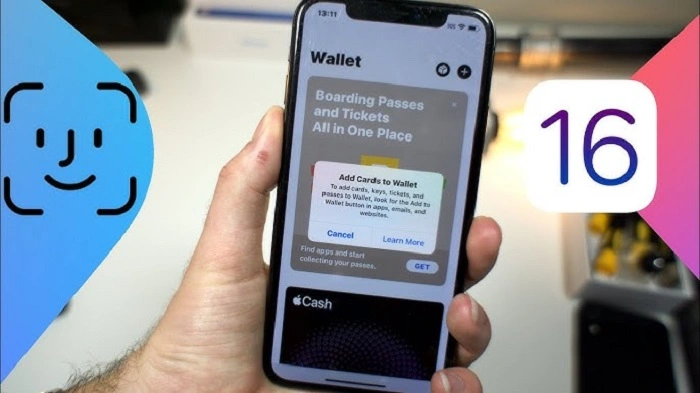
Is your Apple Wallet not working when trying to pay in-store or online? Here’s what to check.
1. Authentication Isn’t Working
Apple Pay requires Face ID, Touch ID, or passcode. If these aren’t functioning, your Wallet won’t proceed with payment.
What to do:
- Ensure your finger or face is correctly registered
- Clean the Touch ID sensor or camera
- Go to Settings > Face ID & Passcode to reset biometric data
2. NFC Chip Not Responding
If you hold your phone near the payment terminal and nothing happens, the NFC chip may be malfunctioning.
Try this:
- Restart your iPhone
- Try another payment terminal
- Contact Apple Support if the chip is suspected to be damaged
3. Card Not Being Accepted
If the terminal rejects your payment, the card may have expired or not be supported by Apple Pay.
To resolve:
- Open Wallet, tap on the card, and check the expiration date
- Try using another card
- Contact your bank for support
Tips to Keep Apple Wallet Running Smoothly
| Tip | Benefit |
| Keep iOS updated | Fixes bugs and improves performance |
| Use supported devices | Ensures all Wallet features function |
| Restart phone weekly | Clears memory and refreshes systems |
| Enable Face/Touch ID | Faster, secure payments |
| Add backup payment cards | Ensures flexibility at checkout |
Apple Wallet Still Not Working? Try These Fixes
1. Remove and Re-Add Cards
Deleting and re-adding a payment card often fixes transaction errors.
- Open Wallet
- Tap the card
- Select “Remove This Card”
- Add the card again via Wallet or Settings
2. Reset Network Settings
If Wallet fails to download or update passes, network errors may be at fault.
- Go to Settings > General > Transfer or Reset iPhone > Reset Network Settings
Note: This will erase saved Wi-Fi networks and VPNs.
3. Reset All Settings
If Wallet continues to malfunction across the board:
- Go to Settings > General > Transfer or Reset iPhone > Reset All Settings
This won’t delete your data, but it will reset preferences like Wi-Fi and Bluetooth pairings.
FAQs About Why Is My Apple Wallet Not Working
Why won’t my Apple Wallet open on my iPhone?
Try force-closing the app and restarting your phone. If that doesn’t work, update iOS or reset settings.
Why is Apple Wallet not showing my cards?
Your cards might have been removed or failed verification. Re-add them through Wallet & Apple Pay settings.
Why can’t I add a card to Apple Wallet?
Make sure your region supports Apple Pay, the card is from a supported bank, and you have a strong internet connection.
Why is Apple Wallet not working on my Apple Watch?
Your Apple Watch needs to be paired correctly and the card added separately via the Watch app > Wallet & Apple Pay.
Why is Apple Wallet not working in-store?
Ensure NFC is working, your card is active, and the store terminal supports contactless payments.
Final Thoughts
If you’ve been asking why my Apple Wallet is not working, the solutions above should help you quickly fix the issue. Whether it’s a setup error, outdated iOS, or hardware glitch, most problems can be resolved in a few minutes with the right steps.