

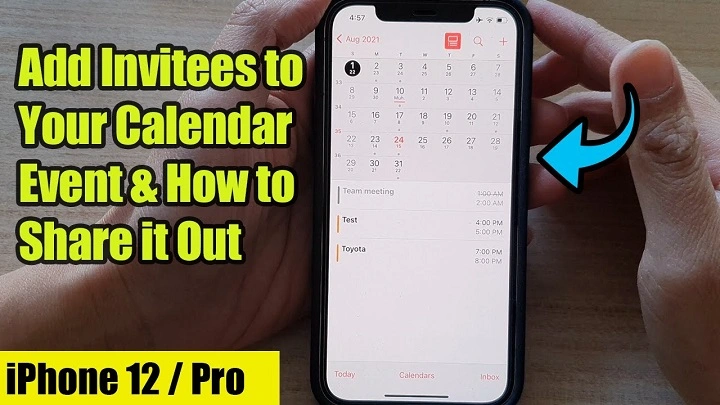
Apple Calendar is more than just a personal scheduling tool—it also allows collaboration. If you’re planning an event, coordinating work shifts, or managing family schedules, you might be wondering how to add someone to Apple Calendar. The process is simple, but many users don’t realize the power of sharing entire calendars or specific events with others.
This guide will walk you through how to add someone to Apple Calendar on iPhone, iPad, or Mac, along with tips to manage sharing permissions effectively.
Why Use Apple Calendar Sharing
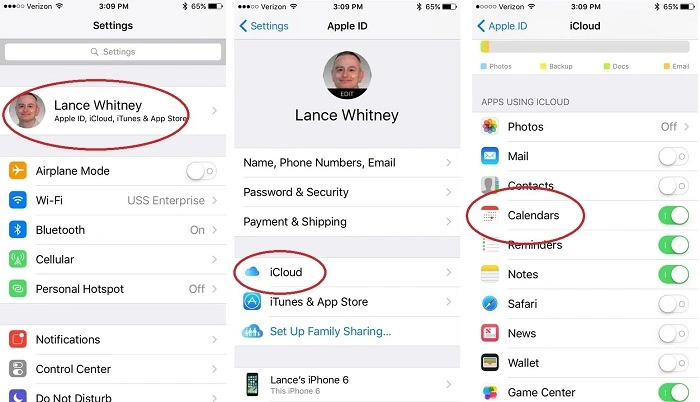
Sharing your calendar isn’t just about inviting someone to an event. When you add someone to Apple Calendar, you give them access to view or edit a full calendar, which can streamline coordination.
Common use cases:
- Family scheduling
- Team meetings
- Shared project timelines
- Class calendars
- Partner travel plans
Knowing how to add someone to Apple Calendar ensures everyone stays informed in real time.
How to Add Someone to Apple Calendar on iPhone or iPad
Follow these steps to share an entire calendar using the Calendar app on your iOS device.
Step 1: Open the Calendar App
Open the built-in Calendar app on your iPhone or iPad.
Step 2: Tap on Calendars
At the bottom of the screen, tap Calendars to view a list of all your calendars.
Step 3: Select the Calendar You Want to Share
Find the calendar you want to share (e.g., Family, Work, Travel) and tap the info button (i icon) next to it.
Step 4: Add Person Under ‘Shared With’
Under the Shared With section, tap Add Person, then type in the email address of the person you want to add.
The person must have an Apple ID to receive the invitation.
Step 5: Set Permissions
You can choose between:
- View only: They can see events but not make changes.
- View and Edit: They can add, remove, or change events.
Once done, tap Add and an invite will be sent to the recipient.
How to Add Someone to Apple Calendar on Mac
If you’re working from a Mac, the steps are nearly the same, with a slightly different interface.
1. Open Calendar
Launch the Calendar app from your dock or Applications folder.
2. Select a Calendar
In the sidebar, right-click (or Control-click) the calendar you want to share.
3. Choose ‘Share Calendar’
Click Share Calendar, then enter the email address of the person you want to share it with.
4. Adjust Permissions
Choose whether the user can View Only or View & Edit the calendar.
Once they accept your invitation, the calendar will sync across all their Apple devices.
How to Add Someone to a Single Apple Calendar Event
If you don’t want to share your full calendar, you can just invite someone to one event.
On iPhone/iPad:
- Open the Calendar app
- Tap on the event or create a new one
- Tap Invitees
- Enter their email address
- Tap Done to send the invitation
On Mac:
- Double-click the event
- Click Add Invitees
- Enter the contact’s name or email
- Click Send
This is perfect for one-off meetings or appointments.
Managing Shared Calendars
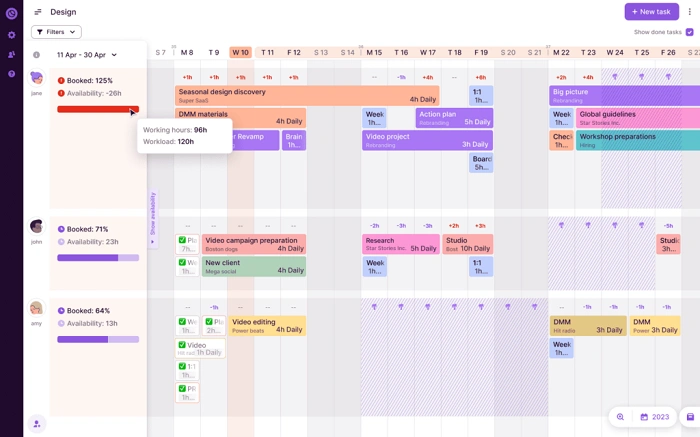
After learning how to add someone to Apple Calendar, managing permissions is the next step.
Change or Remove Access
- Go to Calendars
- Tap the (i) icon next to the shared calendar
- Tap on the person’s name to edit their permission or Remove Access
This gives you full control over who can see or modify your calendar.
View Who a Calendar Is Shared With
- Open the Calendar app
- Tap or click the calendar name
- Under Shared With, you’ll see the list of users
Tips for Calendar Sharing Success
| Tip | Why It Helps |
| Use descriptive calendar names | Avoid confusion between personal/work/family |
| Set reminders | Help others prepare for shared events |
| Choose edit permissions carefully | Prevent accidental event changes |
| Notify invitees | Use Notes or location to add context |
| Sync with iCloud | Ensures all users receive updates instantly |
Troubleshooting: Apple Calendar Sharing Not Working
If you tried to add someone but they didn’t receive an invite, try the following:
- Confirm they’re using an Apple ID email address
- Ensure you’re connected to Wi-Fi or cellular
- Restart your device
- Try deleting and re-adding the calendar share
Some corporate email systems may block Apple Calendar invites, so consider asking recipients to use a personal iCloud account.
FAQs About How to Add Someone to Apple Calendar
Do they need an iPhone to accept my calendar invite?
They need an Apple ID, which can be used on iPhone, iPad, or Mac. Other platforms won’t support full calendar sync.
Can I stop sharing my calendar later?
Yes, you can remove access anytime through Calendar settings.
How many people can I add to a shared Apple Calendar?
There’s no strict limit, but performance may drop with 100+ invitees. Most users stay under 20 for manageability.
Can I share more than one calendar?
Absolutely. You can share multiple calendars separately with different people and permission levels.
Why can’t I see the Shared With option?
You may be trying to share a calendar not synced with iCloud. Only iCloud calendars support sharing.
Final Thoughts
Now that you know how to add someone to Apple Calendar, organizing events with family, friends, or coworkers becomes much easier. Just a few taps can help avoid confusion and keep everyone on the same page.