

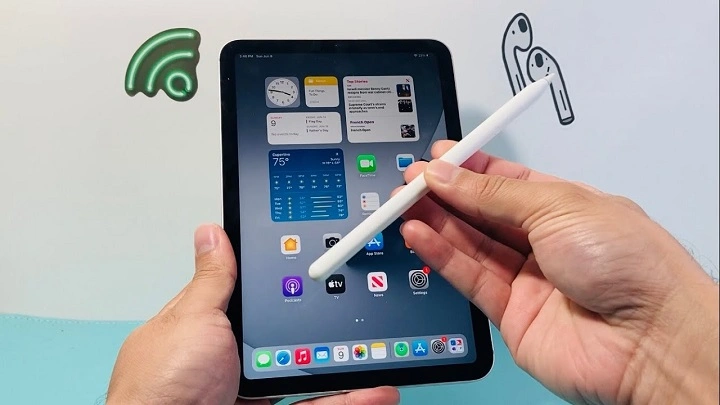
If your stylus isn’t responding or acting up, you might be asking yourself how to reset Apple Pencil Gen 2. Whether it’s lagging, disconnecting, or not charging properly, resetting can often resolve the problem quickly. The 2nd generation Apple Pencil is a powerful tool for artists, note-takers, and iPad users—but like any tech accessory, it occasionally needs troubleshooting.
This guide walks you through how to reset the Apple Pencil Gen 2, along with tips to reconnect it to your iPad, and answers to common questions.
What Makes the Apple Pencil Gen 2 Unique?
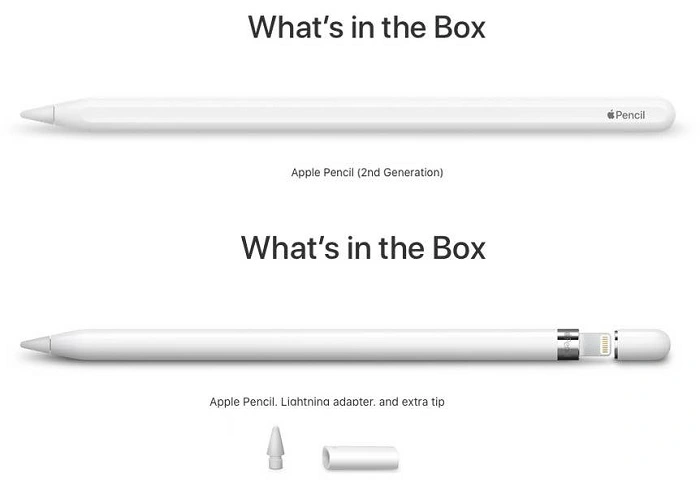
Before jumping into the reset process, it helps to understand the design of the Apple Pencil Gen 2. Unlike the first generation, this version doesn’t have a Lightning port. Instead, it connects and charges magnetically on the side of your iPad Pro, iPad Air, or iPad mini.
Key features:
- Magnetic wireless charging and pairing
- Tap-to-switch tool functionality
- Compatible only with specific iPad models (USB-C models)
Due to its advanced design, resetting isn’t done with a physical button—it’s handled entirely through your iPad’s settings.
How to Reset Apple Pencil Gen 2 on Your iPad
Resetting the Apple Pencil Gen 2 means removing it from your iPad’s Bluetooth memory and re-pairing it again. Here’s how to do it correctly.
Open iPad Settings
Go to Settings > Bluetooth and make sure Bluetooth is turned on. You’ll see a list of connected devices.
Locate Apple Pencil
Under “My Devices,” find your Apple Pencil Gen 2. It usually appears as an Apple Pencil. Tap the “i” icon next to it.
Forget the Device
Tap Forget This Device and confirm your decision. This removes the current pairing and essentially resets the connection.
Reconnect the Pencil
Now, place your Apple Pencil on the magnetic side of your iPad. A prompt should appear asking if you want to pair it.
Tap Pair to reestablish the connection.
You’ve now completed the reset and re-pair process.
Why You Might Need to Reset Apple Pencil Gen 2
If you’re wondering whether resetting is necessary, consider these common scenarios:
| Issue | Does Reset Help? |
| Lag or delayed response | Yes |
| Pencil not charging | Sometimes |
| Disconnection issues | Yes |
| Doesn’t show battery level | Yes |
| Double-tap function not working | Yes |
Resetting removes potential software bugs or pairing conflicts that often occur after iOS updates or long idle periods.
How to Check If Apple Pencil Gen 2 is Working
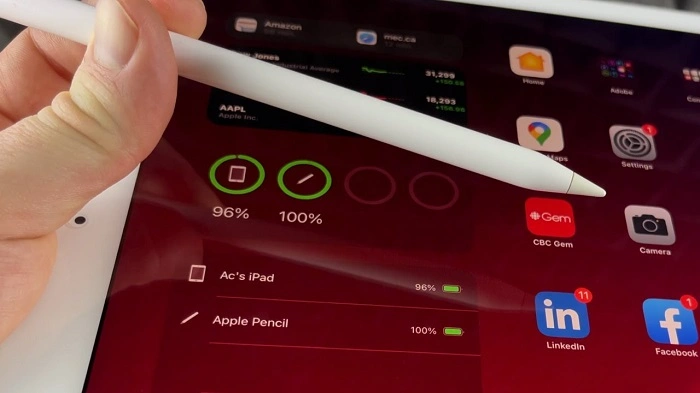
After resetting, it’s smart to confirm that everything is functioning as expected.
Test Drawing Apps
Open Notes, Procreate, or any sketching app and try drawing. Check for latency, pressure sensitivity, and tilt responsiveness.
Battery Indicator
Swipe right on your iPad home screen to the “Today View” and look for the Battery widget. Your Apple Pencil should appear with a battery level if it’s connected properly.
Test Tap Features
If enabled, double-tap near the tip of your Apple Pencil to switch tools (works in compatible apps). If this function works, your Pencil is fully connected.
Troubleshooting If Reset Doesn’t Work
Sometimes, even after a reset, your Apple Pencil Gen 2 might still act up. Try these additional steps:
Restart Your iPad
Minor Bluetooth glitches can persist until the iPad is restarted. Hold the power button and slide to power off. Then, turn it back on and try pairing again.
Update iPadOS
Go to Settings > General > Software Update and check if a newer iPadOS version is available. Updating can resolve device conflicts.
Clean the Connector
Use a soft microfiber cloth to wipe the magnetic side of the iPad and the flat edge of the Pencil. Dirt or debris can interfere with pairing and charging.
Try Another iPad
If possible, try pairing your Pencil with a friend’s compatible iPad. If it works there, the issue might be with your iPad’s Bluetooth system.
List of iPads Compatible with Apple Pencil Gen 2
| iPad Model | Apple Pencil Gen 2 Compatible? |
| iPad Pro 11-inch (all generations) | Yes |
| iPad Pro 12.9-inch (3rd gen and later) | Yes |
| iPad Air (4th gen and later) | Yes |
| iPad mini (6th gen) | Yes |
| Regular iPad models | No |
Make sure your iPad is on this list before troubleshooting. Apple Pencil Gen 2 does not work with the original iPad, older Air models, or the first three iPad mini versions.
How to Enable or Customize Apple Pencil Features
After resetting, you may want to adjust your Pencil’s features again:
- Go to Settings > Apple Pencil
- Toggle Only Draw with Apple Pencil
- Enable or disable Double-Tap
- Choose what the double-tap action does (switch tools, show color palette, etc.)
These settings help personalize your experience and can help rule out usability issues.
FAQs About Resetting Apple Pencil Gen 2
How do I reset Apple Pencil Gen 2 without iPad?
You can’t. The reset must be done through the Bluetooth settings on a compatible iPad.
Does Apple Pencil Gen 2 have a reset button?
No, it doesn’t have a physical reset button. Resetting is handled by forgetting the device in Bluetooth settings and re-pairing it.
Why is my Apple Pencil not connecting after reset?
Make sure Bluetooth is on, the Pencil is charged, and your iPad supports Apple Pencil Gen 2. Restart both devices if needed.
Can I use Apple Pencil Gen 2 with a regular iPad?
No, Apple Pencil Gen 2 is not compatible with regular (non-Pro or non-Air) iPads. Check your model number before purchasing.
Will resetting Apple Pencil Gen 2 erase custom settings?
No, it simply clears the Bluetooth pairing. You can reconfigure features like double-tap afterward in Settings.
Resetting your Apple Pencil Gen 2 is easy and usually fixes the most common problems. All it takes is a few taps in your iPad’s Bluetooth settings followed by re-pairing. Make sure your device is compatible, fully updated, and clean for the best results.