

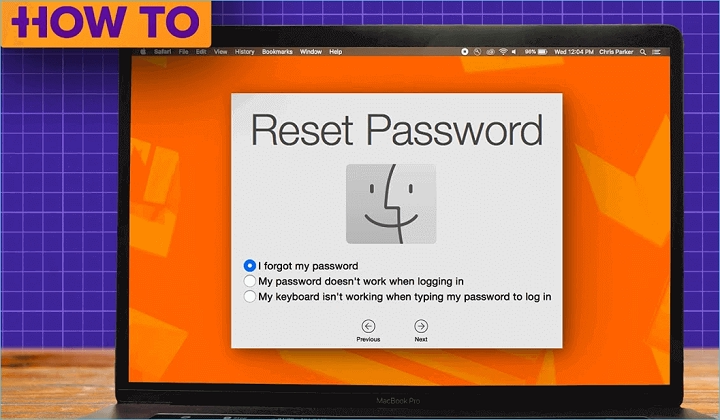
Forgetting your MacBook Air password can be a frustrating experience, but fear not – regaining access to your device is simpler than you might think. Whether you’ve misplaced your password or simply can’t recall it, there are several methods you can try to regain access to your MacBook Air. In this guide, we’ll walk you through the steps to unlock your device and get back to using it seamlessly.
Reset Your Password with Apple ID
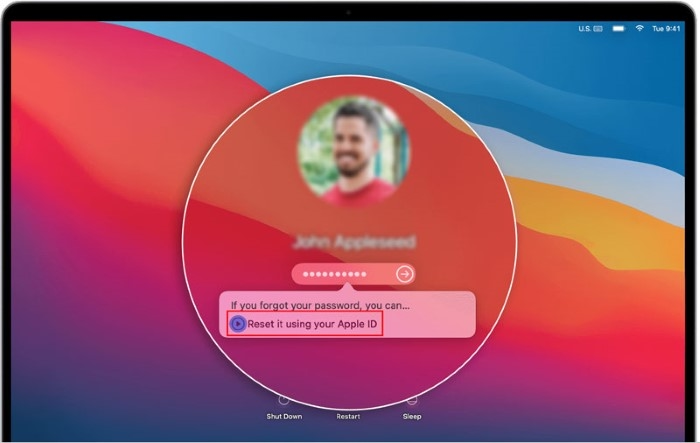
One of the easiest methods to regain access to your MacBook Air is by using your Apple ID. Here’s how you can do it:
- Attempt to log in: Start by turning on your MacBook Air and attempting to log in with your forgotten password.
- Reset password: After entering the wrong password a few times, your MacBook Air will prompt you with an option to reset your password using your Apple ID. Click on the “Forgot Password?” or “Reset Password using Apple ID” option.
- Follow the prompts: You’ll be guided through a series of prompts where you’ll need to enter your Apple ID and follow the on-screen instructions to reset your password.
- Set a new password: Once you’ve verified your identity, you’ll be prompted to set a new password for your MacBook Air. Choose a strong password that you’ll remember but is also secure.
- Log in with the new password: After setting a new password, you can now log in to your MacBook Air using the newly created password.
Use Recovery Mode
If you’re unable to reset your password using your Apple ID, you can try using Recovery Mode. Here’s how:
- Restart your MacBook Air: Power off your MacBook Air completely.
- Access Recovery Mode: Turn on your MacBook Air and immediately hold down the Command (⌘) and R keys simultaneously until you see the Apple logo or a spinning globe.
- Choose a language: Once in Recovery Mode, you’ll be prompted to choose a language. Select your preferred language and click “Next” or press the Return key.
- Access Utilities: In the macOS Utilities window, select “Utilities” from the menu bar and then choose “Terminal.”
- Reset password: In the Terminal window, type “resetpassword” (without quotes) and press Enter.
- Follow the prompts: A Reset Password window will appear. Select your hard drive and the user account for which you want to reset the password. Then, enter a new password and confirm it.
- Restart your MacBook Air: Once you’ve set a new password, restart your MacBook Air and log in using the newly created password.
Contact Apple Support
If you’re still unable to regain access to your MacBook Air after trying the above methods, it’s time to reach out to Apple Support for assistance. You can visit an Apple Store near you or contact Apple Support online or by phone. They’ll be able to provide you with further guidance and assistance in unlocking your device.
Forgetting your MacBook Air password can be a stressful experience, but with the right steps, you can quickly regain access to your device and get back to using it as normal. Whether you choose to reset your password using your Apple ID, enter Recovery Mode, or seek assistance from Apple Support, rest assured that there are solutions available to help you unlock your MacBook Air and resume your work or leisure activities without interruption.
Regaining access to your MacBook Air after forgetting your password is entirely feasible with the right approach and resources at your disposal. Whether you choose to reset your password using your Apple ID, enter Recovery Mode, or seek assistance from Apple Support, each method offers a pathway to unlocking your device and restoring normal functionality. By following the steps outlined in this guide and considering the additional insights provided, you can navigate the password recovery process with confidence and efficiency, ensuring minimal disruption to your productivity and workflow.