

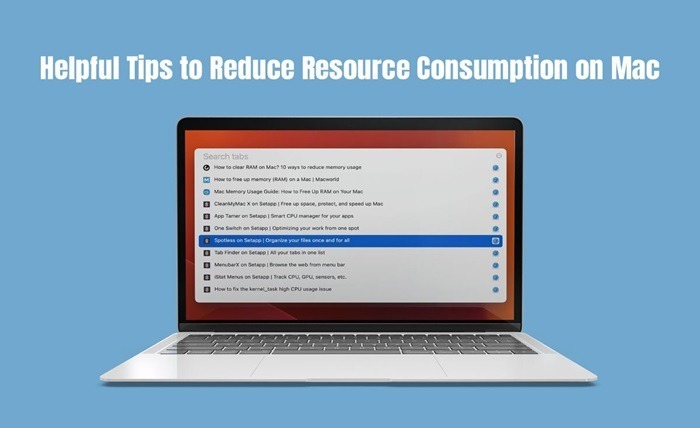
Resource consumption on your Mac refers to how much of its CPU (Central Processing Unit), memory (RAM), and disk space are being used. When these resources are used excessively, it can slow down your Mac and affect its performance. But don’t worry! There are simple steps you can take to reduce resource usage and keep your Mac running smoothly.
Optimize Startup Items
When you start up your Mac, certain applications launch automatically, consuming resources and slowing down your boot time. To optimize startup items, go to System Preferences > Users & Groups > Login Items. From there, remove unnecessary applications from the startup list to help your Mac boot up faster and with fewer resource demands.
Monitor Resource-Hungry Applications
Some applications may be more resource-intensive than others, causing your Mac to slow down when they’re running. Use the Activity Monitor (found in the Utilities folder within Applications) to identify which applications are hogging CPU, memory, or disk space. When not in use, think about shutting them off or using less resource-intensive alternatives.
Optimize Memory Usage
Optimizing memory usage is one effective way to reduce resource consumption on your Mac. By managing how your Mac utilizes RAM, you can ensure smoother performance and minimize slowdowns.
When your Mac’s RAM (Random Access Memory) is maxed out, it can lead to sluggishness and poor performance.
Wondering how to decrease RAM usage Mac? Start by identifying memory-hungry applications using the Activity Monitor. Look for processes that are consuming a large amount of memory and consider closing or uninstalling them if they’re not essential to your workflow.
Manage Browser Tabs and Extensions
Are you guilty of having a gazillion tabs open in your web browser at once? It’s time to streamline your surfing habits. Too many tabs, especially those hosting content-rich websites or resource-hungry apps, can put a strain on your Mac’s resources. Keep it lean by limiting the number of tabs open and ditching browser extensions that are more baggage than benefit.
Clear Cache and Temporary Files Regularly
Similar to how dust bunnies gather in a space over time, temporary data and cache files are among the digital waste materials that your Mac amasses. Make regular use of your Mac by decluttering it, a la Marie Kondo. Say goodbye to superfluous files with programs like Disk Utility or CleanMyMac to free up important disk space and improve system efficiency.
Enable Power-Saving Features
Utilize the power-saving capabilities that your Mac has built in to give it a break. Whether you use a MacBook or another portable Mac, adjusting the Energy Saver settings can assist in lowering resource usage and increasing battery life. Accept features such as Power Nap, which lets your Mac work on things while you’re asleep without using up unnecessary resources.
Keep Your Mac Up to Date
Frequent software updates revitalize your Mac’s speed and strengthen its security, much like a shot of espresso. It’s important to keep your favorite apps and operating systems updated. Regularly check for updates by going to System Preferences > Software Update from the Apple menu. Updating your program might provide you with enhanced security features, enhanced performance, and bug fixes.
Make the Most of Built-in Optimization Tools
macOS is packed with handy built-in tools designed to keep your system running smoothly. Dive into Disk Utility to tidy up your disk and tackle pesky errors. Customize Spotlight indexing and Time Machine backups to run during off-peak hours, minimizing disruptions to your workflow. Embracing these tools can help optimize your Mac’s resources and maintain peak performance.
Embrace Minimalism
In a world full of diversions, simplicity is the best. Choose minimalist design components for the user interface on your Mac to embody this idea. Replace your gaudy desktop backdrop with something more subdued, and tidy up your Dock by deleting any extraneous icons. Adopting minimalism improves the look of your Mac while also using fewer resources and functioning more smoothly.
Maintain Digital Hygiene
Maintaining an orderly digital workstation is just as important as keeping your physical office neat. Clear out the clutter off your desktop, classify logically into folders, and remove out-of-date programs and files. Regularly empty the trash to recover important disk space. Maintaining proper digital hygiene can help you avoid wasting resources and keep your Mac responsive and quick.
Customize System Preferences
There are a ton of customization options available in your Mac’s System Preferences, but not all of them are made equal. To maximize resource consumption, be proactive and examine and adjust your options. To reduce the impact of features or services on performance, disable those you don’t use frequently. For example, if your MacBook model has two graphics cards, you can prolong battery life by turning off automatic graphics switching.
Optimize File Storage with iCloud
Running low on disk space? Consider offloading files to iCloud to free up valuable storage on your Mac. Your files are easily synchronized between all of your Apple devices thanks to iCloud Drive, so you can access them from anywhere at any time. Enable iCloud Desktop and Documents to automatically store files in the cloud, reducing the strain on your Mac’s local storage. This not only optimizes disk space but also ensures your files are securely backed up in the cloud.
Leveraging Third-Party Optimization Tools
Although macOS comes with built-in optimization tools, you can also improve the efficiency of your Mac with third-party apps like DaisyDisk, AppCleaner, and CleanMyMac. With the help of these tools, you can easily remove unneeded apps, control startup items, and free up disk space. You may have a smoother computing experience and fine-tune your Mac’s performance to your tastes by examining these choices.
Conclusion
These easy-to-follow yet powerful tips can help you minimize your Mac’s resource usage and maintain its smooth operation for many years to come. Maintaining software updates and adopting a minimalist approach to design and functionality are just two of the many ways you can make sure your Mac stays responsive and quick even as you take on additional work. So go ahead and use these suggestions to have a quicker, more functional Mac!