


Are you, by any chance, considering typing in Chinese on your MacBook Air or Pro? It’s completely easy to figure it out. In this concise piece of information, I’ll help you learn how to add a Chinese keyboard to your MacBook.
Let’s start typing pinyin on your brand-new or old MacBook machine.
Can You Actually Add a Chinese Keyboard to a MacBook?
As far as the possibility of having a Chinese Keyboard or Chinese typing method is concerned, yes, you can have it on your MacBook.
You’d probably know that Chinese People have this Apple MacBook Air or Pro too, which they use for their daily basis routine jobs or other computations.
Chinese who cannot understand or learn the English Language often opt for using the Chinese Keyboard on a machine like a MacBook.
Therefore, it’s totally possible to add a Chinese Keyboard to your MacBook.
How Do You Add Chinese MacBook Keyboard?
To add a Chinese Keyboard to MacBook Air or MacBook Pro, Click on Apple Icon>System Settings>Click Keyboard on the Sidebar>Click Edit> then click Add button on the sidebar. Here, you can choose from the available languages. If you want your MacBook Keyboard to type Chinese characters, including “Chinese, Traditional,” “Chinese, Simplified,” or “Cantonese, Traditional,” you can add from here.
It’s very simple, plus it’s easy to do things even for a non-tech guy.
This way, you’ll be able to type Chinese on MacBook Air or MacBook Pro, no matter what you have right now.
However, if you didn’t understand this, let me show you how to add a Chinese Keyboard on a MacBook in a step-by-step process with the help of possible screenshots.
Have a look, please!
Step By Step Process to Add Chinese Keyboard To Your MacBook:
Adding a Chinese keyboard or any other language keyboard is not a problem on MacBook Pro or Air unless you are perfectly guided.
Here is what you exactly need to do to make things happen in Chinese while typing!
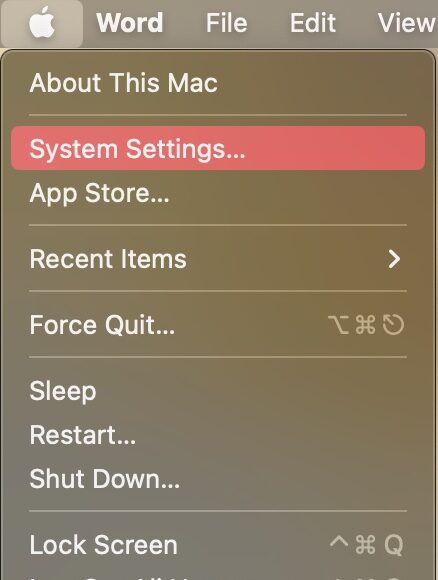
Step 1: Go to System Settings
First, you need to go to the System Settings of your MacBook.
You can do it by clicking on the Settings App. Or you can Click on Apple Menu Icon> System Settings.
Step 2: Look For The Keyboard Icon
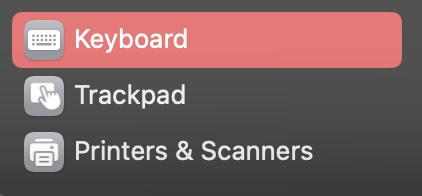
Once you are into the settings, scroll down a little, and you’ll find the Keyboard icon on the Sidebar. Click on it.
Step 3: Look for the Text Input Section
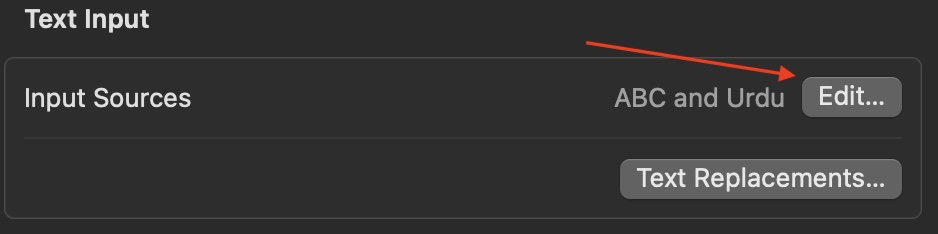
After clicking the Keyboard Icon, you’ll have all the information related to your Keyboard the MacBook.
Now, go to the Text Input Section and Click Edit.
Step 4: Find the + Icon
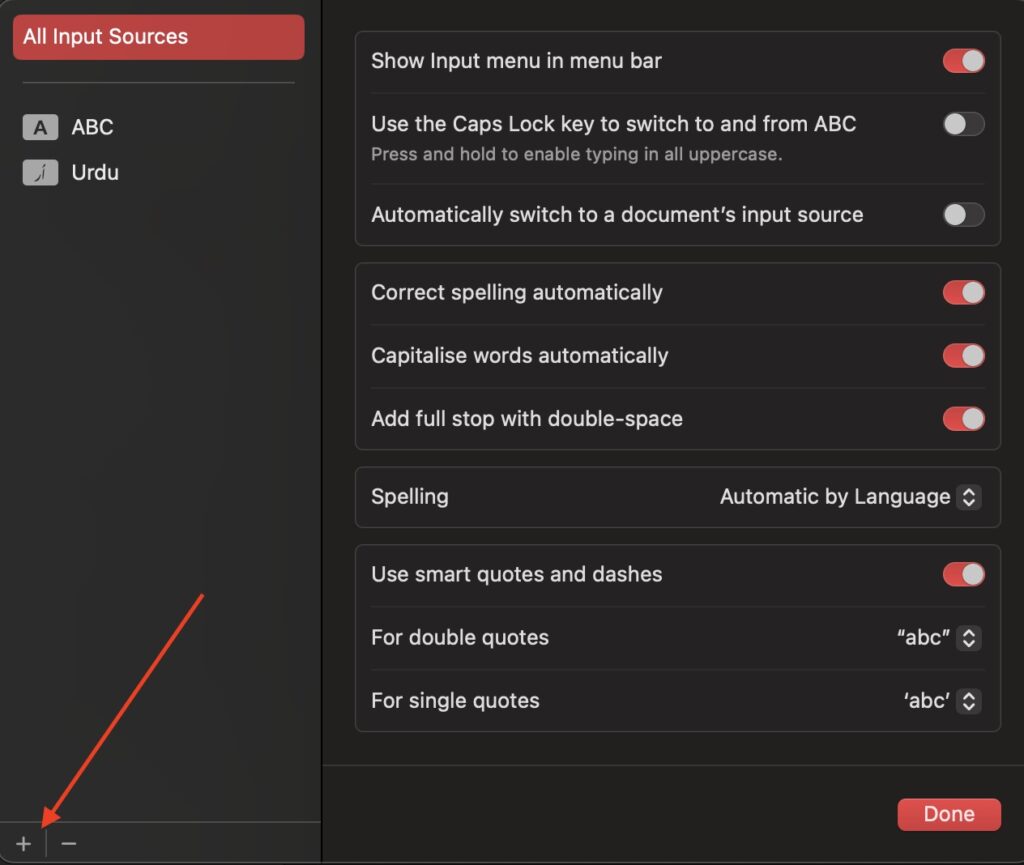
After that, you’ll have a new window open where you can find the + icon at the bottom left corner of your MacBook Screen.
Click it, and you’ll have a new window.
Step 5: Look For Chinese Input Language Methods
In the below screen, you can use the Search Bar to type Chinese and look for Chinese Keyboard or input methods.
Here, you’ll have all the possible Chinese language options available to choose from. Choose any and move to the next point.
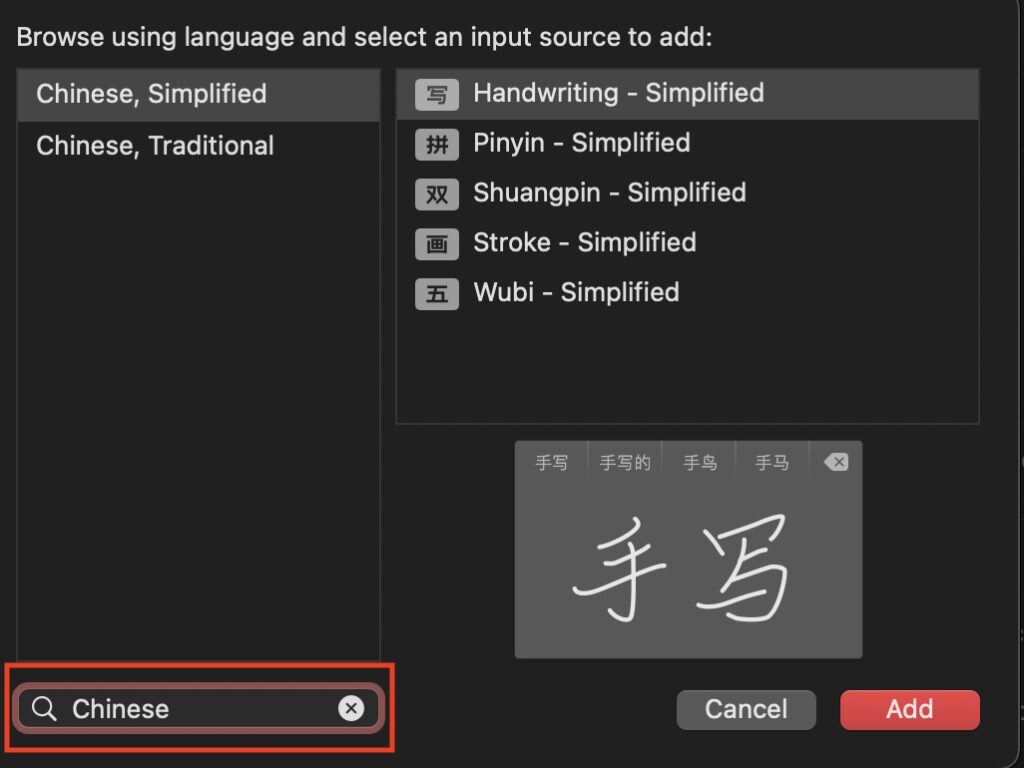
Step 6: Choose Your Favorite Chinese Keyboard Method
Here, you need to click on the Add Button and boom; you are now able to use the Chinese Keyboard on your MacBook. It’s pretty simple and quick to do!
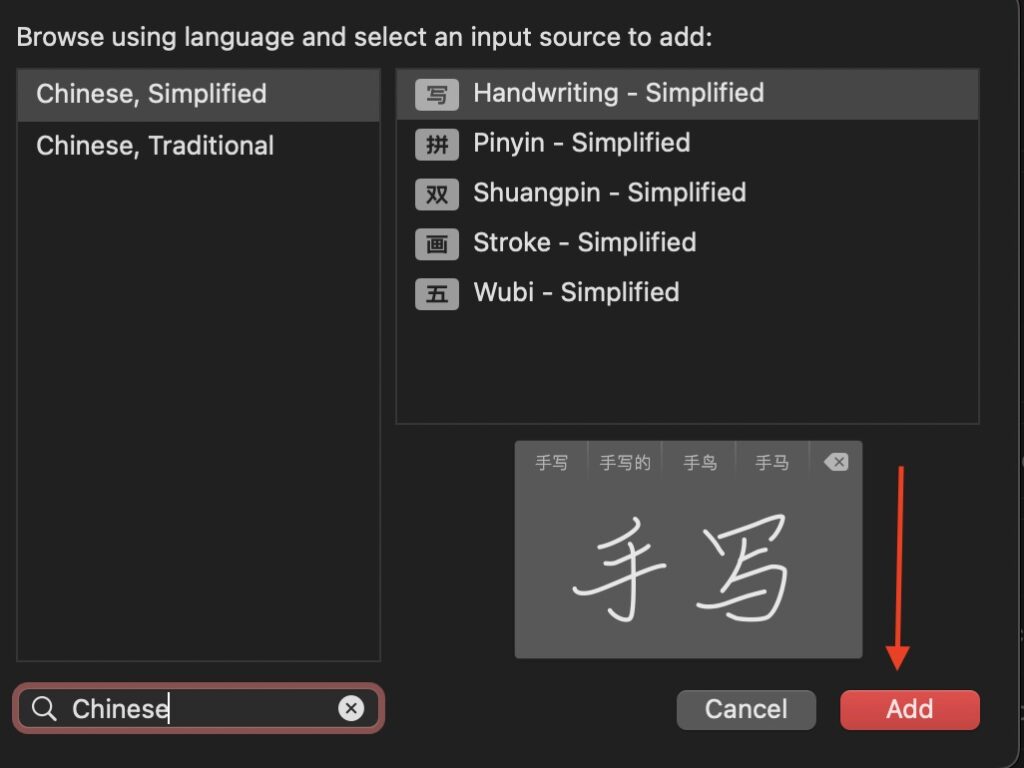
After adding your favorite Chinese method, say, “Pinyin – Simplified,” you can come back through the same settings to add more.
The MacBook also gives you the option to add handwritten Chinese characters into the system to use them later for your convenience.
So, this is how you’d be able to use a Chinese keyboard on a MacBook Air or MacBook Pro.
How To Type Chinese on MacBook Air or MacBook Pro?
Are you trying to type in your Chinese characters on MacBook and have no luck so far? I’ve got you covered.
For this, you’ll have to add the Pinyin – Simplified input source as your Chinese Keyboard on MacBook.
Once it’s done, you can easily type Chinese characters on your MacBook.
Second, open any document writer, such as Pages, on your MacBook Air or Pro. Now, click on the Input Sources Button, and you’ll be able to change between keyboards and languages.
There, select the Pinyin – Simplified input source, and you can type now.
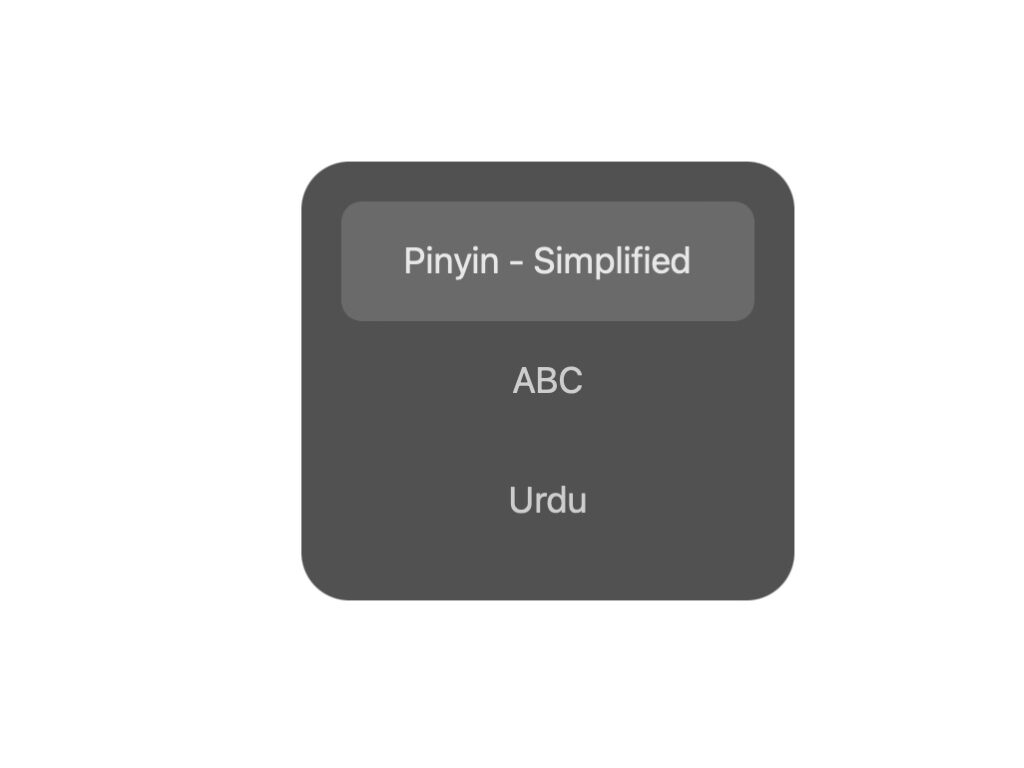
After Selecting, you can use the keyboard of your MacBook Air or MacBook Pro to type Pinyin, A, which will actually show the Chinese Characters in the output, just like you can see below.
You will be able to type any Chinese Word you want.

For example, if I say Ni Hao Ma, it will write 你好吗。
So, this is how you will be able to type Chinese characters on your MacBook Air or MacBook Pro.
How To Switch To Chinese Keyboard on Mac Shortcut?
Once you have added a Chinese Keyboard as your input source, you can actually change it very easily.
You will find the Input Sources Button on your MacBook Keyboard.
Click the button to toggle between the input sources on your laptop.
This is the easiest way one can switch to their Chinese keyboard with the help of this shortcut.
Frequently Asked Questions:
What’s The Best Chinese Input For Mac?
As far as the Chinese typing on MacBook is concerned, one should use the PinyinSimplified input source for typing Chinese Crocheters over the MacBook English keyboard. It’s mostly for non-native Chinese people. However, if you are a native Chinese who can properly understand and speak Chinese, you can choose any input source to get your Chinese work done on MacBook.
How To Type Chinese on MacBook Pro?
Do you have a MacBook Pro and want to type Chinese on it? Choose Chinese as your input source from Keyboard Settings on your MacBook, and you’ll be all good to go!
How To Get a Pinyin Keyboard on a MacBook?
Simply go to Settings and find Keyboard. There, look for the Input and click edit. After, click on the + Button and choose Pinyin – Simplified input source to use the Pinyin keyboard on your MacBook.
Wrapping it Up:
Hence, there are no hard and fast rules you need to learn to add and use a Chinese Keyboard on a MacBook. Just follow some simple steps and learn the art of using and tying in Chinese, and you are good to go. I hope this guide will help you in that regard. Keep visiting for more solutions like this. Also, do let me know if you have any queries to ask. I am here to figure them out for you!