

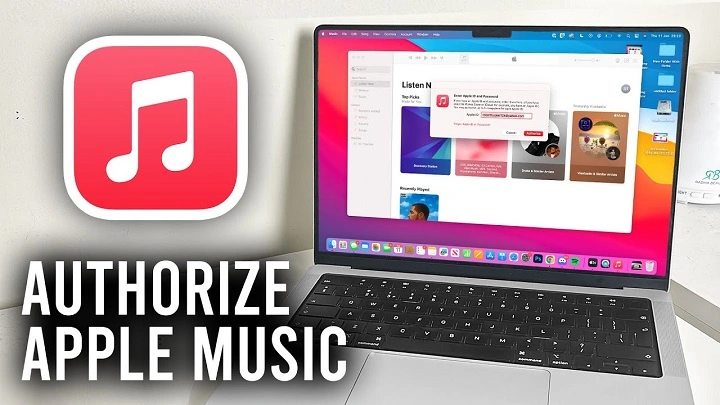
Listening to your favorite songs on Apple Music across all your devices is easy, but before you can fully access your music library on a new MacBook, you need to authorize it.
Authorizing your MacBook for Apple Music gives it permission to play content tied to your Apple ID.
In this guide, we’ll walk you through how to authorize your MacBook for Apple Music quickly and what to do if you run into any problems.
Why You Need to Authorize Your MacBook for Apple Music
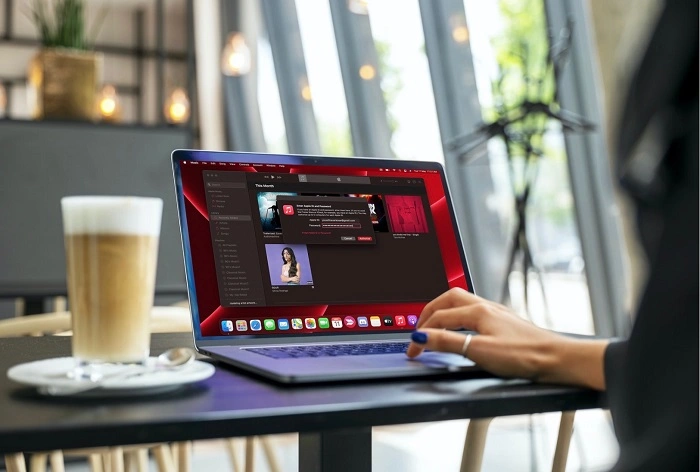
Access to Purchased and Synced Content
Without authorization, you cannot play your purchased songs, synced playlists, or downloaded music tied to your Apple ID.
Sync Across Devices
Authorization allows seamless syncing across your iPhone, iPad, MacBook, and other Apple devices.
Prevent Playback Errors
If you see errors like “This computer is not authorized to play this song,” it means your MacBook needs authorization.
How to Authorize Your MacBook for Apple Music
Step 1: Open the Music App
Launch the Music app on your MacBook.
It usually comes pre-installed on macOS Ventura, Sonoma, or newer versions.
Step 2: Sign In with Your Apple ID
If you are not signed in:
- Click “Account” in the top menu
- Select “Sign In”
- Enter your Apple ID and password
This is the account tied to your Apple Music subscription and purchases.
Step 3: Authorize Your Computer
Once signed in:
- Click “Account” from the menu bar
- Hover over “Authorizations”
- Click “Authorize This Computer…”
- Enter your Apple ID password again to confirm
Your MacBook is now authorized for Apple Music and can access all your linked content.
How to Deauthorize a MacBook from Apple Music
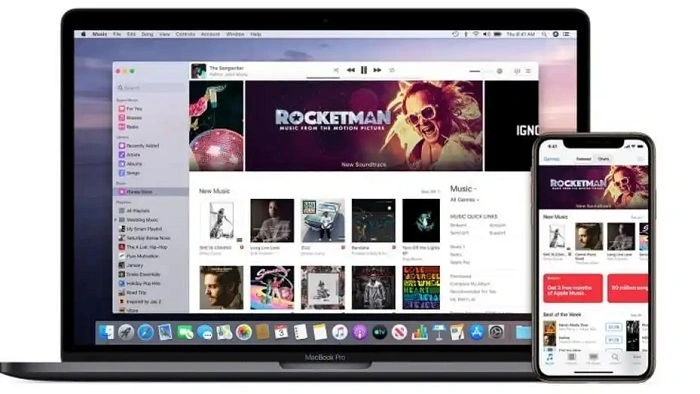
If you are selling, giving away, or no longer using a MacBook, it’s smart to deauthorize it.
- Open the Music app
- Click “Account” → “Authorizations” → “Deauthorize This Computer…”
- Enter your Apple ID password to confirm
Each Apple ID can only authorize up to five computers at once, so managing authorizations is important.
Troubleshooting Authorization Issues
Error: Too Many Authorized Devices
If you get a message saying you have too many authorized devices, you can:
- Go to Apple ID Settings at appleid.apple.com
- View devices and deauthorize old computers
- Alternatively, in iTunes (Music app), you can select “Deauthorize All” once per year
Then reauthorize your active MacBook.
Error: Authorization Not Working
If authorization fails:
- Restart the Music app
- Check if your macOS needs an update
- Sign out and back into your Apple ID
Sometimes a quick refresh fixes authorization glitches.
Problems with Subscription Access
If you have Apple Music but cannot stream songs:
- Ensure your Apple Music subscription is active
- Verify you are logged into the correct Apple ID
- Update payment methods if necessary
Tips for Managing Apple Music Authorizations
- Keep track of your authorized devices
- Deauthorize computers you no longer use
- Use only trusted devices to avoid authorization issues
- Update your Apple ID password regularly for security
Good device management ensures you always have space for new authorizations when you upgrade devices.
Alternatives to Authorization: Using Family Sharing
If you use Family Sharing, you can share Apple Music with other family members.
Each member has their own authorization, so they do not need to authorize your MacBook to access their music.
This keeps your Apple ID clean and better organized.
FAQs About Authorizing MacBook for Apple Music
How many computers can I authorize for Apple Music?
You can authorize up to five computers per Apple ID.
What happens if I forget to deauthorize a MacBook before selling it?
You can use the “Deauthorize All” option to reset all authorized devices once per year.
Does authorizing my MacBook cost money?
No, authorization is free. It only links your MacBook to your Apple ID for content access.
Can I authorize a MacBook without an internet connection?
No, your MacBook needs to be online to complete the authorization process.
Do I need to authorize my MacBook separately for Apple TV+ or App Store?
No, authorization specifically applies to Apple Music and iTunes-purchased content. App Store access is linked just to your Apple ID login.