

Your MacBook is not just a tool for browsing the web or completing tasks; it’s a portal to productivity and efficiency. And at the heart of every productive endeavor lies the concept of time management. Whether you’re syncing schedules or just trying to stay punctual, knowing how to change the time on your MacBook is a fundamental skill. In this guide, we’ll walk you through the simple steps to adjust the clock on your device and ensure that you’re always in sync with the flow of time.
Accessing System Preferences
To begin, you’ll need to access your MacBook’s System Preferences. You can do this by clicking on the Apple logo in the top-left corner of your screen and selecting “System Preferences” from the dropdown menu. Alternatively, you can find the System Preferences icon in your Dock and click on it to open the window.
Navigating to Date & Time Settings
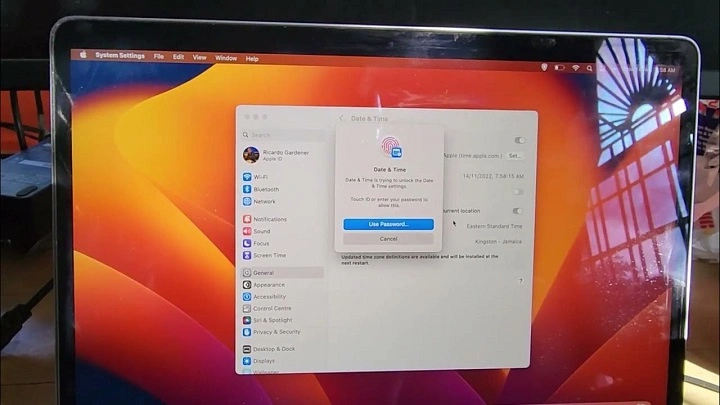
Once you’re in the System Preferences window, locate and click on the “Date & Time” icon. This will open up the Date & Time settings panel, where you can make adjustments to your MacBook’s clock.
Unlocking System Preferences
In some cases, you may need to unlock the Date & Time settings panel before you can make changes. Look for a small padlock icon in the bottom-left corner of the window. If it’s locked, click on it and enter your administrator password to unlock the settings.
Setting the Correct Time Zone
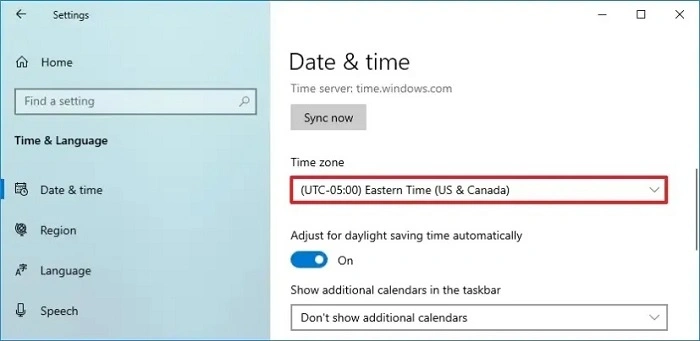
Before adjusting the time on your MacBook, it’s essential to ensure that the correct time zone is selected. Click on the “Time Zone” tab in the Date & Time settings panel and check that your current time zone is selected from the dropdown menu. If not, click on the map or type in the name of your time zone to make the necessary adjustment.
Manually Adjusting the Time
If your MacBook’s clock is not displaying the correct time, you can manually adjust it by clicking on the “Set date and time automatically” checkbox to deselect it. Once unchecked, you can click on the date and time displayed in the Date & Time settings panel to enter edit mode. From there, you can use the up and down arrows to adjust the time to the correct value manually.
Syncing with an Internet Time Server
For the most accurate timekeeping, you can choose to sync your MacBook’s clock with an internet time server. To do this, check the box next to “Set date and time automatically.” Your MacBook will then automatically sync its clock with Apple’s time server, ensuring that it stays accurate and up-to-date.
Customizing Date & Time Formats
In addition to adjusting the time itself, you can also customize how the date and time are displayed on your MacBook. Click on the “Clock” tab in the Date & Time settings panel to access these customization options. From here, you can choose different formats for displaying the date and time, including 12-hour or 24-hour time formats, as well as options for displaying the day of the week and seconds.
Finalizing Changes
Once you’ve made all the necessary adjustments to your MacBook’s date and time settings, you can close the System Preferences window. Your changes will be automatically saved, and your MacBook’s clock will reflect the new settings immediately.
Mastering the art of time management begins with ensuring that your devices are accurately synced with the flow of time. By following these simple steps to adjust the clock on your MacBook, you can stay organized, punctual, and in control of your schedule. So go ahead, take control of your time, and make every moment count!
The Importance of Accurate Timekeeping
In today’s fast-paced world, where every second counts, having accurate timekeeping on your MacBook is crucial for several reasons:
Meeting Deadlines: Whether you’re a student with assignment deadlines or a professional with project timelines, having the correct time on your MacBook ensures that you stay on track and meet your obligations punctually.
Synchronization with Others: In collaborative environments, such as shared calendars or virtual meetings, accurate timekeeping ensures that everyone is operating on the same schedule. This reduces confusion and enhances productivity.
Time-sensitive Tasks: From scheduling appointments to managing reminders, many tasks on your MacBook are time-sensitive. Having an accurate clock ensures that these tasks are executed at the right moment, preventing missed opportunities or oversights.
Data Integrity: Accurate timestamps are essential for maintaining the integrity of your data. Whether it’s logging events, organizing files, or tracking changes, precise timekeeping ensures that your records are reliable and verifiable.
Optimizing Time Management on Your MacBook
Beyond adjusting the clock, there are several strategies you can employ to optimize time management on your MacBook:
Utilize Calendar and Reminder Apps: Take advantage of built-in calendar and reminder apps on your MacBook to schedule tasks, set deadlines, and receive notifications. Sync these apps across your devices to ensure that you have access to your schedule wherever you go.
Time Tracking Tools: Consider using time tracking software to monitor how you spend your time on your MacBook. These tools can provide valuable insights into your productivity patterns and help you identify areas where you can improve efficiency.
Keyboard Shortcuts: Familiarize yourself with keyboard shortcuts to streamline your workflow and save time. Learning shortcuts for common tasks such as copy, paste, and switching between applications can significantly boost your productivity.
Batching Similar Tasks: Instead of jumping between unrelated tasks, group similar activities together and tackle them in batches. This minimizes context switching and allows you to maintain focus, leading to greater efficiency.
Limit Distractions: Identify and eliminate sources of distraction while working on your MacBook. This may involve silencing notifications, setting designated work hours, or using productivity apps that block distracting websites or apps during focused work sessions.
Prioritize Tasks: Practice effective task prioritization by identifying the most important and time-sensitive tasks on your to-do list. Focus your energy on completing these tasks first, and then move on to less critical items.
Take Breaks: Remember to schedule regular breaks during your workday to recharge and prevent burnout. Use apps or built-in features on your MacBook to remind yourself to take breaks at intervals that work best for you.
Optimize System Settings: Explore additional system settings on your MacBook that can enhance your productivity. This may include adjusting display preferences for optimal readability, customizing keyboard shortcuts, or configuring energy-saving settings to prolong battery life.
Mastering time management on your MacBook is a continuous process that requires a combination of tools, techniques, and discipline. By ensuring that your MacBook’s clock is accurately set and implementing strategies to optimize your workflow, you can make the most of your time and accomplish your goals with greater efficiency and effectiveness. So, embrace the power of time management, and unlock your full potential with your MacBook as your trusted ally in the journey towards productivity and success.