

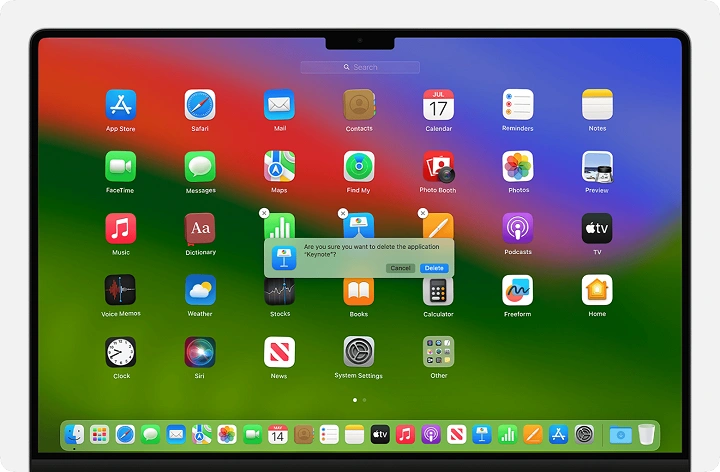
Are you struggling to navigate through multiple applications cluttering your MacBook screen? Learning how to efficiently close apps can significantly enhance your productivity and overall user experience. In this comprehensive guide, we’ll walk you through various methods and shortcuts to swiftly close apps on your MacBook, empowering you to streamline your workflow like a pro.
Understanding the Importance of Closing Apps

Before delving into the various methods of closing apps on your MacBook, let’s understand why it’s essential to do so:
-
Preserving System Resources:
- Closing unnecessary apps frees up valuable system resources such as memory (RAM) and CPU usage, allowing your MacBook to run smoother and faster.
- Enhancing Battery Life:
- Running multiple apps simultaneously can drain your MacBook’s battery quickly. By closing unused apps, you can prolong your battery life and ensure optimal performance.
-
Organizing Workspace:
- Closing apps declutters your desktop, making it easier to focus on the tasks at hand and enhancing overall workspace organization.
Now, let’s explore the various methods you can use to close apps on your MacBook.
Closing Apps Using the Trackpad
If you prefer using gestures to navigate your MacBook, closing apps with the trackpad can be a convenient option. Here’s how:
- Swipe Up with Three or Four Fingers:
- Place three or four fingers on the trackpad and swipe upwards to reveal the Mission Control view.
- Hover over the app you wish to close, then swipe up again to close it.
Closing Apps Using Keyboard Shortcuts
Keyboard shortcuts are a quick and efficient way to perform tasks on your MacBook. Here are some commonly used shortcuts to close apps:
- Command + Q:
- Press Command (⌘) and Q simultaneously to quit the active app. This shortcut works for most applications and is the fastest way to close an app entirely.
- Command + W:
- Press Command (⌘) and W simultaneously to close the active window within an app. While this doesn’t quit the entire app, it’s useful for closing individual windows.
Closing Apps Using the Dock
The Dock is a convenient tool for accessing and managing your favorite apps. You can also use it to close apps with ease:
- Right-Click on the App Icon:
- Locate the app you want to close in the Dock.
- Right-click (or Control-click) on the app icon to reveal a contextual menu.
- Select “Quit” from the menu to close the app.
Closing Apps Using Force Quit
Sometimes, an app may become unresponsive or frozen, making it challenging to close using traditional methods. In such cases, you can force quit the app to resolve the issue:
- Press Command + Option + Esc:
- Press Command (⌘), Option (⌥), and Esc simultaneously to open the Force Quit Applications window.
- Select the unresponsive app from the list, then click “Force Quit” to close it forcefully.
Closing Apps Using Activity Monitor
If you encounter persistent issues with an app or want to monitor system resources, you can use the Activity Monitor utility to identify and close apps:
- Open Activity Monitor:
- Go to Applications > Utilities, then double-click on Activity Monitor to launch the utility.
- Identify and Close Apps:
- In the Activity Monitor window, locate the app you want to close from the list of running processes.
- Select the app, then click the “X” button in the upper-left corner of the window to force quit the app.
Mastering the art of closing apps on your MacBook is a fundamental skill that can significantly improve your productivity and overall user experience. Whether you prefer using trackpad gestures, keyboard shortcuts, or the Dock, there are multiple methods to suit your preferences. By efficiently managing your apps and system resources, you can ensure optimal performance and make the most out of your MacBook experience.
Managing Apps in macOS: Advanced Tips and Tricks
Now that you’ve mastered the basics of closing apps on your MacBook, let’s explore some advanced tips and tricks for managing your applications more effectively.
- Utilizing Split View and Spaces
macOS offers powerful multitasking features like Split View and Spaces, allowing you to work with multiple apps simultaneously and organize them across different desktop spaces.
Split View:
- To enter Split View, click and hold the green full-screen button at the top left corner of an app window.
- Drag the window to the left or right side of the screen until you see a shaded area, then release the mouse button.
- Select another app from the Mission Control view to fill the remaining space.
- This feature is handy for comparing documents, writing while referencing research materials, or any task that benefits from side-by-side app usage.
Spaces:
- Spaces allow you to create multiple virtual desktops, each with its own set of apps and windows.
- To create a new space, enter Mission Control by swiping up with three or four fingers on the trackpad or pressing the Mission Control key (F3 or Control + Up Arrow).
- Drag an app window to the top of the screen, and when the desktop space bar appears, drop the window to create a new space.
- You can switch between spaces by swiping left or right with three or four fingers on the trackpad or using the Control + Left Arrow or Control + Right Arrow keyboard shortcuts.
Using App Exposé
App Exposé is a handy feature that allows you to view all open windows for a specific app, making it easier to switch between them or close unnecessary windows.
- To activate App Exposé for an app, either click and hold on its icon in the Dock and select “Show All Windows,” or use the keyboard shortcut Command + Mission Control key.
- App Exposé will display all open windows for the selected app, making it easy to identify and switch to the one you need.
- You can close windows directly from the App Exposé view by hovering over a window and clicking the close button (X) that appears in the corner.
-
Managing Background Processes
Even when you close an app’s windows, some applications may continue to run background processes, consuming system resources. Here’s how to manage them:
- Open Activity Monitor from the Utilities folder or by using Spotlight search (Command + Space, then type “Activity Monitor”).
- In the Activity Monitor window, navigate to the “CPU” or “Memory” tab to view active processes sorted by resource usage.
- Identify any processes associated with apps you no longer need running and select them.
- Click the “X” button in the Activity Monitor toolbar, then choose “Quit” or “Force Quit” to terminate the selected processes.
Automating App Management with Automator and AppleScript
For more advanced users, macOS offers automation tools like Automator and AppleScript, which allow you to create custom workflows and scripts to streamline app management tasks.
- Automator lets you create workflows by combining pre-built actions like “Quit Application” or “Close Finder Windows” to automate repetitive tasks.
- AppleScript is a scripting language that enables you to write custom scripts to control applications, manipulate files, and perform various system tasks.
By leveraging these automation tools, you can create custom solutions tailored to your specific app management needs, saving time and effort in the long run.
Managing apps on your MacBook goes beyond simply closing them when you’re done. By mastering advanced techniques like Split View, Spaces, App Exposé, and automating tasks with tools like Automator and AppleScript, you can take full control of your workflow and optimize your productivity. Experiment with these features to find the combination that works best for you and unlock the full potential of your MacBook.