

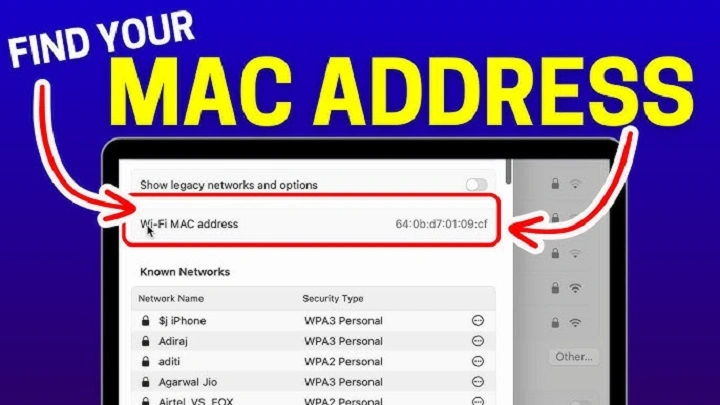
In the vast landscape of digital devices, your MacBook is your trusty companion, your gateway to the online world, and your faithful assistant in all matters digital. But amidst the myriad of functionalities it offers, there’s a crucial piece of information that often goes unnoticed: your MacBook’s MAC address.
What is a MAC Address?
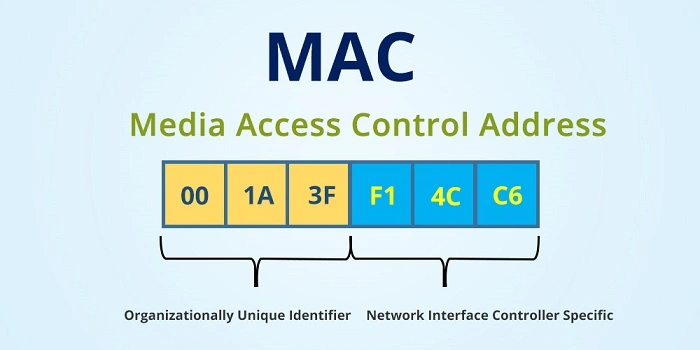
Before we delve into the intricacies of finding your MAC address, let’s first understand what it is. MAC, short for Media Access Control, is a unique identifier assigned to network interfaces for communications on a network segment. Unlike IP addresses, which can change depending on the network you’re connected to, a MAC address is permanently attached to the network interface hardware. Think of it as your MacBook’s digital fingerprint, allowing it to be identified uniquely on a network.
Why Finding Your MAC Address Matters
You might wonder why knowing your MacBook’s MAC address is essential. Well, there are several reasons:
- Network Troubleshooting: When encountering network issues, knowing your MAC address can help network administrators diagnose and resolve connectivity issues more efficiently.
- Network Security: MAC addresses can be used for access control in Wi-Fi networks. By knowing your MAC address, you can ensure that only authorized devices can connect to your network.
- Device Identification: In environments with multiple devices, such as offices or schools, knowing your MAC address can help distinguish your MacBook from others.
Now that we understand the significance, let’s explore the various methods to find your MacBook’s MAC address.
Using System Preferences
- Navigate to System Preferences: Click on the Apple menu in the top-left corner of your screen and select “System Preferences.”
- Select Network: In the System Preferences window, locate and click on the “Network” icon.
- Choose Your Connection: On the left sidebar, select the network connection you’re currently using (Wi-Fi, Ethernet, etc.).
- View MAC Address: After selecting your connection, click on the “Advanced” button in the bottom-right corner. In the new window, go to the “Hardware” tab, where you’ll find your MAC address listed as “Wi-Fi Address” or “Ethernet Address,” depending on your connection type.
Using Terminal
Open Terminal: You can access Terminal by going to Applications > Utilities > Terminal, or by using Spotlight Search (Command + Space) and typing “Terminal.”
Enter Command: In the Terminal window, type the following command and press Enter:
perl
Copy code
ifconfig | grep “ether”
This command will display the MAC addresses of all network interfaces on your MacBook.
Find Your MAC Address: Look for the MAC address associated with the network interface you’re interested in (usually en0 for Wi-Fi and en1 for Ethernet).
Checking the Hardware
If you’re unable to access your MacBook’s settings or Terminal, you can find the MAC address physically printed on your MacBook’s hardware.
- Flip Your MacBook Over: Turn your MacBook upside down, so you’re looking at the bottom side.
- Locate the MAC Address: On the bottom panel, near the regulatory markings, you’ll find a string of characters labeled “MAC,” followed by your MacBook’s MAC address.
Your MacBook’s MAC address might seem like a trivial detail, but it holds significant importance in networking and device identification. By following the methods outlined in this guide, you can easily locate your MacBook’s MAC address and leverage it for various purposes, from troubleshooting network issues to enhancing security. So, the next time you need to provide your MAC address, you’ll know exactly where to find it – unlocking yet another layer of your MacBook’s digital identity.
Using System Information
- Access System Information: Click on the Apple menu in the top-left corner of your screen and select “About This Mac.” In the window that opens, click on “System Report.”
- Find Network Information: In the System Information window, locate and click on “Network” in the left sidebar. This will display detailed information about your MacBook’s network connections.
- Locate MAC Address: Scroll through the network interfaces listed on the right side until you find the one corresponding to your active connection (Wi-Fi, Ethernet, etc.). The MAC address will be listed under the “MAC Address” or “Ethernet Address” field.
Using Network Utility
- Open Network Utility: You can find Network Utility by going to Applications > Utilities > Network Utility.
- View MAC Address: In the Network Utility window, select the “Info” tab. Here, you’ll find various network details, including your MAC address, listed as “Hardware Address.”
Why Knowing Multiple Methods is Beneficial
While each method outlined above achieves the same goal – finding your MacBook’s MAC address – having multiple methods at your disposal can be advantageous in various situations. For instance:
- Flexibility: Depending on your familiarity with macOS and your preference for navigating through settings or using commands, you can choose the method that feels most comfortable to you.
- Accessibility: In some scenarios, you may not have access to certain features or settings on your MacBook. Having alternative methods ensures that you can still retrieve your MAC address regardless of any limitations.
- Redundancy: Knowing multiple methods acts as a backup plan. If one method fails due to technical issues or changes in macOS versions, you can rely on another method to obtain the necessary information.
By familiarizing yourself with different approaches to finding your MAC address, you empower yourself to troubleshoot network-related issues more effectively and ensure seamless connectivity across various environments.
Understanding MAC Address Formats
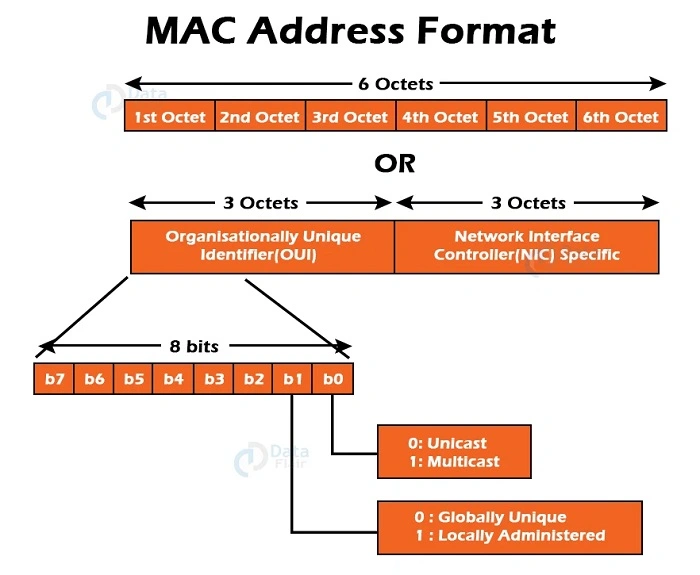
MAC addresses are typically represented as a string of six pairs of hexadecimal digits, separated by colons or hyphens. For example, a MAC address might appear as “00:1A:2B:3C:4D:5E” or “00-1A-2B-3C-4D-5E.” Each pair of digits represents a unique identifier assigned to the network interface hardware.
It’s worth noting that MAC addresses can also be formatted differently, depending on the context in which they’re used. Some systems may display MAC addresses in uppercase letters, while others may use lowercase. However, the underlying hexadecimal values remain the same, ensuring consistency in identification across devices and platforms.
Additional Considerations
While finding your MacBook’s MAC address is relatively straightforward, there are a few additional considerations to keep in mind:
- Dynamic MAC Addresses: In some cases, particularly with virtual network interfaces or certain network configurations, your MacBook may use dynamic MAC addresses. These addresses can change over time or based on specific network conditions. If you encounter discrepancies or inconsistencies in your MAC address, it’s essential to verify the information under stable network conditions.
- Privacy Concerns: Although MAC addresses are primarily used for network communication and device identification, some privacy advocates raise concerns about potential tracking or profiling based on MAC address information. While MAC addresses alone typically don’t reveal sensitive personal data, exercising caution when sharing this information in public or unsecured environments is advisable.
In the vast ecosystem of digital devices, your MacBook’s MAC address serves as a fundamental identifier for network communication and device recognition. By familiarizing yourself with the various methods outlined in this guide, you can easily locate your MacBook’s MAC address and leverage it for troubleshooting, security, and network configuration purposes.
Whether you prefer navigating through system settings, using Terminal commands, or exploring third-party utilities, the methods discussed offer flexibility and accessibility to meet your unique needs. Armed with the knowledge of your MacBook’s MAC address and its significance in network operations, you’re better equipped to navigate the digital landscape with confidence and efficiency.