


Is your Dell laptop freezing, running slowly, or not responding to commands? Rebooting is often the simplest and most effective solution. Whether you’re using a Dell Inspiron, XPS, Latitude, or Vostro, a proper reboot can refresh your system, fix temporary software issues, and restore performance—without deleting your files or settings. This guide covers all the best methods to safely reboot a Dell laptop.
Understanding the Reboot Process
Why Rebooting Helps
Rebooting your Dell laptop clears temporary system memory, shuts down background processes, and restarts Windows or your installed OS. It’s a simple fix for problems like screen freezing, lag, or connectivity issues.
When Should You Reboot?
- Programs are unresponsive or crashing
- Touchpad or keyboard stops working
- System becomes slow or lags
- Wi-Fi, Bluetooth, or sound isn’t working
- After Windows updates or driver installations
- Screen is stuck or flickering
How to Reboot Dell Laptop (Standard Methods)
Restart from Start Menu
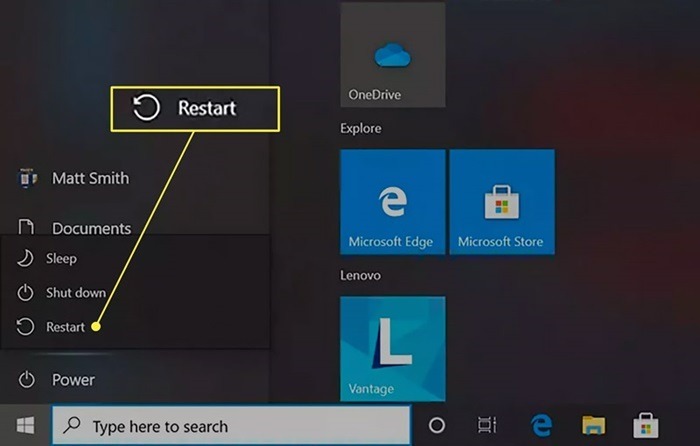
The easiest and safest way to reboot a Dell laptop is through the Windows Start menu.
- Click the Start (Windows icon) in the bottom-left corner
- Tap the Power icon
- Select Restart from the options
- Wait for the system to shut down and power back on automatically
This method ensures that apps close properly and no data is lost.
Use Keyboard Shortcut
For a quick desktop restart:
- Close or minimize all windows
- Press Alt + F4 while on the desktop
- In the dialog box, select Restart from the dropdown
- Click OK or press Enter
This shortcut provides a fast way to reboot without navigating menus.
Ctrl + Alt + Delete Method
If your laptop becomes partially unresponsive:
- Press Ctrl + Alt + Delete together
- Click the Power icon at the lower-right corner
- Select Restart
This method helps when apps freeze but the OS is still accessible.
Advanced Reboot Options
Force Restart Using Power Button
If the screen is frozen or completely unresponsive:
- Press and hold the Power button for about 10 seconds
- The laptop will shut down forcefully
- Wait a few seconds, then press the Power button again to turn it back on
Use this only when other restart options don’t work.
Restart via Command Prompt
For users who prefer a command-line method:
- Open Command Prompt (type cmd in the Start menu search bar)
- Type: shutdown /r /t 0
- Press Enter
This command forces a restart immediately.
Reboot After System Update
When Windows installs important updates:
- Click Start > Power > Update and Restart
- This ensures all updates are applied correctly
Do not power off manually during update restarts.
Troubleshooting: When Rebooting Doesn’t Work
Dell Laptop Won’t Turn Back On
- Check the power adapter connection
- Try a different outlet or charger
- Hold the Power button for 15 seconds to force a power reset
- If available, remove and reinsert the battery
Laptop Still Freezes After Restart
- Boot into Safe Mode to check for software conflicts
- Run System File Checker with sfc /scannow in Command Prompt
- Uninstall any recent software or updates that caused issues
Stuck on Dell Logo During Boot
- Power off completely by holding the Power button
- Turn on and press F12 repeatedly to open the Boot Menu
- Select Diagnostics to check for hardware issues
- Try Startup Repair from the Advanced Recovery menu
Special Restart Modes for Dell Laptops
Access BIOS/UEFI Settings
To enter BIOS or system setup:
- Reboot the laptop
- Immediately press F2 repeatedly during startup
- This allows you to adjust system-level settings like boot sequence or virtualization
Perform a Hard Reset (Power Drain)
If the laptop won’t respond:
- Turn off the laptop
- Unplug the charger and remove the battery (if removable)
- Hold the Power button for 30 seconds
- Reinsert the battery and reconnect power
- Power it back on normally
Useful for resolving power-related or charging issues.
Reset Using Dell SupportAssist
Dell laptops with SupportAssist allow advanced diagnostics:
- Restart and press F12 repeatedly
- Select SupportAssist OS Recovery
- Follow prompts to run a system check or repair
Great for fixing deeper OS or hardware issues without needing external help.
Reset vs. Reboot: Know the Difference
Reboot
- Restarts the system
- Keeps all files and settings intact
- Ideal for fixing temporary performance problems
Reset
- Restores the laptop to factory settings
- Erases all files and installed apps
- Use when fixing major errors or preparing for resale
How to Factory Reset Dell Laptop
- Go to Settings > System > Recovery
- Under Reset this PC, click Reset PC
- Choose Keep my files or Remove everything
- Follow the on-screen steps
Always backup your data before resetting.
Tips to Keep Your Dell Laptop Running Smoothly
1. Restart Weekly
Reboot every few days to prevent memory leaks and system slowdowns.
2. Install Updates Regularly
Keep Windows and drivers up to date by checking Settings > Windows Update.
3. Monitor Startup Programs
Use Task Manager (Ctrl + Shift + Esc) to disable unnecessary startup apps.
4. Scan for Malware
Run regular scans using Windows Defender or third-party antivirus tools.
5. Avoid Overheating
Keep vents clean and use your Dell laptop on hard surfaces to allow airflow.
FAQs
How often should I reboot my Dell laptop?
Once every few days or whenever performance drops is a good practice.
Will rebooting delete my personal data?
No. Rebooting only restarts your system—your files remain safe.
What if my Dell laptop doesn’t restart properly?
Try a force restart using the Power button or boot into Safe Mode for further troubleshooting.
Can I restart using the keyboard only?
Yes. Use Alt + F4 on the desktop or Ctrl + Alt + Delete > Restart.
What’s the difference between restart and shut down?
Restart refreshes the system immediately, while Shut Down powers off the device. Use restart when fixing errors or applying updates.