

The MacBook Pro is a powerful machine, beloved by many for its sleek design and impressive performance. However, like any computer, it may encounter issues that require a reboot to resolve. Whether you’re experiencing a frozen screen, unresponsive applications, or other glitches, knowing how to properly reboot your MacBook Pro is essential.
On the other hand, a hard reboot, also known as a force restart, involves forcibly shutting down your MacBook Pro using a key combination. This method is useful when your Mac becomes unresponsive or freezes, and you need to reset it quickly.
Soft Reboot (Regular Restart)
Now that you’re familiar with the two types of reboots, let’s explore how to perform each one:
- Save your work: Before restarting your MacBook Pro, it’s crucial to save any unsaved work to prevent data loss.
- Close applications: Close all open applications and windows to ensure a smooth restart process.
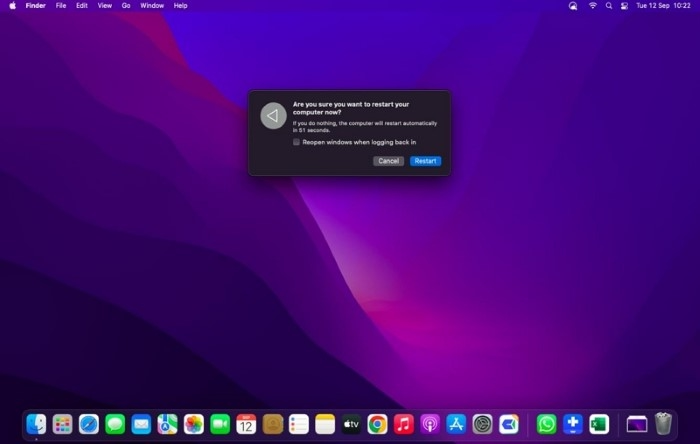
- Click on the Apple menu: Located in the top-left corner of the screen, click on the Apple icon to access the dropdown menu.
- Select “Restart”: From the dropdown menu, select the “Restart” option. This will initiate the reboot process, and your MacBook Pro will begin shutting down.
- Wait for the restart: Once your MacBook Pro has fully shut down, it will automatically restart. Depending on your system’s configuration, this process may take a few moments.
- Test your Mac: After the restart is complete, reopen your applications and test your Mac to ensure that it’s functioning properly.
Hard Reboot (Force Restart)
- Press and hold the power button: Locate the power button on your MacBook Pro (usually located at the top-right corner of the keyboard) and press and hold it down.
- Hold the keys: While holding down the power button, simultaneously press and hold the “Control” and “Option” keys on the left side of the keyboard, as well as the “Shift” key on the right side.
- Continue holding the keys: Keep holding down all four keys for at least 10 seconds. You may release the keys once you see the screen go blank and hear the startup chime.
- Release the keys: After releasing the keys, wait a few moments for your MacBook Pro to restart automatically.
- Test your Mac: Once your MacBook Pro has restarted, test its functionality to ensure that the hard reboot resolved any issues.
By following these steps, you can effectively reboot your MacBook Pro and troubleshoot any issues that may arise. Whether you’re performing a regular restart for routine maintenance or a force restart to address a frozen screen, knowing how to reboot your Mac is an essential skill for any user.
In addition to rebooting your MacBook Pro, it’s also important to regularly update your operating system and software to ensure optimal performance and security. By staying proactive with maintenance and troubleshooting, you can keep your Mac running smoothly for years to come.
Understanding the Importance of Rebooting
Before we delve into the nitty-gritty of how to reboot your MacBook Pro, let’s take a moment to understand why rebooting is essential. When you use your MacBook Pro, the operating system (macOS) and various applications load data into memory (RAM) for quick access. Over time, as you continue to use your Mac and open and close applications, this data can become fragmented or corrupted, leading to performance issues and system instability. Additionally, software updates and system modifications can sometimes require a reboot to take effect fully.
By rebooting your MacBook Pro, you essentially clear out this temporary data and start fresh, allowing your Mac to run more smoothly and efficiently. Think of it as giving your Mac a chance to catch its breath and recalibrate itself.
Advanced Rebooting Techniques
While the basic rebooting methods outlined earlier are sufficient for most situations, there are times when you may encounter more stubborn issues that require a more advanced approach. Here are some additional techniques you can try:
Safe Mode Boot: If your MacBook Pro is experiencing persistent issues, such as frequent crashes or freezing, you can try booting it into Safe Mode. Safe Mode disables certain system extensions and startup items, allowing you to troubleshoot and identify the source of the problem. To boot into Safe Mode, follow these steps:
- Shut down your MacBook Pro.
- Press the power button to turn it on, then immediately press and hold the Shift key.
- Continue holding the Shift key until you see the Apple logo and progress bar.
- Once your Mac has booted into Safe Mode, you can perform troubleshooting steps, such as running disk utility or removing problematic applications or extensions.
Reset SMC and NVRAM/PRAM: The System Management Controller (SMC) and Non-Volatile Random-Access Memory (NVRAM) or Parameter RAM (PRAM) are responsible for managing various hardware and system settings on your MacBook Pro. Resetting these components can sometimes resolve issues related to power management, display, and other system functions. To reset the SMC and NVRAM/PRAM, follow the instructions provided by Apple for your specific MacBook Pro model.
Recovery Mode: If your MacBook Pro encounters severe issues that prevent it from booting normally, you can try booting it into Recovery Mode. Recovery Mode provides a set of tools for troubleshooting and repairing your Mac’s disk, reinstalling macOS, and restoring from backups. To boot into Recovery Mode, follow these steps:
- Shut down your MacBook Pro.
- Press the power button to turn it on, then immediately press and hold the Command (⌘) and R keys.
- Continue holding the keys until you see the Apple logo or a spinning globe.
- Once in Recovery Mode, you can use Disk Utility to repair your disk or reinstall macOS using the macOS Utilities menu.
Best Practices for Rebooting Your MacBook Pro
Now that you’re familiar with the various rebooting techniques, let’s discuss some best practices to ensure a smooth and effective rebooting process:
- Save your work: Before rebooting your MacBook Pro, make sure to save any unsaved work to prevent data loss.
- Close applications: Close all open applications and windows to prevent conflicts during the reboot process.
- Perform regular maintenance: In addition to rebooting your MacBook Pro as needed, it’s essential to perform regular maintenance tasks, such as updating macOS and software, running disk utility to repair disk permissions, and clearing out temporary files and caches.
- Monitor performance: Keep an eye on your MacBook Pro’s performance and behavior. If you notice any recurring issues or unusual behavior, investigate and address them promptly to prevent further problems.
- Backup your data: As a precautionary measure, always back up your important data regularly using Time Machine or another backup solution. This ensures that you can recover your files in case of a system failure or data loss event.
By following these best practices and utilizing advanced rebooting techniques when necessary, you can keep your MacBook Pro running smoothly and efficiently for years to come.
In this guide, we’ve explored the importance of rebooting your MacBook Pro and discussed various rebooting techniques, from basic restarts to advanced troubleshooting methods. By understanding when and how to reboot your MacBook Pro effectively, you can troubleshoot common issues, improve performance, and ensure a seamless computing experience. Remember to save your work, close applications, and perform regular maintenance to keep your MacBook Pro in optimal condition. With these tips and techniques at your disposal, you’ll be well-equipped to master the art of rebooting your MacBook Pro like a pro.