

In the digital age, screenshots have become an indispensable tool for communication, troubleshooting, and creative expression. Whether you’re capturing a memorable moment, saving important information, or sharing something with others, knowing how to take a screenshot on your MacBook Air is essential. In this comprehensive guide, we’ll explore the various methods available and offer tips for maximizing your screenshot-taking prowess.
Step-by-Step Guide to Screenshot On A Macbook Air
Before diving into the specifics, let’s cover the basics. A screenshot is simply a digital image of whatever is currently displayed on your computer screen. On a MacBook Air, you have several options for capturing screenshots, each tailored to different scenarios and preferences.
Using Keyboard Shortcuts
The quickest and most commonly used method for taking a screenshot on a MacBook Air is by using keyboard shortcuts. Here’s a breakdown of the primary shortcuts:
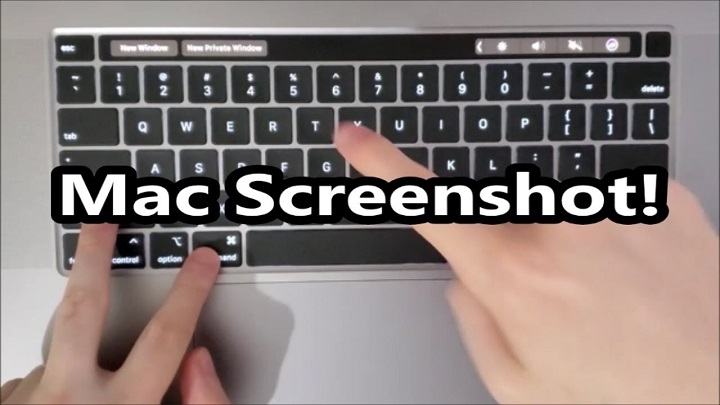
- Capture Entire Screen: Press Command (⌘) + Shift + 3. This will capture the entire contents of your screen and save it as a file on your desktop.
- Capture a Selected Portion: Press Command (⌘) + Shift + 4. Your cursor will change to a crosshair pointer. Click and drag to select the area you want to capture. Release the mouse button to take the screenshot.
- Capture a Specific Window: Press Command (⌘) + Shift + 4, then press the Spacebar. Your cursor will change to a camera icon. Click on the window you want to capture. This method is perfect for capturing individual windows without including the rest of the screen.
Using the Screenshot Utility
If you prefer a more visual approach or need additional options, you can use the built-in Screenshot utility. Here’s how:
- Press Command (⌘) + Shift + 5 to open the Screenshot utility.
- Choose one of the available options: Capture Entire Screen, Capture Selected Window, or Capture Selected Portion.
- Customize additional settings such as where to save the screenshot and whether to include a timer delay.
- Click on the “Capture” button or press the appropriate shortcut keys to take the screenshot.
Using the Touch Bar (for MacBook Pro Models)
If you’re using a MacBook Air with a Touch Bar, you can also take screenshots using Touch Bar controls. Here’s how:
- Press Command (⌘) + Shift + 6 to capture the Touch Bar and save it as a file on your desktop.
Tips for Success
Now that you know the various methods for taking screenshots on your MacBook Air, here are some tips to ensure your screenshots turn out perfect every time:
- Organize Your Desktop: Since screenshots are saved directly to your desktop by default, keeping it clutter-free will make it easier to find and manage your screenshots.
- Use Shortcuts: Memorizing the keyboard shortcuts for taking screenshots will save you time and streamline your workflow.
- Experiment with Settings: Take advantage of the options available in the Screenshot utility to customize your screenshots according to your needs.
- Edit if Necessary: If you need to make adjustments or annotations to your screenshots, you can use built-in tools like Preview or third-party applications like Skitch.
- Share with Ease: Once you’ve taken your screenshot, you can easily share it with others via email, messaging apps, or social media.
Mastering the art of taking screenshots on your MacBook Air opens up a world of possibilities for communication, creativity, and productivity. Whether you’re documenting a problem, capturing a moment, or illustrating a point, knowing how to take a screenshot effectively is a valuable skill that will serve you well in many aspects of your digital life. With the techniques outlined in this guide, you’ll be well on your way to becoming a screenshot pro.
Practical Applications of Screenshots
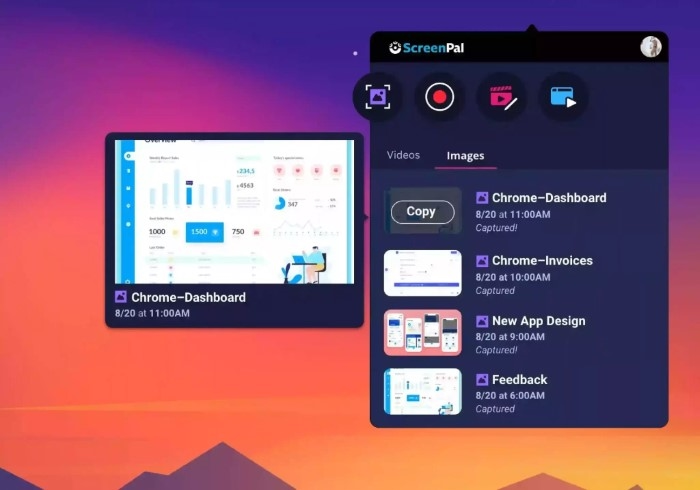
Screenshots are incredibly versatile and can be used in various scenarios, both personal and professional. Here are some practical applications:
- Troubleshooting: When encountering technical issues or errors on your MacBook Air, taking a screenshot can help you document the problem. You can then share the screenshot with support staff or online forums to receive assistance.
- Documentation: Screenshots are useful for documenting steps in a process, such as software tutorials or instructional guides. They provide visual clarity and can help others understand complex concepts more easily.
- Communication: Instead of describing something verbally, a screenshot can convey information more efficiently. Whether you’re discussing a design concept, providing feedback on a document, or highlighting an issue, a screenshot can speak volumes.
- Creative Expression: Screenshots can be a creative tool for artists, designers, and content creators. You can capture inspiring images, interesting patterns, or moments of inspiration from your favorite websites, apps, or videos.
- Evidence and Proof: If you need to provide evidence of an online transaction, conversation, or any digital interaction, a screenshot can serve as concrete proof.
Advanced Techniques
Now that you’re familiar with the basics of taking screenshots on your MacBook Air, let’s explore some advanced techniques to enhance your screenshot-taking skills:
- Customize File Names: By default, screenshots are saved with generic file names like “Screen Shot [Date] at [Time].” To keep your files organized and easily searchable, consider customizing the file names based on the content of the screenshot.
- Keyboard Maestro: If you frequently take screenshots and require more customization options, consider using third-party automation tools like Keyboard Maestro. You can create macros to automate repetitive tasks, assign custom shortcuts, and streamline your workflow.
- Include Timestamps: If you need to capture a time-sensitive piece of information, such as an error message or a social media post, consider including a timestamp in your screenshot. You can do this by displaying the date and time in your macOS menu bar or using third-party screenshot apps that offer timestamp overlays.
- Annotate Screenshots: macOS includes basic annotation tools in the Preview app, allowing you to add text, shapes, arrows, and highlights to your screenshots. For more advanced annotation features, consider using third-party apps like Skitch or Annotate.
- Record Screen: In addition to taking static screenshots, macOS also allows you to record your screen activity using the built-in screen recording feature. This is useful for creating tutorials, demonstrating software features, or capturing gameplay footage.
Additional Tips
To further optimize your screenshot-taking experience, here are some additional tips:
- Optimize for Sharing: Before sharing your screenshots with others, consider optimizing them for different platforms and devices. For example, you may need to resize or crop the image to fit within the constraints of a messaging app or social media platform.
- Backup Regularly: Since screenshots are saved directly to your desktop by default, it’s essential to regularly back up your files to prevent data loss. You can use iCloud, external hard drives, or cloud storage services like Dropbox or Google Drive for backups.
- Stay Updated: As macOS evolves, new features and improvements may be introduced that affect the screenshot-taking process. Stay updated with the latest macOS updates to take advantage of any enhancements or changes.
- Respect Privacy: When taking screenshots of sensitive information or conversations, be mindful of privacy considerations. Avoid sharing screenshots that contain personal or confidential information without permission.
- Practice, Practice, Practice: Like any skill, mastering the art of taking screenshots requires practice. Experiment with different methods, shortcuts, and techniques to find what works best for you.
Taking screenshots on your MacBook Air is a fundamental skill that can enhance your productivity, communication, and creativity. By understanding the various methods, practical applications, advanced techniques, and additional tips outlined in this guide, you’ll be well-equipped to capture and utilize screenshots effectively in your digital endeavors. Whether you’re troubleshooting technical issues, documenting processes, communicating ideas, or expressing your creativity, screenshots are a powerful tool that can help you accomplish your goals with ease and efficiency.