

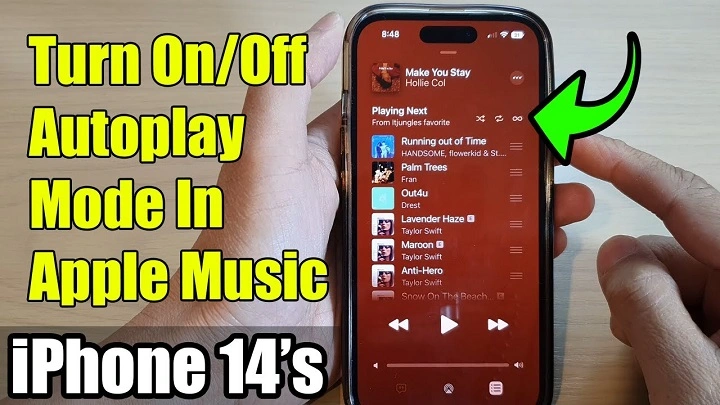
Apple Music offers an intuitive, personalized streaming experience—but some features remain underused, especially by new users. One common question is: how to turn on autoplay on Apple Music? Whether you’re using an iPhone, Mac, or iPad, Apple Music Autoplay can keep the music flowing endlessly based on your taste. In this article, we’ll explain what Autoplay is, how to enable it across all your devices, and answer the most frequently asked questions—all updated for 2025.
What Is Apple Music Autoplay?
Apple Music Autoplay is a feature that keeps the music playing even after your playlist, album, or queue ends. It uses machine learning and your listening history to find similar songs you might like. Once enabled, the app generates an infinite stream of music that suits your vibe—without lifting a finger.
Autoplay works best when:
- You finish a playlist or album and want continuous music.
- You’re in the mood to discover new artists and songs.
- You want to avoid abrupt silence after a set ends.
How to Turn On Autoplay on Apple Music on iPhone (iOS 17 and above)
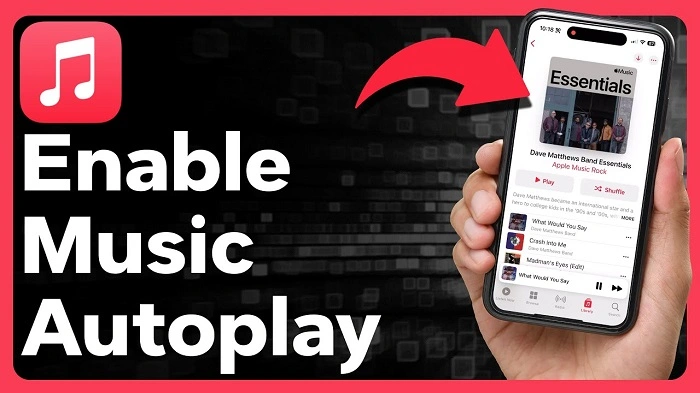
Enabling Autoplay on your iPhone is simple but can be missed if you’re not familiar with the icons. Here’s how:
Step-by-Step Instructions
- Open the Apple Music app.
- Start playing a song from any album, playlist, or artist.
- Tap the Now Playing mini-player at the bottom to expand it.
- Tap the Up Next queue icon (three lines with dots).
- On the right side, tap the infinity (∞) icon.
- If it turns red, Autoplay is enabled.
- If it’s gray, it’s turned off.
Apple Music will now automatically add similar tracks to your queue after the current one ends.
How to Turn On Autoplay on Mac (macOS Ventura or later)
Apple Music on Mac includes the same Autoplay feature, just with a slightly different interface.
To Enable Autoplay on Mac:
- Open the Apple Music app on your Mac.
- Start playing a song or playlist.
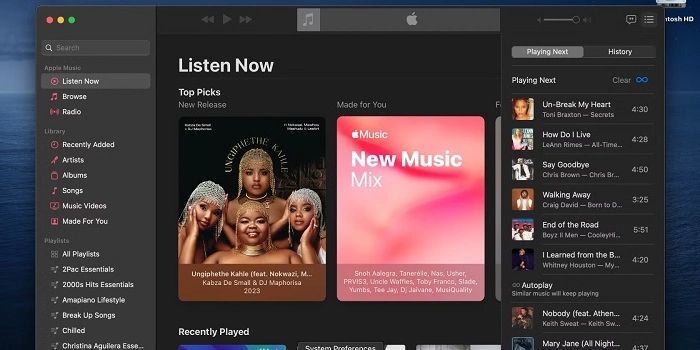
- Click the Up Next icon (found in the top-right corner of the app).
- Toggle the Autoplay button (∞) on or off at the top of the queue.
When Autoplay is on, you’ll see a section labeled “Autoplay: Similar music will keep playing” below your current queue.
How to Turn On Autoplay on iPad
The process is nearly identical to iPhone:
- Open the Music app and play any song.
- Tap the Now Playing bar to expand.
- Tap the Up Next (≡) icon.
- Tap the Autoplay icon (∞) to enable it.
You’ll notice the next songs are dynamically generated once the current queue ends.
How to Turn On Autoplay on Apple CarPlay
If you’re using Apple Music through CarPlay:
- Play a playlist or song.
- Expand the “Now Playing” screen.
- Use your car’s touch display to access the queue.
- Tap the infinity icon if visible (note: not all vehicles show it, depending on display constraints).
Why You Should Use Apple Music Autoplay
There are several benefits to using the Autoplay feature:
- No interruptions between songs or playlists.
- Better discovery of new songs and artists.
- Personalized music feed based on your taste.
- Great for long drives, workouts, or background ambiance.
Autoplay effectively turns Apple Music into a non-stop smart DJ.
What to Do If Autoplay Is Not Working
Sometimes users report Autoplay not functioning as expected. Here’s how to troubleshoot:
1. Check If It’s Enabled
- Make sure the infinity symbol is red (enabled).
- On all devices, double-check the Up Next queue to ensure Autoplay is on.
2. Update iOS/macOS
- Make sure your device is running the latest version of iOS or macOS.
- Go to Settings > General > Software Update (iPhone/iPad).
- On Mac, go to System Settings > General > Software Update.
3. Restart Your Device
- Sometimes a quick reboot helps refresh Apple Music’s internal settings.
4. Reinstall Apple Music App
- If the issue persists, delete the Apple Music app and reinstall it from the App Store.
How to Disable Autoplay on Apple Music
If you want to stop continuous playback, follow the same steps and tap the infinity icon again to turn it gray.
Autoplay will now stop at the end of your current queue.
FAQs: How to Turn On Autoplay on Apple Music
Can I turn on Autoplay permanently in Apple Music?
Autoplay remains on until you turn it off manually. It doesn’t reset with every session.
Is Autoplay available in Apple Music free trial?
Yes. Autoplay is part of the full Apple Music experience, even during the trial period.
Does Autoplay use mobile data?
Yes, unless you’re on Wi-Fi. You can manage this under Settings > Music > Cellular Data.
Why doesn’t my Autoplay icon show up?
This can happen in certain views (like Radio or Live Streams). Play a standard playlist or song to see the Autoplay icon.
Does Autoplay repeat the same songs?
No. It uses algorithms to find new or similar songs. Over time, it improves with your listening habits.
Pro Tips for Apple Music Power Users
- Use “Love” and “Dislike” buttons to improve recommendations.
- Create a Smart Playlist based on Autoplay suggestions.
- Try enabling Crossfade under Music Settings for smoother transitions.
- Pair with HomePod for continuous background music throughout your house.
Why Autoplay Is a Must-Use Feature in 2025
With millions of songs in Apple Music’s library, curation is king. Autoplay is Apple’s solution to overwhelm. It combines your play history, likes, and listening patterns to keep the music going—no DJ required.
Whether you’re multitasking, commuting, or working out, turning on Autoplay ensures your vibe continues uninterrupted.