

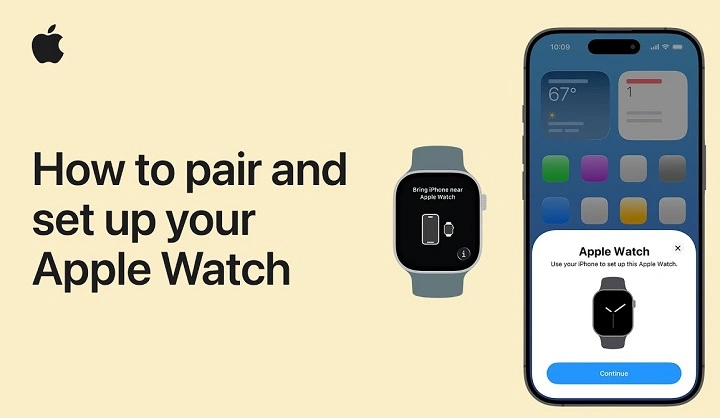
Apple Watch is the most intimate and mighty Apple device Apple has ever produced. Plunked on your wrist in a pair, tracking your health, and syncing automatically with your iPhone by mistake. But when you are switching from iPhone, one of the most in-demand is how to sync Apple Watch with the new phone. Which is without losing data, set loss, or even health records?
Read the step-by-step instructions and learn how to safely unpair from the previous iPhone. And put the new iPhone in pairing mode. Then pair the watch to the new phone. Apple Watch Series 3 or the new Apple Watch Ultra will be a breeze and pain-free if this is what you desire.
Last but not least, you can synchronize the Apple Watch with the newest iPhone without losing your apps, fitness tracking history, and health data.
The Apple Watch and iPhone’s Communication

You should have an idea of how the two communicate when syncing an Apple Watch with a new iPhone. Your Apple Watch and iPhone are as intimate in connection as sharing the data to be accessible to each other via iCloud, Wi-Fi, and Bluetooth.
Apple Watch stores your health and fitness data locally. But syncs back to your iPhone and iCloud when first enabling Health and iCloud backups. This way, if you ever need to replace your iPhone with a new one. Then you restore the device to how you had it originally.
Apple Watch pairing is done through your iPhone Watch application. When you unpair, your watch will be automatically backed up and that will copy everything on the new phone.
What You Will Need Before Paired Apple Watch with New iPhone
Make sure the following are charged in advance of the procedure:
- Phones charged.
- Charging Apple Watch and old and new iPhones at least 50%.
Backup your existing iPhone.
You backup iPhone data, such as Apple Watch backup, to iCloud or iTunes.
Your devices both need the latest software.
You’re on the right track with Settings > General > Software Update on your iPhone and Apple Watch.
Your iPhones can sit side by side.
Setup transfer is done in a snap.
All you’ve done so far. Now you can go ahead and un-pair and re-pair your Apple Watch.
Unpair Apple Watch from Your Previous iPhone
Step 1 is unpairing and the most critical. Unpairing unpartners and syncs the watch automatically.
Do the following:
- Open the Watch app on your previous iPhone.
- Tap the My Watch tab.
- Tap the top-left All Watches button.
- Tap the info (i) button next to the Apple Watch name.
- Tap Unpair Apple Watch.
- On cellular models, to save or lose your cell plan.
- Bail out of the plan if you’re rolling over your current Apple Watch with the new iPhone.
- Enter your Apple ID password and accept.
Your Apple Watch should now be unpained. This could take a minute or two. When complete, your watch will have been factory reset and automatically backed up to your iPhone.
Set Up Your New iPhone
Your Apple Watch is no longer paired, so the right time now is to prepare your new iPhone.
- Configure your new iPhone and finish it.
- Tap Restore from iCloud Backup or Restore from Mac/PC when prompted.
- Select the most recent backup with your Apple Watch information.
- Let the process run.
Restoring the new iPhone from the original backup also preserves your Apple Watch setting and information.
Match Apple Watch with the New iPhone

Your new iPhone is ready, and you can match the Apple Watch.
- Place your Apple Watch next to your new iPhone.
- Wait for the Apple Watch pairing screen to display on your iPhone.
- Click on Continue.
- Or, click manually on Start Pairing from Watch app.
- Position watch face over your iPhone screen.
- Wait for the device to get paired up.
Then. Restore from Backup. Choose your latest backup (the unpair one) and continue.
It will load your original watch face, apps, and settings the way you left them.
Sign in and Sync Health and Activity Data
Your Health and Fitness data have synced. If you have iCloud syncing turned on. Then it’ll automatically sync. Because you’ve signed into your Apple ID on your new iPhone.
Or make sure Health data are synced on your iCloud:
- Settings > [Your Name] > iCloud > Health.
- Toggle it on to sync all the health data securely.
Your Apple Watch will be associated with your iCloud account. It’ll sync all your Health and Fitness data automatically during recovery and pairing.
Locate Notifications, Apps, and Wallet.
Notifications: Open Watch app → Notifications and make sure that they are turned on for main apps.
Apple Pay and Wallet. You would have to add cards manually again in order to keep them secure.
App Layout: Your own layout would come back automatically if you had saved one.
Music and Photos: These would be restored in minutes’ time.
Again, you can reinstall watch faces or install new apps straight from the Watch App Store.
Repair Apple Watch Won’t Pair with New iPhone
Pairing is more difficult. If Apple Watch won’t pair with the new iPhone, repair these troubleshoots:
- Both devices restart.
iPhone and Apple Watch reset.
- Apple Watch manual reset.
Settings > General > Reset > Erase All Content and Settings on the watch.
- iCloud sign-in.
Sign both devices in under the same Apple ID on both devices.
- Software update.
Make sure both devices have the latest iOS and watchOS.
- Check Wi-Fi and Bluetooth.
Make sure both are not disabled when in pairing.
If none of the above, you may contact Apple Support. Or repair your device at an authorized Apple retail store.
How to distinguish Unpairing, Resetting, and Pairing
The three processes are mixed up with each other but are employed for different uses.
- Unpairing will disconnect your watch from the iPhone and automatically backup your watch.
- Reset will wipe out everything on your data and settings, and your Apple Watch will be restored to factory settings.
- Pairing will sync your Apple Watch with an iPhone, new or restore from backup.
You will need to remember when to do each so as not to lose data and waste time.
Using iPhone Without Unpairing (Alternate Method)
If the lost phone is not on your wrist. Then pair the Apple Watch with another iPhone by restoring it directly:
- On Apple Watch, go to Settings > General > Reset > Erase All Content and Settings.
- Reset and set up close to the new iPhone.
- Pair as on screen.
- Restore from an iCloud backup, if available.
This will come in handy if the original iPhone is lost.
How to Ensure Apple Watch and iPhone Remain Synced in the Future

After pairing your Apple Watch with a new iPhone. Sync perfectly from now on. Cultivate the following habits:
- Turn on both devices’ Wi-Fi and Bluetooth.
- Back up your iPhone to iCloud regularly.
- Update both devices to their latest versions.
- Use no more than one Apple ID on each individual Apple Watch.
A new and secure connection keeps your devices connected and in top form.
When to Replace or Upgrade Your Apple Watch
And if your Apple Watch continues not to pair, auto-restart, or lag even after the restart, then it’s time when the time has come for watch exchange. Apple Watch batteries and sensors do have a shelf life too, yes. You should be able to feel a better performance, faster rate of syncing, and even better battery life after you get the new one.
Apple Watch Series 9 and Apple Watch Ultra are available on the Apple website or at Apple stores.
Frequently Asked Questions (FAQs)
Do I pair another iPhone?
Yes. Unpair so you can back up that will be restored to your data later.
What if the original iPhone was lost or damaged?
You can restart the Apple Watch manually and restore it in factory mode. Your data will be restored if your iCloud has a backup.
How long will it take Apple Watch to sync with a new iPhone?
Primarily 5-10 minutes, depending on network and backup size.
Unpairing a new iPhone takes away cellular service, does it?
You’re an iPhone on a cell plan and you don’t want to change plans when you unpair, your service won’t be severed.
Last Words
Apple Watch unpairing a new iPhone isn’t scary. Unpairing politely, backing up, and doing it step by step, your nightmare won’t be prolonged and will not be gory.
The procedure resynchronizes your watch faces, apps, and most importantly, your health data. It is really a backup, unpair, restore, and re-pair, all via the Watch app and iCloud.
Your Apple Watch will be feeling fresh with your newly purged iPhone and ready to pick up from where it was left off tracking your exercise, messages, and daily goals in their usual cycle in a few minutes.