

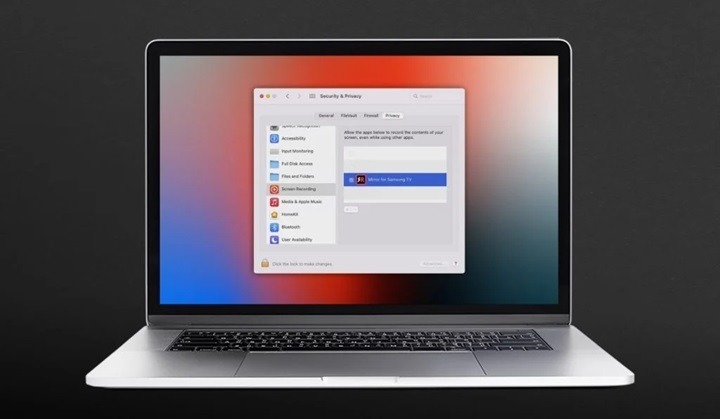
In today’s digital age, capturing screenshots has become an essential skill for Mac users worldwide. Whether you’re a student, a professional, or a casual user, knowing how to take screenshots on your MacBook Air can greatly enhance your productivity and communication abilities. In this comprehensive guide, we’ll walk you through everything you need to know about taking screenshots on your MacBook Air, including various methods, shortcuts, and tips to make the process efficient and effective.
Understanding the Basics of Screenshots

Before diving into the different methods of taking screenshots on your MacBook Air, let’s first understand what a screenshot is and why it’s useful.
What is a Screenshot?
A screenshot is essentially a digital image of whatever is displayed on your computer or device’s screen at a given moment. It allows you to capture and save an exact replica of what you see on your screen, including open windows, applications, web pages, or any other content.
Why Take Screenshots?
- Documentation: Screenshots are often used to document important information, such as error messages, software configurations, or web content, for later reference or sharing with others.
- Communication: Screenshots can be an effective way to communicate visually, whether you’re providing instructions, demonstrating a process, or highlighting specific details.
- Troubleshooting: When seeking technical support or troubleshooting issues, screenshots can help convey the problem more clearly to others.
Methods for Taking Screenshots on MacBook Air
Now that we understand the importance of screenshots let’s explore the various methods available for capturing them on your MacBook Air.
- Using Keyboard Shortcuts
- Capturing the Entire Screen
- Press Command (⌘) + Shift + 3 simultaneously.
- You’ll hear a camera shutter sound, indicating that the screenshot has been successfully captured.
- The screenshot will be saved as a PNG file on your desktop by default.
Capturing a Selected Portion of the Screen
- Press Command (⌘) + Shift + 4 simultaneously. Your cursor will turn into a crosshair.
- Click and drag to select the portion of the screen you want to capture.
- Release the mouse button to take the screenshot.
- Like capturing the entire screen, the selected portion will be saved as a PNG file on your desktop.
- Using the Grab Utility
- Accessing the Grab Utility
- Go to Applications > Utilities > Grab.
- Launch the Grab utility.
Capturing Screenshots with Grab
- In the Grab menu, select Capture > Selection, Window, Screen, or Timed Screen depending on your preference.
- Follow the prompts to capture the desired portion of the screen.
- Once captured, you can save the screenshot in various formats, including TIFF, PNG, JPEG, and PDF.
- Using Preview App
- Capturing Screenshots with Preview
- Open the Preview app from your Applications folder.
- Click on File > Take Screenshot and choose from the available options: From Selection, From Window, From Entire Screen.
- Preview will capture the screenshot according to your selection and open it as a new file.
- You can then save the screenshot in your preferred format.
Tips and Tricks for Better Screenshots
- Customize Screenshot File Names: To easily identify and organize your screenshots, consider customizing the default file names with descriptive titles.
- Utilize Markup Tools: Take advantage of built-in markup tools available in Preview to annotate and highlight specific areas of your screenshots.
- Explore Third-Party Apps: There are several third-party screenshot apps available on the Mac App Store that offer additional features and customization options for capturing and managing screenshots.
Mastering the art of taking screenshots on your MacBook Air is a valuable skill that can greatly enhance your productivity and communication abilities. By familiarizing yourself with the various methods and shortcuts available, as well as incorporating tips and tricks for better screenshots, you’ll be well-equipped to capture, annotate, and share visual content with ease. So go ahead, start snapping those screenshots and unlock a world of possibilities on your MacBook Air!
Advanced Techniques for Screenshot Mastery
Now that you’ve mastered the basics of taking screenshots on your MacBook Air, let’s delve deeper into some advanced techniques and tips to further enhance your screenshot-taking abilities.
Utilizing Keyboard Shortcuts Efficiently
While the standard keyboard shortcuts for capturing screenshots are convenient, there are additional shortcuts and modifiers that can make the process even more efficient.
- Adding Control Key: By adding the Control key to the standard shortcuts (Command + Shift + 3 or 4), you can copy the screenshot to the clipboard instead of saving it as a file. This is useful when you want to paste the screenshot directly into an application or document.
- Using Option Key: Holding down the Option key while capturing a screenshot will bypass the default saving location (usually the desktop) and prompt you to choose a location to save the file.
- Combining Shortcuts: Experiment with combining different shortcuts and modifiers to tailor the screenshot capture to your specific needs. For example, you can use Command + Shift + 4 to capture a selected portion of the screen and then add the Control key to copy it to the clipboard instead of saving it as a file.
Taking Timed Screenshots
Sometimes you may need to capture a screenshot of a menu or tooltip that disappears when you click away. In such cases, the timed screenshot feature can be incredibly useful.
- Using Command + Shift + 5: Pressing Command + Shift + 5 brings up the screenshot toolbar, which includes options for capturing the entire screen, a selected portion, or a specific window. It also includes a timer option, allowing you to delay the screenshot capture by 5 or 10 seconds. This gives you time to set up the screen exactly as you want it before the screenshot is taken.
Organizing and Managing Screenshots
As you capture more and more screenshots, it’s important to have a system in place for organizing and managing them effectively.
- Creating Dedicated Folder: Consider creating a dedicated folder on your MacBook Air for storing screenshots. This will help keep your desktop clutter-free and make it easier to locate specific screenshots when needed.
- Using Automator: Automator is a built-in app on macOS that allows you to automate repetitive tasks. You can create workflows in Automator to automatically move screenshots to a designated folder, rename them, or perform other actions based on specific criteria.
- Implementing Tags: Take advantage of macOS’s tagging feature to categorize and label your screenshots. You can assign tags such as “work,” “personal,” “project,” etc., making it easier to search for and filter screenshots based on their context.
Integrating Screenshots into Workflows
Screenshots can be seamlessly integrated into your workflow to streamline various tasks and processes.
- Collaboration: When collaborating with colleagues or clients, screenshots can be used to illustrate ideas, provide feedback, or document changes.
- Documentation: Screenshots are invaluable for documenting processes, workflows, and software configurations. They can serve as visual aids for tutorials, user guides, or troubleshooting documentation.
- Social Media and Marketing: Screenshots can be repurposed for social media posts, blog articles, presentations, and marketing materials. They provide visual context and enhance engagement with your audience.
Staying Updated with macOS Features
macOS is constantly evolving, and new features and enhancements are introduced with each major update. Stay informed about the latest macOS features related to screenshots, as they may offer new functionalities or improvements to existing capabilities.
Taking screenshots on your MacBook Air is not just about capturing images of your screen—it’s about enhancing your productivity, communication, and creativity. By mastering advanced techniques, optimizing your workflow, and staying updated with the latest features, you can leverage the power of screenshots to accomplish a wide range of tasks and achieve your goals more efficiently. So keep exploring, experimenting, and snapping those screenshots, and unlock the full potential of your MacBook Air!