

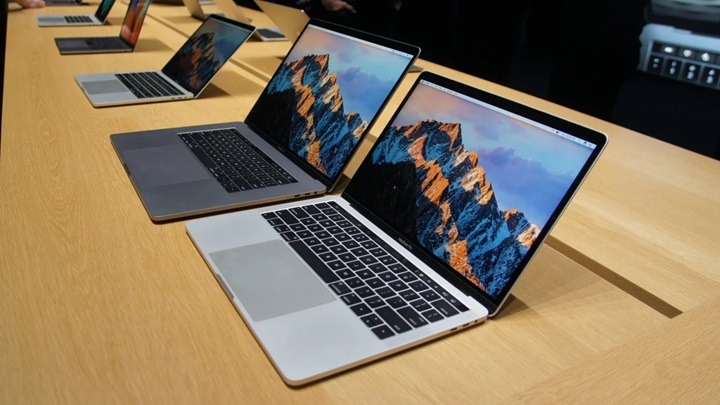
In the ever-evolving landscape of technology, Apple has consistently been at the forefront of innovation. With each iteration of their products, they strive to enhance user experience and push the boundaries of what’s possible. One such innovation that has garnered attention is the MacBook with Touch Bar. In this comprehensive guide, we delve into the intricacies of this revolutionary feature, exploring its capabilities, functionalities, and how it can elevate your computing experience to new heights.
Understanding the Touch Bar: A Brief Overview
The Touch Bar is a dynamic input device that replaces the traditional function keys at the top of the MacBook keyboard. It is a multi-touch OLED display strip that provides contextual controls and shortcuts based on the application you’re using. This adaptive nature of the Touch Bar enables it to seamlessly integrate with various tasks, offering intuitive interactions and enhancing productivity.
Enhanced Productivity: How the Touch Bar Transforms Workflow
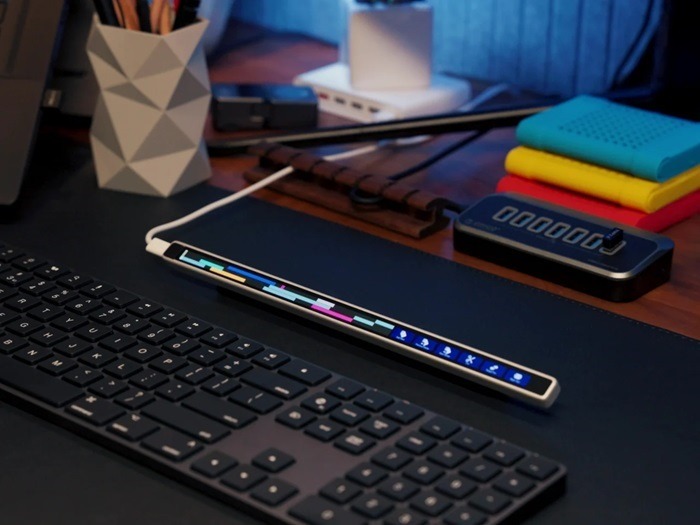
Customization Options: Tailoring the Touch Bar to Your Needs
One of the key advantages of the Touch Bar is its customization options, allowing users to personalize their workflow according to their preferences. From adjusting brightness and volume to accessing favorite tools and shortcuts, the Touch Bar puts control at your fingertips, streamlining tasks and boosting efficiency.
Contextual Controls: Optimizing Efficiency with Dynamic Functionality
Unlike traditional function keys, which offer static commands, the Touch Bar provides contextual controls that adapt to the application you’re using. Whether you’re editing photos in Photoshop, composing emails in Mail, or coding in Xcode, the Touch Bar displays relevant tools and options, reducing the need to navigate through menus and enhancing workflow fluidity.
Creative Possibilities: Unleashing Your Artistic Potential
Graphic Design and Editing: Precision and Creativity Combined
For professionals in the creative industry, the Touch Bar opens up a world of possibilities. In graphic design and photo editing software such as Adobe Photoshop and Lightroom, the Touch Bar offers precise controls for adjusting brush sizes, colors, and other parameters, empowering users to achieve pixel-perfect results with ease.
Music Production: Fine-Tuning Your Sound
Musicians and audio engineers can also benefit from the Touch Bar’s versatility. In digital audio workstations like Logic Pro X, the Touch Bar provides quick access to transport controls, mixer settings, and instrument parameters, allowing for seamless navigation and real-time adjustments during the music production process.
Streamlined Navigation: Simplifying Everyday Tasks
Web Browsing: Effortless Navigation and Quick Access
When browsing the web with Safari, the Touch Bar enhances the browsing experience by displaying intuitive controls for tab management, bookmarks, and browsing history. Whether you’re opening a new tab, switching between tabs, or accessing your favorite websites, the Touch Bar makes navigation effortless, saving you time and enhancing productivity.
Productivity Apps: Optimizing Efficiency in Everyday Tasks
In productivity apps such as Microsoft Office and Apple’s own suite of productivity tools, the Touch Bar offers shortcuts and controls that streamline common tasks such as formatting text, creating presentations, and managing spreadsheets. With the Touch Bar, performing these tasks becomes more intuitive and efficient, allowing users to focus on their work without unnecessary distractions.
Accessibility Features: Making Computing More Inclusive

VoiceOver: Enhancing Accessibility for Users with Visual Impairments
Apple has always been committed to making their products accessible to everyone, and the Touch Bar is no exception. With VoiceOver, a built-in screen reader, users with visual impairments can navigate the Touch Bar using spoken feedback, enabling them to access its features and functionalities with ease.
Touch Bar Zoom: Magnifying Visual Elements for Improved Visibility
For users who may benefit from magnified visual elements, the Touch Bar offers a zoom feature that enlarges the contents of the Touch Bar, making it easier to see and interact with. This accessibility feature ensures that users with varying needs can fully utilize the Touch Bar and enjoy its benefits.
In conclusion, the MacBook with Touch Bar represents a paradigm shift in user interaction, offering a dynamic and intuitive computing experience that enhances productivity, unleashes creativity, and promotes inclusivity. With its contextual controls, customization options, and accessibility features, the Touch Bar redefines the way we interact with our MacBooks, empowering users to accomplish more with less effort. As technology continues to evolve, the Touch Bar stands as a testament to Apple’s commitment to innovation and user-centric design, setting the standard for the future of computing.
Advanced Features: Pushing the Boundaries of Innovation
Touch ID Integration: Enhancing Security and Convenience
In addition to its dynamic display capabilities, the Touch Bar also integrates Touch ID, Apple’s fingerprint recognition technology. This allows users to securely unlock their MacBook, authorize app installations, and make purchases using Apple Pay, all with the touch of a finger. By combining convenience with advanced security measures, Touch ID on the Touch Bar provides a seamless and secure authentication experience, eliminating the need for cumbersome passwords and ensuring peace of mind for users.
Dynamic Functionality: Adapting to User Needs in Real Time
One of the most impressive aspects of the Touch Bar is its ability to adapt to the user’s needs in real time. Whether you’re browsing the web, editing photos, or composing emails, the Touch Bar dynamically displays relevant controls and shortcuts, ensuring that you have the tools you need at your fingertips. This dynamic functionality not only streamlines workflow but also promotes creativity and productivity by eliminating the need to navigate through menus and toolbars.
Third-Party Integration: Expanding the Touch Bar Ecosystem
While Apple’s native applications seamlessly integrate with the Touch Bar, third-party developers have also embraced this innovative input device, expanding its capabilities even further. Popular apps like Adobe Photoshop, Microsoft Office, and Spotify have all implemented support for the Touch Bar, providing users with customized controls and shortcuts that enhance their experience within these applications. As more developers continue to embrace the Touch Bar, its potential for innovation and creativity will only continue to grow, further solidifying its place as a cornerstone of the MacBook experience.
User Experience: Striving for Excellence
Feedback and Iteration: Continuously Improving the Touch Bar Experience
Apple is known for its dedication to providing an exceptional user experience, and the Touch Bar is no exception. Through user feedback and iterative design, Apple has continuously refined the Touch Bar experience, introducing new features and enhancements with each macOS update. Whether it’s improved responsiveness, expanded customization options, or enhanced accessibility features, Apple remains committed to ensuring that the Touch Bar meets the evolving needs of its users, delivering an experience that is intuitive, efficient, and enjoyable.
Training and Support: Empowering Users to Harness the Power of the Touch Bar
To help users fully harness the power of the Touch Bar, Apple provides comprehensive training and support resources. From online tutorials and user guides to in-store workshops and one-on-one training sessions, Apple offers a variety of resources to help users get the most out of their Touch Bar experience. Whether you’re a seasoned Mac user or new to the platform, these resources empower users to explore the capabilities of the Touch Bar and integrate it seamlessly into their workflow.
Future Prospects: Paving the Way for Tomorrow’s Innovations
Continued Evolution: Anticipating the Next Generation of Touch Bar Technology
As technology continues to evolve, so too will the Touch Bar. Apple’s relentless pursuit of innovation ensures that the Touch Bar will continue to evolve and improve with each new iteration of the MacBook. Whether it’s through advancements in display technology, integration with emerging input methods, or new features and functionalities, the Touch Bar will remain at the forefront of user interaction, pushing the boundaries of what’s possible and paving the way for future innovations in computing.
Integration with Other Devices: Extending the Reach of the Touch Bar Ecosystem
As Apple continues to expand its ecosystem of devices and services, the potential for integration between the Touch Bar and other devices becomes increasingly compelling. Imagine being able to control your iPhone or iPad directly from the Touch Bar, or seamlessly transfer files and data between devices with a simple swipe and tap. By leveraging the power of continuity and integration, Apple can further enhance the user experience and create a more seamless and cohesive computing environment across its entire product lineup.
In conclusion, the MacBook with Touch Bar represents a significant milestone in the evolution of user interaction, offering a dynamic and versatile input device that enhances productivity, promotes creativity, and fosters inclusivity. With its advanced features, intuitive user experience, and potential for future innovation, the Touch Bar stands as a testament to Apple’s commitment to pushing the boundaries of what’s possible and redefining the computing experience for users around the world. As we look to the future, the Touch Bar will undoubtedly continue to play a pivotal role in shaping the way we interact with our MacBooks, paving the way for new possibilities and ushering in a new era of innovation in computing.