

Apple Wallet allows you to store and manage credit cards, debit cards, transit passes, and more in one digital space. But when a card expires, is replaced, or no longer needed, many users ask: how to delete cards from Apple Wallet? Whether you’re using an iPhone, Apple Watch, or Mac, this guide will show you how to remove payment cards securely and easily, updated for all Apple devices in 2025.
Why You Might Need to Remove a Card from Apple Wallet
Deleting a card from Apple Wallet is sometimes necessary to maintain security and account accuracy. Common reasons include:
- Replacing an expired card
- Removing a lost or stolen card
- Switching to a different bank
- Selling or giving away a device
- Managing multiple cards for budgeting purposes
Removing a card doesn’t cancel the card with your bank—it simply removes it from your device.
How to Delete Cards from Apple Wallet on iPhone
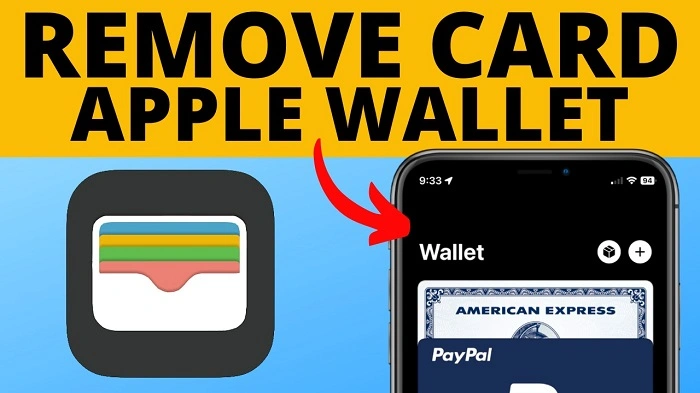
Deleting cards from your iPhone is simple and only takes a few steps.
Steps to Delete a Card:
- Open the Settings app.
- Scroll down and tap Wallet & Apple Pay.
- Under Payment Cards, tap the card you want to delete.
- Scroll down and tap Remove This Card.
- Confirm the action when prompted.
Alternate Method via Apple Wallet App:
- Open the Wallet app.
- Select the card.
- Tap the three-dot icon (•••) in the top-right corner.
- Scroll and tap Remove This Card.
This will immediately remove the card from your Apple Wallet on that device.
How to Delete Cards from Apple Watch
Apple Watch manages cards separately, even if it shares an Apple ID with your iPhone.
Steps to Remove a Card:
- Open the Watch app on your iPhone.
- Tap Wallet & Apple Pay.
- Choose the card listed under “Payment Cards on Your Watch.”
- Tap Remove This Card and confirm.
You can also remove cards directly from the Apple Watch:
- Open the Wallet app on your watch.
- Select the card.
- Press and hold until you see the option to Remove.
- Tap to delete the card.
How to Delete Cards from Apple Wallet on Mac
For users with Touch ID-enabled MacBooks:
Steps to Remove a Card:
- Open System Settings on your Mac.
- Click Wallet & Apple Pay.
- Select the card you want to delete.
- Click Remove Card and confirm.
Note: Not all Mac models support Apple Wallet; this applies to Macs with Touch ID and Apple Pay capabilities only.
Does Deleting a Card Remove It from All Devices?
No, cards added to Apple Wallet are device-specific. Deleting a card from your iPhone will not remove it from your Apple Watch or Mac. You must remove it manually from each device.
If your device is lost or stolen, you can remotely remove cards via iCloud.
How to Delete Cards from Apple Wallet Remotely via iCloud
If your iPhone, Apple Watch, or Mac is lost:
- Go to iCloud.com/find.
- Sign in with your Apple ID.
- Select your lost device.
- Activate Lost Mode.
- Choose to Erase Device or remove Apple Pay cards.
This not only locks the device but also suspends Apple Pay and removes your cards remotely.
How to Remove Expired or Inactive Cards from Wallet
Expired or inactive cards aren’t removed automatically. If a card stops working or is outdated, follow the same removal steps.
Apple will notify you when a card is no longer valid, but manual deletion keeps your Wallet organized and clean.
What Happens After You Delete a Card from Apple Wallet?
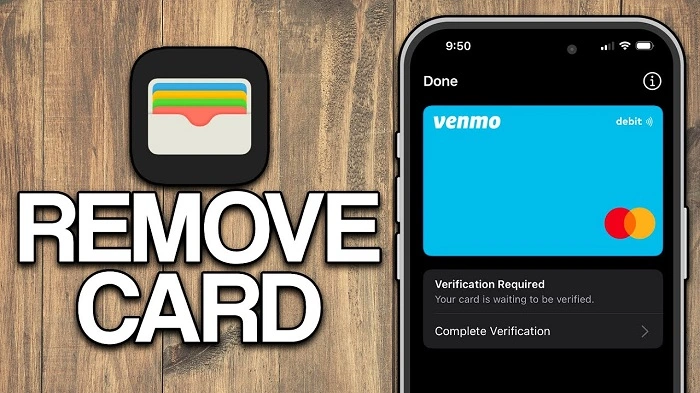
Here’s what you can expect:
- The card is no longer available for Apple Pay transactions.
- Apple Wallet will stop storing transaction history for that card.
- You will still have access to your bank’s mobile app or website for full card activity.
- The card can be re-added at any time.
Deleting a card from Apple Wallet does not cancel or deactivate the card from your bank or credit card provider.
Can You Add a Deleted Card Back to Apple Wallet?
Yes. You can re-add any deleted card by following these steps:
- Open the Wallet app.
- Tap the “+” sign in the top-right corner.
- Follow the on-screen prompts to add the card again.
- Your bank may ask for additional verification.
Re-adding does not affect your credit, rewards, or history.
FAQs About Deleting Cards from Apple Wallet
Can I delete all cards at once from Apple Wallet?
No. Each card must be removed individually on each device.
Does deleting a card from Apple Wallet affect my bank account?
No. It only removes the card from your Apple device. It does not cancel the card.
Can someone use my Apple Pay if they find my phone?
No. Apple Pay requires Face ID, Touch ID, or passcode to authorize transactions.
Why can’t I remove a card from Apple Wallet?
Check for:
- Active screen time restrictions
- Wallet & Apple Pay settings being managed by a business profile (on managed devices)
- iCloud or device issues—restart and try again
What happens if I erase my device—will it remove the cards?
Yes. Erasing your device remotely also removes all cards from Apple Wallet and disables Apple Pay.
Security Tips When Removing Cards from Apple Wallet
- Always remove cards before selling or giving away a device.
- Use Find My iPhone to erase cards remotely if lost.
- Enable two-factor authentication for added Apple ID protection.
- Turn off Wallet access from the lock screen in Settings > Face ID & Passcode.
Why Managing Cards in Apple Wallet Matters in 2025
As more people adopt contactless payments and digital wallets, organizing and updating Apple Wallet is essential for security, convenience, and accuracy. Knowing how to delete cards from Apple Wallet ensures you maintain control of your financial tools, prevent misuse, and reduce digital clutter.
Whether you’re switching banks, replacing a card, or cleaning up old data, deleting cards is a simple but important task that keeps your Apple ecosystem efficient and secure.