

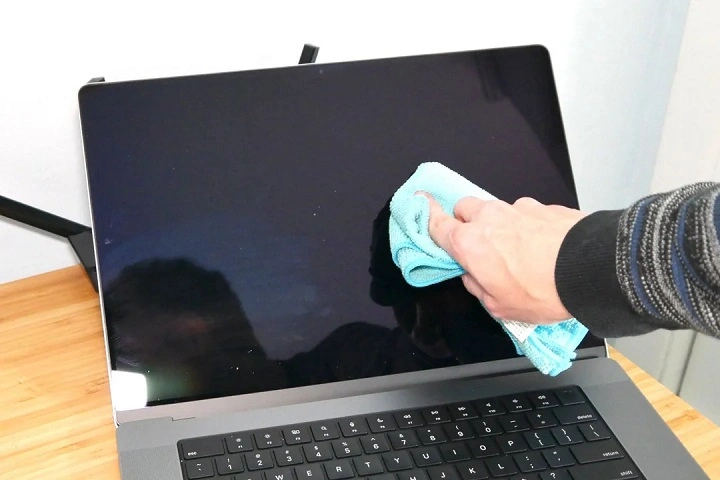
In the digital age, our screens are our windows to the world. Whether it’s for work, entertainment, or communication, our MacBook screens play a crucial role in our daily lives. However, with constant use comes inevitable accumulation of dust, fingerprints, and smudges, diminishing the visual clarity and overall experience. Fear not! In this comprehensive guide, we’ll delve into the intricacies of cleaning your MacBook screen to pristine perfection.
Understanding Your MacBook Screen

Before we jump into cleaning techniques, it’s essential to understand the anatomy of your MacBook screen. Most MacBook models feature a glossy glass screen that’s susceptible to smudges and fingerprints. Additionally, newer MacBook models may have Retina displays, which boast higher resolutions and pixel densities for sharper images. Understanding these nuances will help you choose the right cleaning method without damaging your screen.
Precautions Before Cleaning
Your MacBook is a sophisticated piece of technology, and treating it with care is paramount. Before embarking on your cleaning journey, here are some precautions to keep in mind:
- Power Off: Ensure your MacBook is powered off before cleaning to prevent any electrical mishaps.
- Cool Down: Let your MacBook cool down if it’s been in use to avoid causing damage to the screen.
- Gentle Touch: Use gentle, non-abrasive materials to avoid scratching or damaging the screen.
- Avoid Liquids: Refrain from using excessive liquids directly on the screen, as it can seep into the device and cause irreparable damage.
- Patience is Key: Take your time and be patient while cleaning to achieve the best results without rushing through the process.
Materials You’ll Need
Gather the following materials before you begin:
- Microfiber Cloth: Opt for a soft, lint-free microfiber cloth to gently wipe away dust and smudges.
- Distilled Water: If necessary, use distilled water for dampening the cloth. Avoid using tap water, as it may contain minerals that could leave streaks on the screen.
- Isopropyl Alcohol (Optional): For stubborn stains or grease marks, dilute isopropyl alcohol with distilled water in a 1:1 ratio and use it sparingly.
- Compressed Air (Optional): Use compressed air to blow away dust and debris from the keyboard and screen edges.
Step-by-Step Cleaning Guide
Now that you’re equipped with the necessary materials and precautions, let’s dive into the step-by-step cleaning process:
- Dust Removal:
- Begin by shutting down your MacBook and allowing it to cool down.
- Use a can of compressed air to gently blow away any dust or debris from the keyboard and screen edges.
- This step prevents dust particles from scratching the screen during the cleaning process.
- Dampen the Cloth:
- Moisten a corner of the microfiber cloth with distilled water. Ensure it’s not dripping wet, but slightly damp.
- If using isopropyl alcohol, dilute it with distilled water in a 1:1 ratio and moisten the cloth sparingly.
- Gentle Wipe Down:
- Gently wipe the dampened cloth across the MacBook screen in horizontal or vertical strokes.
- Apply light pressure to remove fingerprints and smudges, but avoid pressing too hard to prevent damage.
- For stubborn stains, repeat the process or use a slightly more concentrated solution of isopropyl alcohol and water.
- Dry with Dry Cloth:
- Once you’ve wiped down the screen, use a dry section of the microfiber cloth to gently dry and polish the surface.
- Ensure there are no streaks or moisture left behind for a crystal-clear finish.
Additional Tips for Maintenance
Maintaining a clean MacBook screen is an ongoing process. Here are some additional tips to keep your screen looking pristine:
- Regular Cleaning: Make screen cleaning a regular part of your maintenance routine to prevent buildup of dirt and grime.
- Avoid Harsh Chemicals: Refrain from using harsh chemicals, abrasive cleaners, or rough materials that could damage the screen’s coating.
- Mind Your Hands: Keep your hands clean while using your MacBook to minimize the transfer of oils and dirt to the screen.
- Screen Protectors: Consider using a screen protector to add an extra layer of protection against scratches and smudges.
- Proper Storage: When not in use, store your MacBook in a clean, dust-free environment to reduce the accumulation of dirt on the screen.
A clean MacBook screen not only enhances the visual experience but also prolongs the lifespan of your device. By following the step-by-step guide and incorporating regular maintenance tips, you can keep your MacBook screen crystal clear and in pristine condition for years to come. Remember, a little care goes a long way in preserving the beauty and functionality of your beloved MacBook.
Advanced Cleaning Techniques
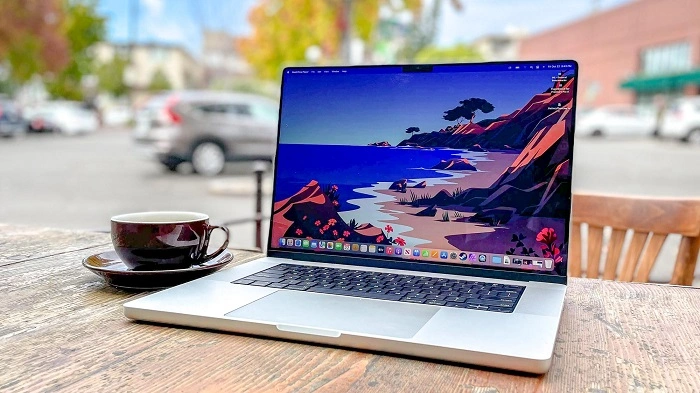
While the basic cleaning process outlined above is sufficient for regular maintenance, there are times when your MacBook screen may require more intensive cleaning. Here are some advanced techniques for tackling stubborn stains and dirt buildup:
- Spot Cleaning:
- If you notice isolated spots or stubborn stains on your MacBook screen, you can target them individually.
- Dampen a cotton swab with a small amount of isopropyl alcohol and carefully dab it on the affected area.
- Gently rub the spot in a circular motion until the stain begins to lift.
- Use a dry microfiber cloth to wipe away any excess moisture and polish the area.
- Deep Cleaning:
- For screens that haven’t been cleaned in a while and have significant dirt buildup, a deep cleaning may be necessary.
- Start by following the basic cleaning steps outlined earlier to remove surface dust and smudges.
- Next, create a cleaning solution by mixing distilled water with a small amount of mild dish soap or screen cleaner.
- Dampen a microfiber cloth with the cleaning solution and gently wipe the entire screen in a circular motion, paying extra attention to areas with visible dirt or grime.
- Use a dry microfiber cloth to remove any excess moisture and buff the screen to a streak-free shine.
- Professional Cleaning:
- If you’re uncomfortable cleaning your MacBook screen yourself or if you have a particularly delicate or expensive model, consider seeking professional cleaning services.
- Many electronics stores and repair shops offer screen cleaning services using specialized equipment and solutions designed specifically for electronic devices.
- Professional cleaning can ensure thorough removal of dirt and grime without risking damage to your MacBook screen.
Preventing Future Buildup
In addition to regular cleaning, taking proactive measures to prevent future buildup on your MacBook screen can help maintain its clarity and longevity:
- Use a Keyboard Cover: A keyboard cover not only protects your MacBook keyboard from spills and debris but also prevents dust and dirt from settling on the screen when the laptop is closed.
- Clean Hands Policy: Encourage yourself and others who use your MacBook to wash their hands regularly to minimize the transfer of oils and dirt to the screen.
- Screen Saver: When not actively using your MacBook, enable a screen saver or set your display to sleep mode to reduce exposure to dust and debris in the environment.
- Avoid Eating and Drinking Near Your MacBook: Food crumbs, liquid spills, and grease from snacks can easily transfer to your MacBook screen, so it’s best to avoid eating and drinking while using your laptop.
- Store Properly: When transporting your MacBook, use a protective case or sleeve to shield it from dust, scratches, and other environmental hazards.
A clean MacBook screen not only enhances the visual appeal of your device but also contributes to its overall performance and longevity. By following the advanced cleaning techniques outlined above and implementing preventive measures, you can keep your MacBook screen looking brand new for years to come. Remember to exercise caution and patience when cleaning your screen, and always prioritize the use of gentle, non-abrasive materials to avoid damaging the delicate surface. With proper care and maintenance, your MacBook screen will continue to be a window to the digital world, providing you with clear and crisp visuals for all your computing needs.