

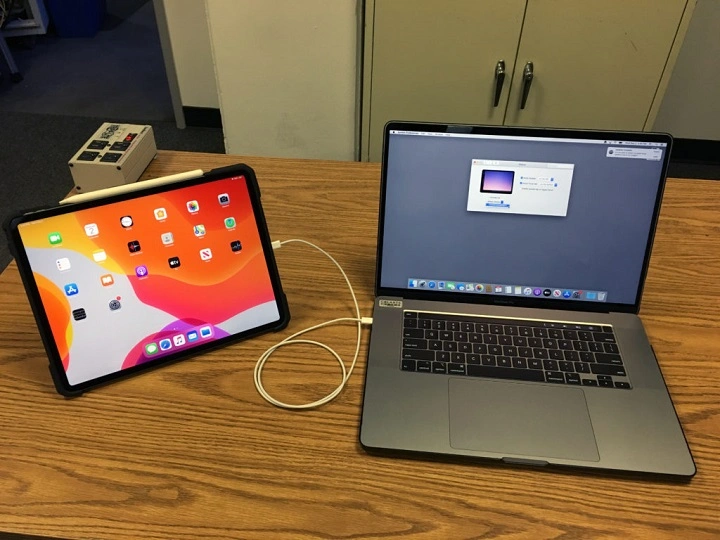
In today’s digital age, owning both an iPad and a MacBook is not uncommon. These two devices offer unique functionalities and benefits, but have you ever wondered how you can seamlessly connect them to enhance your workflow and productivity? In this comprehensive guide, we will walk you through the various methods and techniques to connect your iPad to your MacBook effortlessly. Whether you want to transfer files, mirror your screen, or simply streamline your tasks, we’ve got you covered.
Understanding the Connection Options
Before diving into the specifics of connecting your iPad to your MacBook, it’s essential to understand the available connection options. Depending on your preferences and requirements, you can choose from several methods:
- USB Cable Connection
- Wireless Connection
- Third-Party Apps and Services
Each method has its advantages and limitations, so let’s explore them in detail.
USB Cable Connection
The most straightforward and traditional method of connecting your iPad to your MacBook is through a USB cable. Follow these simple steps to establish a physical connection:
- Gather Your Equipment: Ensure you have a compatible USB cable that can connect your iPad to your MacBook.
- Connect the Devices: Plug one end of the USB cable into the charging port of your iPad and the other end into a USB port on your MacBook.
- Trust the Connection: When prompted on your iPad, tap “Trust” to establish a connection with your MacBook.
Once connected, your MacBook should recognize your iPad as a storage device, allowing you to transfer files and access its contents directly from your computer.
- Wireless Connection
If you prefer a more flexible and cord-free approach, you can establish a wireless connection between your iPad and MacBook. Here’s how:
- Enable Bluetooth and Wi-Fi: Ensure that Bluetooth and Wi-Fi are enabled on both your iPad and MacBook.
- Pair the Devices: On your iPad, go to Settings > Bluetooth and select your MacBook from the list of available devices. Follow any on-screen prompts to complete the pairing process.
- Enable AirDrop: On your MacBook, open Finder and click on AirDrop in the sidebar. Set your AirDrop preferences to allow connections from Everyone or Contacts Only.
- Transfer Files: You can now transfer files between your iPad and MacBook wirelessly using AirDrop. Simply select the file you want to share, click on the Share button, and choose your MacBook from the AirDrop menu.
Wireless connection offers convenience and flexibility, allowing you to transfer files seamlessly without the need for cables.
- Third-Party Apps and Services
In addition to the built-in connectivity options, you can also explore third-party apps and services that facilitate the connection between your iPad and MacBook. Some popular options include:
- Duet Display: Duet Display allows you to use your iPad as a second screen for your MacBook, extending your desktop workspace.
- Astropad: Astropad transforms your iPad into a high-resolution drawing tablet for your MacBook, perfect for digital artists and designers.
- Documents by Readdle: Documents by Readdle is a versatile file management app that enables seamless file transfer between your iPad and MacBook.
These third-party apps and services offer unique features and functionalities that cater to specific needs and preferences, providing additional flexibility in how you connect and interact with your devices.
Optimizing Your Workflow
Now that you’ve successfully connected your iPad to your MacBook, it’s time to optimize your workflow and make the most out of this seamless synergy. Here are some tips to enhance your productivity:
- Sync Your Data: Take advantage of iCloud or other cloud storage services to sync your files, photos, and documents across your devices automatically.
- Utilize Handoff: Handoff allows you to start a task on one device and continue it on another seamlessly. Enable Handoff in your device settings to enjoy this feature.
- Explore Continuity Camera: Continuity Camera lets you use your iPad to capture photos or scan documents directly into your MacBook apps like Pages, Keynote, and Notes.
- Stay Updated: Keep your devices and apps up to date to ensure compatibility and access to the latest features and enhancements.
By incorporating these strategies into your daily routine, you can leverage the interconnectedness of your iPad and MacBook to boost your efficiency and streamline your workflow.
Connecting your iPad to your MacBook opens up a world of possibilities, allowing you to seamlessly transfer files, extend your desktop workspace, and enhance your productivity. Whether you prefer a physical USB connection, a wireless setup, or third-party apps and services, there are plenty of options to choose from based on your preferences and requirements. By understanding the available connection methods and optimizing your workflow, you can unlock the full potential of this dynamic duo and take your digital experience to new heights.
Exploring Advanced Connectivity Features

While the basic methods of connecting your iPad to your MacBook provide essential functionality, there are several advanced features and techniques you can explore to further enhance your connectivity experience.
- Sidecar: Extend Your Desktop with iPad
Introduced in macOS Catalina, Sidecar allows you to use your iPad as a secondary display for your MacBook. This feature is particularly useful for multitasking, creative work, and presentations. Here’s how to set it up:
- Enable Sidecar: On your MacBook, go to System Preferences > Displays and click on the “Arrangement” tab. Select your iPad from the list of available displays and choose how you want it to be positioned relative to your MacBook screen.
- Access Sidecar: You can access Sidecar either wirelessly or via USB. To connect wirelessly, ensure that your iPad and MacBook are signed in to the same iCloud account and within Bluetooth and Wi-Fi range. To connect via USB, simply connect your iPad to your MacBook using a USB cable.
- Extend Your Desktop: Once connected, your iPad will function as an extension of your MacBook’s desktop. You can drag windows and apps between the two screens, giving you additional workspace and flexibility.
Sidecar also supports Apple Pencil, allowing you to sketch, draw, and annotate directly on your iPad screen. This feature is invaluable for creative professionals and artists who require precision and control in their work.
- Universal Clipboard: Seamlessly Share Content
Universal Clipboard is a handy feature that allows you to copy text, images, photos, and videos on one Apple device and paste them on another. This feature works seamlessly between your iPad and MacBook, eliminating the need for manual file transfers. Here’s how to use it:
- Ensure Compatibility: Make sure that both your iPad and MacBook are signed in to the same iCloud account and have Handoff enabled in their respective settings.
- Copy and Paste: On your iPad, copy the content you want to transfer by selecting it and choosing “Copy” from the context menu. Then, switch to your MacBook and paste the content into the desired application or document.
Universal Clipboard works in the background, making it effortless to share content between your devices. Whether you’re working on a document, browsing the web, or composing an email, you can seamlessly transfer content without interruption.
- iCloud Drive: Sync Files Across Devices
iCloud Drive is Apple’s cloud storage service that allows you to store your files, photos, and documents securely and access them from any Apple device. By leveraging iCloud Drive, you can sync files between your iPad and MacBook effortlessly. Here’s how to set it up:
- Enable iCloud Drive: On both your iPad and MacBook, go to Settings > [Your Name] > iCloud and toggle iCloud Drive to enable it.
- Upload Files: To upload files to iCloud Drive from your iPad, open the Files app, navigate to the file you want to upload, and tap “Select.” Then, tap the file and select “Move” or “Copy” to iCloud Drive.
- Access Files: Once uploaded, you can access your files from iCloud Drive on your MacBook by opening Finder and selecting iCloud Drive from the sidebar.
By storing your files in iCloud Drive, you ensure that they are always up to date and accessible across all your devices, including your iPad and MacBook.
Embracing Seamless Connectivity
In conclusion, connecting your iPad to your MacBook opens up a world of possibilities for productivity, creativity, and convenience. Whether you’re transferring files, extending your desktop with Sidecar, or syncing content with iCloud Drive, the seamless integration between these devices enhances your digital experience and workflow. By exploring advanced connectivity features such as Sidecar, Universal Clipboard, and iCloud Drive, you can unlock new ways to work, collaborate, and stay organized across your Apple ecosystem. Embrace the synergy between your iPad and MacBook and elevate your productivity to new heights.