

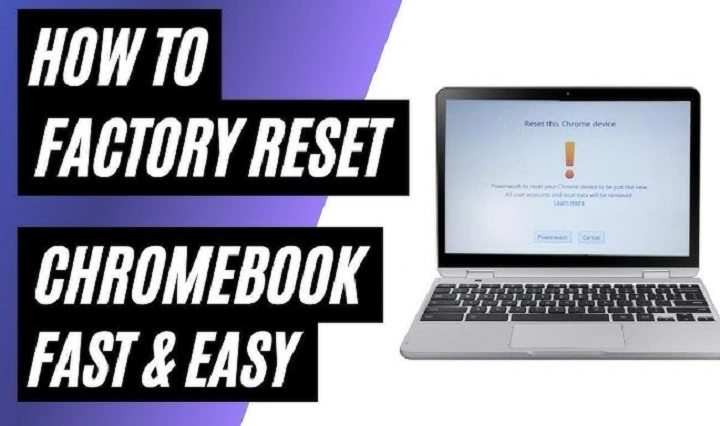
Is your Chromebook freezing, slowing down, or not responding to clicks? Rebooting your Chromebook is one of the quickest ways to fix minor glitches, refresh memory, and restore system performance. Whether you’re dealing with unresponsive tabs or Wi-Fi issues, a reboot can help reset ChromeOS without affecting your files or settings. This guide covers all the simple and advanced ways to reboot your Chromebook effectively.
Understanding the Reboot Process
Why Rebooting Helps
Rebooting clears your Chromebook’s temporary memory (RAM), ends stuck processes, and reloads the ChromeOS environment. It fixes common problems like app freezes, slow web browsing, or system lag, while preserving your saved data and preferences.
When Should You Reboot?
- Chromebook is running slow
- Apps or websites aren’t responding
- System updates were recently installed
- Touchpad or keyboard stops working
- Internet or Bluetooth connectivity issues
- Screen freezes or turns black unexpectedly
How to Reboot a Chromebook (Standard Methods)
Basic Restart via Menu
This is the most common way to reboot your Chromebook.
- Click the clock in the bottom-right corner
- Tap the Power icon
- Select Shut Down to power off safely
- Press the Power button again to turn it back on
Always use this method instead of just closing the lid—it ensures apps close properly.
Use Keyboard Shortcut to Reboot
If your Chromebook is partially responsive:
- Press Ctrl + Shift + Q twice in quick succession
- This will log you out
- Then, press the Power button to shut it down
- Turn the Chromebook back on normally
This method is useful when you’re stuck on a screen or want to restart quickly from a locked-in session.
Use the Power Button (Soft Restart)
- Press and hold the Power button until a shutdown menu appears
- Tap Shut down or Restart (if available)
- Wait for the device to power off
- Press the Power button again to restart
Soft restarts are ideal when the system is still responsive but acting strangely.
Advanced Reboot Options
Force Reboot When Frozen
If your Chromebook becomes completely unresponsive:
- Press and hold the Power button for 10 seconds
- The screen will go black and the device will power off
- Wait a few seconds, then press the Power button again to restart
This force reboot is safe and does not delete your data.
Reboot Using Chrome Browser Command
For tech-savvy users:
- Open Chrome browser
- Type chrome://restart into the address bar
- Press Enter
- Your Chromebook will reboot automatically, closing all apps and tabs
This command is quick and efficient for refreshing the OS when everything is still responsive.
Restart After System Update
If your Chromebook installs an update:
- You’ll usually see a “Restart to update” notification
- Click Restart in the pop-up
- The Chromebook will reboot and apply the update
Keeping your device updated ensures stability and performance improvements.
Troubleshooting: When Rebooting Doesn’t Work
Chromebook Won’t Turn On
- Make sure it’s charged—plug in the power adapter
- Hold the Power button for 10–15 seconds
- If there’s still no response, try a different charger or outlet
- Try a hard reset (see below)
Chromebook Still Frozen After Reboot
- Try booting into Guest Mode to check if the issue is user profile-related
- Use chrome://diagnostics to run system checks
- If needed, Powerwash a Chromebook to factory reset it (only as a last resort)
Power Button Not Responding
- Plug the Chromebook into power
- Hold Refresh (⟳ key) + Power for 10 seconds to force a reset
- This often solves hardware-related power issues
Special Reset: Hard Reset vs. Reboot
Reboot
- Restarts the Chromebook
- Keeps all apps, files, and settings
- Used to fix minor problems or apply updates
Hard Reset
- Resets the hardware (keyboard, battery, touchpad)
- Does not erase files or settings
- Use if the Chromebook won’t turn on or the screen stays black
How to Perform a Hard Reset
- Turn off your Chromebook
- Press and hold the Refresh key (⟳)
- While holding Refresh, press the Power button
- Release both keys when the Chromebook boots up
Useful for solving charging, boot-up, or unresponsive keyboard issues.
Powerwash (Factory Reset)
Use only when all else fails or before selling the Chromebook:
- Click the clock > Settings > Advanced > Reset Settings
- Tap Powerwash > Restart
- Follow the on-screen steps to reset to factory defaults
All local data will be erased—make sure to back up first.
Tips to Keep Your Chromebook Running Smoothly
1. Reboot Regularly
Restart once a week to clear memory and maintain performance.
2. Keep ChromeOS Update
Go to Settings > About ChromeOS > Check for Updates to ensure your Chromebook stays current.
3. Close Unused Tabs and Apps
Too many open tabs can slow down performance, especially on budget Chromebooks.
4. Use Guest Mode for Quick Browsing
Prevents clogging your main profile with temporary files and cookies.
5. Monitor Extensions and Apps
Uninstall unnecessary Chrome extensions to avoid slowdowns or crashes.
FAQs
How often should I reboot my Chromebook?
Once every 5–7 days is a good habit to maintain performance and prevent memory issues.
Will rebooting delete my files or apps?
No. A reboot only restarts the system. Your files and settings remain safe.
Can I reboot my Chromebook from the keyboard?
Yes. You can use Ctrl + Shift + Q (twice) to log out and restart manually.
What if the Chromebook won’t respond at all?
Try a hard reset by pressing Refresh + Power or plugging it into power and holding Power for 10 seconds.
What’s the difference between shutdown and reboot?
Shutdown turns the device off completely, while reboot powers it off and immediately back on to refresh the system.