

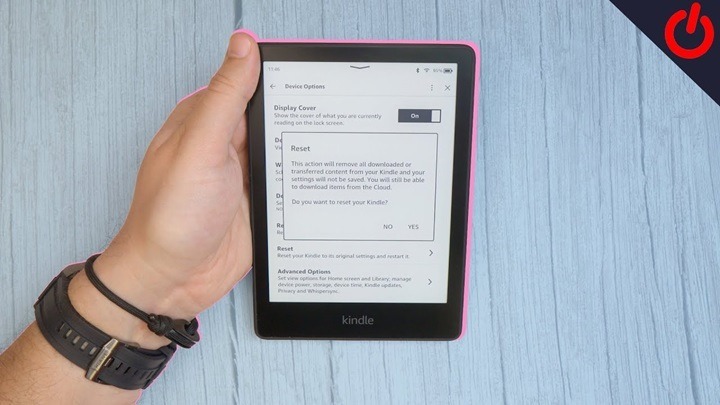
Is your Kindle Paperwhite frozen, lagging, or not turning pages properly? A quick reboot can resolve most common issues without deleting your books or settings. Whether you’re using the 10th or 11th Gen Kindle Paperwhite—or any model with a touchscreen interface this guide explains all the safe ways to reboot your Kindle Paperwhite and restore performance.
Understanding the Reboot Process
Why Rebooting Helps
Rebooting your Kindle Paperwhite clears temporary system memory, closes background tasks, and refreshes the software. This helps fix glitches like unresponsive screens, delayed page turns, syncing problems, or Wi-Fi connectivity issues—without affecting your content or Kindle account.
When Should You Reboot?
- Kindle screen is stuck on a page or splash screen
- Touchscreen doesn’t respond to taps or swipes
- Kindle won’t connect to Wi-Fi or sync new books
- The device runs slowly or freezes during use
- After a software update
- When the screen shows a blank or partial display
How to Reboot Kindle Paperwhite (Standard Methods)

Soft Reboot Using the Power Button
This is the easiest and most common method.
- Locate the Power button (usually on the bottom edge of the device)
- Press and hold the Power button for about 9 seconds
- A pop-up will appear—tap Restart
- Wait for the screen to go blank and display the Amazon logo
- The device will restart within 1–2 minutes
This method works on all Kindle Paperwhite models with a functional touchscreen.
Restart from the Settings Menu (If Screen Is Working)
If the Kindle screen and touch are responsive:
- Tap the Menu icon (three dots) from the home screen
- Select Settings
- Tap the Menu icon again while in the Settings screen
- Tap Restart
- Kindle will shut down and reboot automatically
This method offers a clean shutdown and restart process via software.
Force Restart (When Kindle is Frozen)
Hard Reboot Using the Power Button
If your Kindle Paperwhite is unresponsive or stuck:
- Press and hold the Power button for 40 seconds
- Ignore any screen flickers or logos
- Release the button after 40 seconds
- Wait a few seconds—Kindle should reboot automatically
This method works even if the screen is frozen or completely blank.
Advanced Restart Options
Reboot After Software Update
Sometimes, your Kindle needs a restart to complete a firmware update.
- After the update installs, go to Settings > Menu > Restart
- Or perform a soft reboot by holding the Power button for 9 seconds
- This ensures the update is applied properly
Restarting after an update helps prevent performance lags and syncing issues.
Restart While Charging
If your Kindle appears stuck during charging:
- Plug your Kindle Paperwhite into a power source
- Wait 10–15 minutes to ensure it’s charging
- Then press and hold the Power button for 40 seconds
- Kindle should reboot and return to the home screen
This is useful if the Kindle won’t turn on while charging.
When Rebooting Doesn’t Work
Kindle Paperwhite Won’t Turn On
- Charge for at least 30 minutes using the original adapter
- Try a different power outlet or USB cable
- Hold the Power button for 40 seconds to force a restart
Kindle Keeps Freezing or Restarting Repeatedly
- Check for low battery—fully charge the device
- Update to the latest software version via Wi-Fi
- Remove problematic books or documents
- If the issue persists, consider performing a factory reset
Reboot vs. Reset: Know the Difference
Reboot
- Restarts the device
- Keeps your books, notes, highlights, and settings
- Ideal for minor glitches or frozen screens
Reset
- Erases all user data and returns Kindle to factory defaults
- Requires re-registration and redownloading of content
- Use only for serious or recurring software issues
How to Factory Reset Kindle Paperwhite
- Tap Menu > Settings
- Tap the Menu icon again, then select Reset Device
- Confirm when prompted
- The Kindle will erase all content and reboot to setup mode
Be sure to back up your books and personal documents before performing a reset.
Tips to Keep Your Kindle Paperwhite Running Smoothly
- Reboot Occasionally
Restart your device once every 1–2 weeks for optimal performance. - Charge Regularly
Don’t let the battery drain completely too often. - Keep Software Updated
Enable Wi-Fi periodically to download updates automatically. - Manage Storage
Delete finished books and documents to prevent lag. - Avoid Extreme Temperatures
Protect your Kindle from overheating or freezing environments.
FAQs
How do I reboot a Kindle Paperwhite?
Hold the Power button for 9 seconds, then tap “Restart” when the pop-up appears.
What if my Kindle Paperwhite is frozen?
Hold the Power button for 40 seconds until the screen goes blank and the device restarts.
Does rebooting delete books or settings?
No. Rebooting keeps all your books, notes, Wi-Fi settings, and account data.
How long does it take to reboot a Kindle Paperwhite?
About 1–2 minutes, depending on your model and system status.
Can I reboot my Kindle without using the screen?
Yes. Hold the Power button for 40 seconds to force a restart, even if the screen is unresponsive.