

Is your Samsung Galaxy Watch frozen, lagging, or not responding? A quick reboot can fix most minor glitches without erasing your settings, data, or apps. Whether you’re using a Galaxy Watch 6, Galaxy Watch 5, Galaxy Watch 4, or an older model like the Galaxy Watch Active or Gear series, restarting helps refresh system functions and restore normal performance. This guide shows all the safe and effective ways to reboot your Galaxy Watch.
Understanding the Reboot Process
Why Rebooting Helps
Rebooting your Galaxy Watch shuts down all active processes, clears temporary memory, and refreshes the operating system. It can fix bugs like freezing screens, syncing errors, Bluetooth issues, app crashes, and slow performance—without deleting your personal data or fitness records.
When Should You Reboot?
- Screen is unresponsive or frozen
- Watch apps are lagging or crashing
- Bluetooth won’t connect to your phone
- Touch screen or rotating bezel isn’t working
- Notifications aren’t syncing
- After a software update or app install
How to Reboot Galaxy Watch (Standard Methods)
Soft Reboot Using Buttons (Recommended)
This is the safest and most common method.
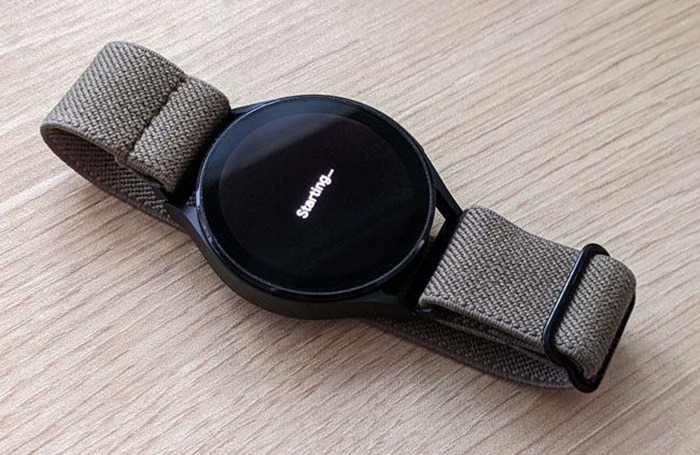
- Press and hold both the Home (Power) button and the Back button
- Keep holding for about 7 seconds
- The screen will go black, and the Samsung logo will appear
- Release the buttons and wait for the watch to restart
This method works for all Galaxy Watch models, including the latest Wear OS versions and older Tizen-based watches.
Restart from Watch Settings Menu
If your screen is still responsive:
- Swipe up from the home screen or press the Home button
- Tap Settings > General
- Select Restart
- Confirm, and the watch will reboot automatically
This option allows a clean restart using the watch’s touchscreen interface.
Force Restart (When Watch is Completely Frozen)
Hard Reboot Using Button Combination
If the watch is completely unresponsive:
- Press and hold the Home/Power button only for 10 seconds
- Keep holding until the Samsung logo appears
- Release the button once the logo shows
This force restart works when the screen is stuck or frozen and nothing else responds.
Rebooting After Software Update
If your Galaxy Watch starts behaving oddly after an update:
- Open Settings > General > Reset
- Or use the Home + Back buttons to perform a soft reboot
- This helps apply the update fully and clears any temporary glitches
Advanced Restart Options
Schedule Auto Restart (Wear OS models)
Some Galaxy Watches allow scheduled reboots:
- Go to Settings > Battery or Device Care
- Tap Auto restart (if available)
- Set your preferred time and frequency
This feature helps maintain watch performance over time.
Reboot from Galaxy Wearable App
While direct reboot from the app isn’t supported, you can:
- Open the Galaxy Wearable app on your phone
- Navigate to Watch settings > About Watch
- If the watch is responsive, go to General > Restart
This method is helpful if you’re navigating from your phone instead of the watch.
When Rebooting Doesn’t Work
Watch Won’t Turn Back On
- Place the watch on its charging dock
- Charge it for at least 15–30 minutes
- Try a force restart by holding the Home button for 10 seconds
- If it still doesn’t turn on, try a different charger or outlet
Watch Keeps Freezing or Restarting
- Update all apps and system software
- Remove or reinstall buggy third-party apps
- Unpair and re-pair the watch with your phone
- If issues persist, consider performing a factory reset
Reboot vs. Reset: Know the Difference
Reboot
- Restarts the watch
- Keeps all your apps, data, and settings
- Fixes most minor software issues
Reset
- Erases all data and settings
- Returns watch to factory defaults
- Used for major issues or when selling the device
How to Factory Reset Galaxy Watch (If Needed)
- Go to Settings > General > Reset
- Tap Reset again to confirm
- You can also reset via the Galaxy Wearable app > Watch settings > Reset
Make sure to back up your watch data before performing a reset.
Tips to Keep Your Galaxy Watch Running Smoothly
- Restart Weekly
Reboot once a week to avoid system lag and clear memory. - Update Software Regularly
Go to Settings > Software update to install the latest version. - Limit Background Apps
Close unused apps to preserve battery and improve performance. - Manage Notifications Wisely
Reducing unnecessary notifications helps prevent watch slowdown. - Avoid Overheating
Remove the watch during heavy workouts if overheating occurs.
FAQs
How do I reboot my Galaxy Watch?
Hold the Home and Back buttons for 7 seconds until the Samsung logo appears.
What if my Galaxy Watch is frozen?
Hold the Home (Power) button for 10 seconds to force a restart.
Will rebooting delete my apps or health data?
No. Rebooting does not delete any personal information or settings.
How long does it take to reboot a Galaxy Watch?
Typically around 30–60 seconds, depending on the model and OS version.
Can I reboot the watch using my phone?
No direct reboot option, but you can access reset or update settings via the Galaxy Wearable app.