

Is your HP laptop running slow, freezing, or acting unresponsive? A quick reboot can often fix these issues without deleting your files or apps. Whether you’re using an HP Pavilion, Envy, Spectre, Omen, EliteBook, or Chromebook, rebooting clears temporary memory and refreshes system functions. This step-by-step guide shows you how to safely reboot your HP laptop using different methods.
Understanding the Reboot Process
Why Rebooting Helps
Rebooting your HP laptop shuts down all running processes, clears the RAM, and restarts the operating system. It helps resolve software bugs, lag, network issues, frozen applications, and driver glitches—without affecting your saved files or installed programs.
When Should You Reboot?
- Laptop is slow or laggy
- Programs are freezing or not responding
- Touchpad, keyboard, or display becomes unresponsive
- Internet won’t connect properly
- After installing updates or new software
- System feels unstable or overheated
How to Reboot My HP Laptop (Standard Methods)
Reboot Using the Start Menu (Recommended)
This is the easiest and most common way to reboot.
- Click the Start button (Windows icon on the taskbar)
- Select the Power icon
- Click Restart
- Wait while the system shuts down and restarts automatically
This works for Windows 10, Windows 11, and most HP laptop models.
Use the Ctrl + Alt + Delete Shortcut
If your screen is working but the Start menu is unresponsive:
- Press Ctrl + Alt + Delete at the same time
- Click the Power icon at the bottom right of the screen
- Select Restart
This method is helpful when basic interface elements are not responding.
Reboot from the Settings Menu
If you want a more controlled way to reboot:
- Open Settings > System > Power & battery (or Power & sleep)
- Scroll down and click Additional power settings
- Choose Restart now under advanced startup (if available)
- Follow prompts to restart
This method is useful when dealing with drivers or system configuration changes.
Force Restart (When the Laptop is Frozen)
Manual Power Button Reboot
If your laptop is unresponsive and nothing works:
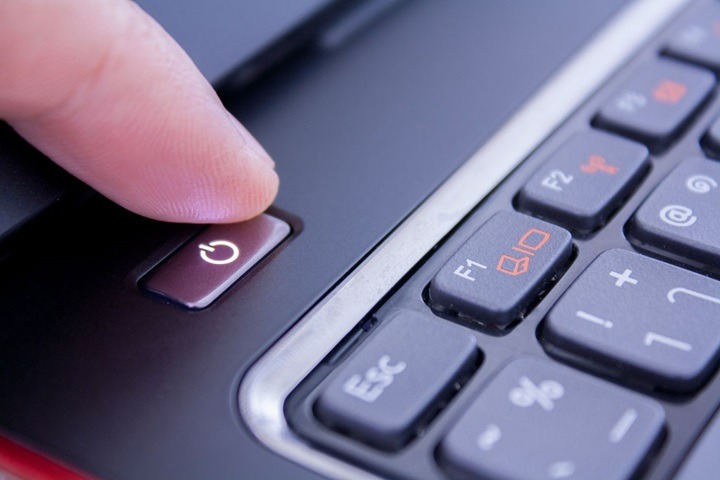
- Press and hold the Power button for 10–15 seconds
- The screen will turn off completely
- Wait a few seconds, then press the Power button again to turn it back on
This is known as a hard reboot or forced shutdown and is helpful when the system is completely frozen.
Advanced Restart Options
Restart Using Command Prompt
For advanced users or scripts:
- Open Command Prompt (Search > type cmd > right-click > Run as Administrator)
Type the following command:
bash
CopyEdit
shutdown /r /t 0
- Press Enter to restart the computer immediately
This method is efficient when troubleshooting or scheduling restarts.
Restart in Safe Mode (For Troubleshooting)
If you suspect a software conflict:
- Go to Start > Settings > Recovery
- Under Advanced startup, click Restart now
- After restart, select Troubleshoot > Advanced options > Startup Settings > Restart
- Choose Safe Mode using number keys or F4
Safe Mode restarts your laptop with minimal drivers and services.
Rebooting HP Chromebook
If you’re using an HP Chromebook:
- Click the Quick Settings panel (bottom right corner)
- Tap the Power icon > Choose Restart
- Or press and hold the Power button > Tap Restart
For a force reboot, hold Refresh + Power keys together for 10 seconds.
When Rebooting Doesn’t Work
Laptop Won’t Turn On After Reboot
- Check that the power adapter is plugged in properly
- Try a different charger or outlet
- Hold the Power button for 10–15 seconds to force startup
Laptop Is Stuck During Reboot
- Wait a few minutes—sometimes it’s applying updates
- If it hangs for over 10 minutes, hold the Power button to force shutdown
- Restart again after a 30-second pause
Repeated Freezing or Boot Loops
- Uninstall recently added software or drivers
- Run HP Support Assistant diagnostics
- If problems continue, consider a system restore or factory reset
Reboot vs. Reset: Know the Difference
Reboot
- Restarts the laptop
- Keeps files, settings, and installed apps intact
- Solves most temporary glitches
Reset
- Returns laptop to factory settings
- Erases all files and programs
- Used for serious system errors or before selling the device
How to Perform a Factory Reset (If Needed)
- Go to Start > Settings > System > Recovery
- Click Reset this PC
- Choose Keep my files or Remove everything
- Follow the on-screen prompts
Always back up your data before performing a reset.
Tips to Keep Your HP Laptop Running Smoothly
- Restart Weekly
Reboot your laptop every few days to clear memory and boost performance. - Keep Software Updated
Install Windows updates and use HP Support Assistant to update drivers. - Manage Startup Apps
Use Task Manager > Startup tab to disable unnecessary apps. - Run Disk Cleanup and Antivirus Scans
Regular maintenance can prevent performance issues. - Avoid Force Shutdowns Frequently
Use normal restart methods whenever possible to prevent system damage.
FAQs
How do I reboot my HP laptop?
Click Start > Power > Restart. Or hold the Power button for 10 seconds if it’s frozen.
Does rebooting delete any data?
No. A reboot does not delete any files or apps.
What if my HP laptop screen is black?
Charge the laptop, then hold the Power button for 15 seconds to perform a forced reboot.
How long does it take to reboot an HP laptop?
Usually between 30 seconds to 2 minutes, depending on the system and apps running.
Can I restart my HP laptop using the keyboard?
Yes. Press Ctrl + Alt + Delete > Power icon > Restart.