

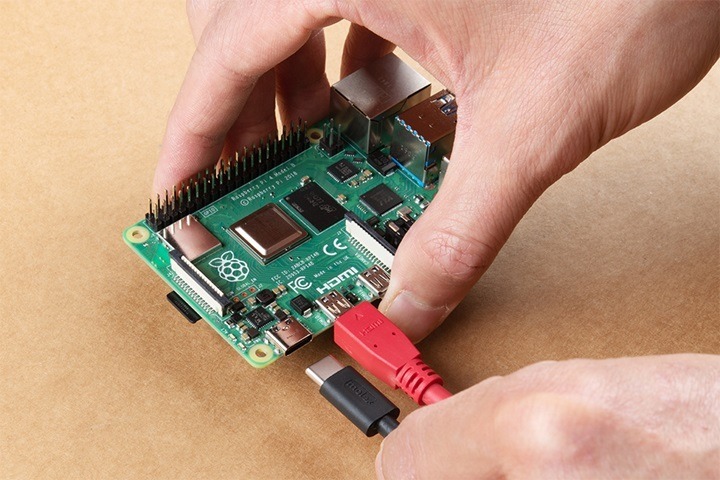
Need to reboot your Raspberry Pi after a crash, update, or configuration change? Whether you’re using a Raspberry Pi 5, 4, 3, Zero, or running Raspberry Pi OS (formerly Raspbian), rebooting helps clear memory, apply changes, and refresh your system without damaging your files. This step-by-step guide walks you through the safest ways to reboot your Raspberry Pi from the command line, GUI, and hardware.
Understanding the Reboot Process
Why Rebooting Helps
Rebooting your Raspberry Pi closes all active processes, clears the system cache, restarts kernel functions, and reloads system services. It ensures your Pi functions smoothly after updates, configuration edits, new installations, or when it starts acting sluggish.
When Should You Reboot?
- After updating Raspberry Pi OS or installing packages
- Following configuration changes in files like config.txt or cmdline.txt
- When the Pi becomes slow, laggy, or unresponsive
- After connecting new hardware like a HAT, camera, or GPIO device
- When remote access (SSH/VNC) becomes unstable
- After software crashes or freezes
How to Reboot Raspberry Pi (Standard Methods)
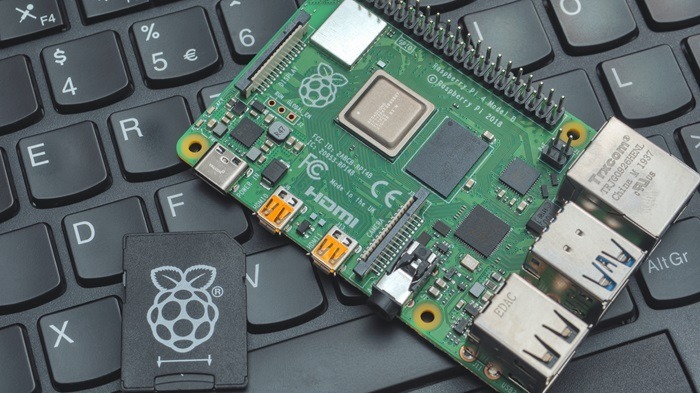
Reboot Using Terminal (Command Line)
This is the most common and recommended way to reboot.
- Open the Terminal or connect via SSH
Type the following command and press Enter:
nginx
CopyEdit
sudo reboot
- Your Raspberry Pi will safely shut down and restart automatically
This works on all Raspberry Pi OS versions and hardware models.
Use Shutdown Command with Restart Option
An alternative method from the terminal:
Type this command:
arduino
CopyEdit
sudo shutdown -r now
- The -r flag tells the system to restart immediately
This is ideal when scripting reboots or rebooting from remote sessions.
Reboot from the Desktop Environment (GUI)
Reboot via Raspberry Pi OS Desktop Menu
If you’re using the full desktop version:
- Click the Raspberry icon (top left corner)
- Go to Shutdown
- Select Reboot from the options
- Confirm when prompted
This is user-friendly and ideal for beginners using a mouse and screen.
Force Reboot (When System Is Frozen)
Manual Reboot Using the Reset Button (If Available)
Some Raspberry Pi cases or custom setups include a physical reset button.
- Press the Reset button to perform a soft reboot
- If no reset button is available, proceed with the next method
Reboot by Power Cycling (Only If Necessary)
If your Pi is frozen and not responding:
- Unplug the power cable
- Wait a few seconds
- Plug the power cable back in
⚠️ This is a hard reboot and should only be used when no other method works, as it can lead to file system corruption.
Advanced Restart Options
Schedule a Reboot with Crontab
Useful for automated system reboots:
Open crontab with:
nginx
CopyEdit
crontab -e
Add the following line to reboot daily at 3 AM:
arduino
CopyEdit
0 3 * * * /sbin/shutdown -r now
Reboot via Remote SSH Access
If you’re controlling your Pi remotely:
SSH into your Pi:
nginx
CopyEdit
ssh pi@your-ip-address
Then use:
nginx
CopyEdit
sudo reboot
Great for headless (no monitor) setups.
When Rebooting Doesn’t Work
Pi Won’t Boot After Reboot
- Check the SD card for corruption
- Try reseating or replacing the SD card
- Connect a monitor to check for boot messages
- Try another power supply (official 5V recommended)
Device Keeps Rebooting Repeatedly
- Check power supply (insufficient voltage may cause reboots)
- Remove any newly attached hardware
- Review recent changes to config.txt or boot settings
Reboot vs. Shutdown vs. Reset: Know the Difference
Reboot
- Restarts the system safely
- Keeps files and processes intact
- Ideal for software updates or troubleshooting
Shutdown
- Powers off the Pi completely
Use this before unplugging power to avoid data loss
arduino
CopyEdit
sudo shutdown now
Reset (Hard Reboot)
- Force restarts by cutting power
- Use only if system is totally frozen and unresponsive
How to Perform a Safe Shutdown Before Rebooting
If you’re doing a manual power cycle, always shut down safely first:
Run:
arduino
CopyEdit
sudo shutdown now
- Wait for the green ACT LED to stop blinking
- Then unplug the power cable
This prevents SD card corruption and lost data.
Tips to Keep Your Raspberry Pi Running Smoothly
- Use Quality Power Supplies
Low voltage causes instability and random reboots. - Update Regularly
Run sudo apt update && sudo apt upgrade often to keep your OS secure and stable. - Avoid Hard Power Offs
Always shut down or reboot with proper commands to protect your SD card. - Monitor Temperature and CPU Usage
Use tools like htop or vcgencmd measure_temp to avoid overheating. - Use Heat Sinks or Fans
For Pi 4 and Pi 5, cooling helps prevent throttling and performance drops.
FAQs
How do I reboot my Raspberry Pi?
Use sudo reboot in the terminal, or choose Reboot from the desktop Shutdown menu.
What if my Raspberry Pi is frozen?
Unplug the power cable and plug it back in—but only if sudo reboot doesn’t work.
Will rebooting delete my files?
No. A reboot only restarts the system—it doesn’t erase files or apps.
Can I reboot Raspberry Pi remotely?
Yes. Use SSH to access the terminal and run sudo reboot.
How long does it take for Raspberry Pi to reboot?
Typically 20–60 seconds, depending on the model and system load.