

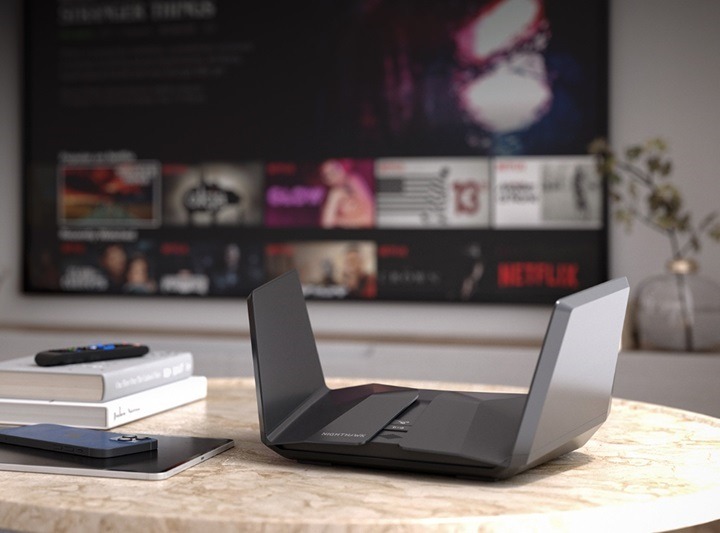
Is your Netgear router acting up, causing slow internet, or dropping connections? A simple reboot can fix most temporary issues without resetting your Wi-Fi settings. Whether you’re using a Netgear Nighthawk, Orbi, or basic Netgear router model, restarting helps refresh the connection to your ISP and clears memory glitches. This guide shows all the safe ways to reboot your Netgear router.
Understanding the Reboot Process
Why Rebooting Helps
Rebooting your Netgear router clears temporary files, resets background processes, and re-establishes a clean connection with your modem and internet service. It can fix lag, disconnections, buffering issues, and even minor security bugs—without affecting your Wi-Fi name, password, or device settings.
When Should You Reboot?
- Wi-Fi is slow or unstable
- Devices keep disconnecting from the network
- Router becomes unresponsive or lags in the admin panel
- After changing network cables or setup
- Following a firmware update
- Streaming, gaming, or video calls keep dropping
How to Reboot Netgear Router (Standard Methods)
Manual Reboot (Power Cycle Method)
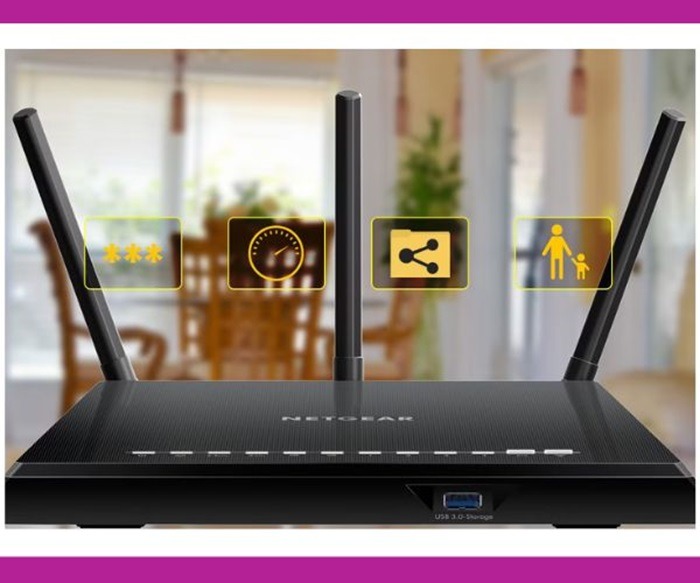
This is the easiest and most common reboot method.
- Locate your Netgear router and unplug the power adapter
- Wait for 30–60 seconds to allow the router to fully power down
- Plug the power adapter back into the router
- Wait 2–5 minutes for the lights to stabilize and the router to fully reboot
This works for all models including Netgear Nighthawk, Orbi, and AC/AX series routers.
Reboot Using Netgear Nighthawk App
If you prefer remote access or your router is in another room:
- Open the Nighthawk app on your smartphone
- Sign in to your Netgear account
- Select your router from the dashboard
- Tap the Menu icon and choose Reboot
- Confirm and wait a few minutes while the router restarts
This method is ideal when troubleshooting away from your router.
Reboot from the Web Interface
If you’re using a PC or laptop connected to your network:
Open a browser and go to:
arduino
CopyEdit
http://www.routerlogin.net
or
cpp
CopyEdit
http://192.168.1.1
- Log in using your admin credentials (default is often admin and password)
- Navigate to Advanced > Reboot or Settings > Reboot depending on your model
- Click Reboot Router and confirm
This provides the most control and is great for accessing additional settings.
Rebooting Orbi Mesh Systems
Manual Reboot for Orbi Router and Satellites
- Unplug the power cable from the Orbi router and all satellites
- Wait 60 seconds
- Plug in the router first, wait 2 minutes
- Then plug in each satellite, waiting another 2–3 minutes per device
This ensures proper syncing of all mesh devices after the reboot.
Reboot from Orbi App
- Open the Orbi app
- Select your Wi-Fi system
- Tap Menu > Router Settings > Reboot
- Confirm the action and wait for the reboot process to finish
This is useful for managing mesh networks remotely.
When Rebooting Doesn’t Work
Router Doesn’t Power On
- Make sure the power adapter is fully inserted into the router and wall outlet
- Try a different outlet or use a different power brick if available
- Check the router’s power light—if it stays off, contact Netgear support
Internet Still Not Working After Reboot
- Wait at least 5 minutes for full reboot and reconnection
- Make sure the Ethernet cable from your modem is securely connected
- Restart your modem, then reboot the router again
- Check for firmware updates in the admin panel
Router Keeps Rebooting Repeatedly
- Unplug all connected devices to reduce load
- Move the router to a well-ventilated area to prevent overheating
- Check for loose or damaged cables
- If the issue continues, perform a factory reset or contact support
Reboot vs. Reset: Know the Difference
Reboot
- Restarts the router safely
- Keeps your SSID, password, and configurations
- Ideal for performance fixes and network refresh
Reset
- Restores the router to factory settings
- Erases all custom settings and Wi-Fi configurations
- Use only if major issues persist or preparing to sell or reconfigure
How to Perform a Factory Reset on Netgear Router
- Locate the Reset button on the back of the router
- Use a paperclip to press and hold the button for 10–15 seconds
- Release when the power light blinks
- Wait for the router to reboot and return to factory defaults
- You’ll need to set up your network again via the app or browser
Tips to Keep Your Netgear Router Running Smoothly
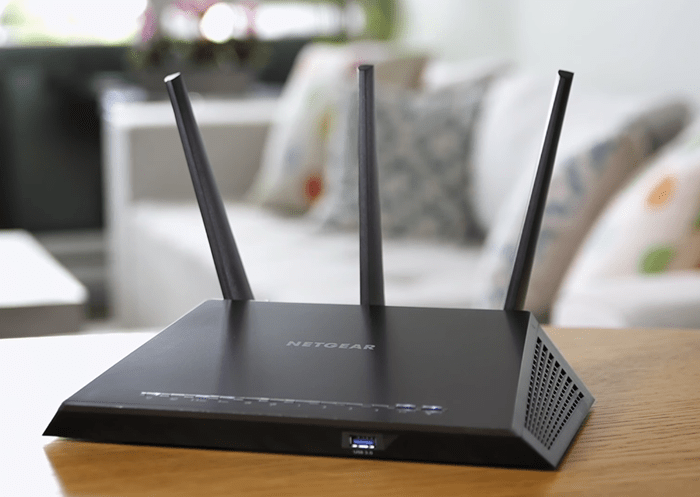
- Reboot Every Couple of Weeks
Helps maintain performance and network stability. - Update Firmware Regularly
Check for updates via the app or web interface to fix bugs and improve security. - Avoid Overheating
Keep the router in an open, cool area—not in cabinets or behind furniture. - Limit Unused Devices
Too many connected devices can strain bandwidth. - Use Mesh or Extenders for Larger Homes
If you experience dead zones, consider Netgear Extenders or Orbi mesh systems.
FAQs
How do I reboot my Netgear router?
Unplug the power cord, wait 30–60 seconds, then plug it back in. You can also reboot using the Nighthawk app or web interface.
Will rebooting my router delete Wi-Fi settings?
No. Rebooting keeps your network name, password, and settings intact.
How long does a Netgear router take to reboot?
Usually 2–5 minutes, depending on the model and number of connected devices.
Can I reboot my Netgear router remotely?
Yes. Use the Nighthawk or Orbi app to reboot from anywhere.
What if rebooting doesn’t fix the problem?
Check cables, restart the modem, update firmware, or contact Netgear support for further help.