


Is your MacBook running slow, freezing, or not responding? Rebooting is one of the simplest and most effective ways to fix minor software glitches and improve overall performance. Whether you’re dealing with unresponsive apps or preparing for a system update, restarting your MacBook can help clear memory, stop background errors, and refresh the macOS system. This guide covers all the ways to reboot your MacBook safely and efficiently.
Understanding the Reboot Process

Why Rebooting Helps
Rebooting your MacBook clears RAM, closes lingering background apps, and refreshes macOS processes. It can resolve performance issues like sluggish apps, overheating, spinning beach balls, or connectivity problems without affecting your saved files.
When Should You Reboot?
- Apps are unresponsive or lagging
- The fan runs constantly or Mac feels hot
- Internet or Bluetooth isn’t working
- Display won’t wake from sleep
- After macOS or app updates
- System running noticeably slower
How to Reboot MacBook (Standard Methods)
Use the Apple Menu
This is the most common way to reboot your MacBook.
- Click the Apple logo () in the top-left corner of the screen
- Select Restart from the drop-down menu
- A pop-up window appears—click Restart again to confirm
- Wait for your MacBook to shut down and start up automatically
Tip: Make sure to save any unsaved documents before restarting.
Use the Power Button (When Unresponsive)
If your MacBook is frozen or the screen is stuck:
- Press and hold the Power button (Touch ID button on newer models)
- Keep holding for about 10 seconds until the MacBook powers off
- Wait a few seconds, then press the Power button again to turn it back on
This is a force reboot, used only when your MacBook is completely unresponsive.
Use Keyboard Shortcut (For Quick Restart)
You can quickly reboot using a keyboard shortcut:
- Press Control (⌃) + Command (⌘) + Power button (⏻) together
- This initiates a restart instantly
- Works best when the system is partially responsive
Note: On some older models, the Eject key replaces the Power button in the shortcut.
Advanced Reboot Options
Reboot via Terminal Command
If you’re comfortable using Terminal:
- Open the Terminal app (Finder > Applications > Utilities > Terminal)
- Type the command: sudo shutdown -r now
- Press Enter and enter your admin password
- Your MacBook will reboot immediately
This method is useful for advanced users or when scripting automation tasks.
Reboot from Login Screen
If you’re stuck at the login screen:
- Click the Restart button below the login field
- Wait for the MacBook to reboot and return to the login page
Helpful when your account won’t log in but the system is still running.
Reboot in Safe Mode
To troubleshoot deeper system issues, reboot into Safe Mode:
- Shut down your MacBook
- Turn it back on and immediately press and hold the Shift key
- Release the key when you see the login screen
- Safe Mode will appear in the corner
Safe Mode clears system caches and disables third-party extensions.
Troubleshooting: When Rebooting Doesn’t Work

MacBook Doesn’t Turn On After Reboot
- Check the power adapter and cable
- Hold the Power button for 10 seconds
- Try an SMC reset (see below)
- Connect to an external display to rule out screen issues
System Still Freezes After Restart
- Boot into Safe Mode and check for startup items
- Use Activity Monitor to close high CPU-consuming apps
- Run Disk Utility > First Aid to check for drive errors
MacBook Keeps Rebooting (Boot Loop)
- Try booting in Safe Mode
- Reset NVRAM/PRAM (see below)
- Reinstall macOS from Recovery Mode
- If the issue continues, it may be hardware-related
Special Reboot Modes for MacBook
Resetting SMC (System Management Controller)
For Intel-based Macs:
- Shut down the MacBook
- Press and hold Shift + Control + Option and the Power button for 10 seconds
- Release all keys and press Power again
SMC reset can fix issues with battery, fan, charging, and more.
Resetting NVRAM/PRAM
- Shut down the MacBook
- Turn it on and immediately press Option + Command + P + R
- Hold for 20 seconds, then release
- Your MacBook will reboot with reset settings like volume, resolution, and time zone
Reboot from macOS Recovery Mode
To reinstall macOS or troubleshoot deep system errors:
- Shut down your MacBook
- Turn it on and immediately press Command + R
- Hold until the Apple logo or loading screen appears
- From the macOS Utilities window, you can choose to Reinstall macOS, Run Disk Utility, or Restore from Time Machine
Reboot vs. Reset: What’s the Difference?
Reboot
- Restarts the macOS system
- Keeps all your files, apps, and settings
- Solves minor bugs and performance issues
Reset
- Can mean NVRAM/SMC reset or factory reset
- Factory reset wipes all data and reinstalls macOS
- Used for selling, gifting, or solving major software problems
Warning: Always backup your MacBook with Time Machine before doing a factory reset.
Tips to Avoid Frequent Reboots
1. Keep macOS Updated
Enable automatic updates under System Settings > General > Software Update.
2. Close Unused Applications
Too many background apps can cause slowdowns. Use Command + Q to quit unused ones.
3. Restart Regularly
Even if things seem fine, rebooting once a week helps clear memory and prevent issues.
4. Use Activity Monitor
Monitor app performance and memory usage to spot resource-heavy apps.
5. Maintain System Storage
Keep at least 10–20% of your storage free for smooth operation.
FAQs
How often should I reboot my MacBook?
Once every 7–10 days helps maintain system stability and speed.
Will rebooting delete my files or apps?
No. A reboot only restarts the system and doesn’t erase any data.
What should I do if my MacBook won’t reboot?
Try force restarting, checking power connections, or booting into Safe Mode.
Can I reboot without a mouse or trackpad?
Yes. Use Control + Command + Power or press and hold the Power button for a manual restart.
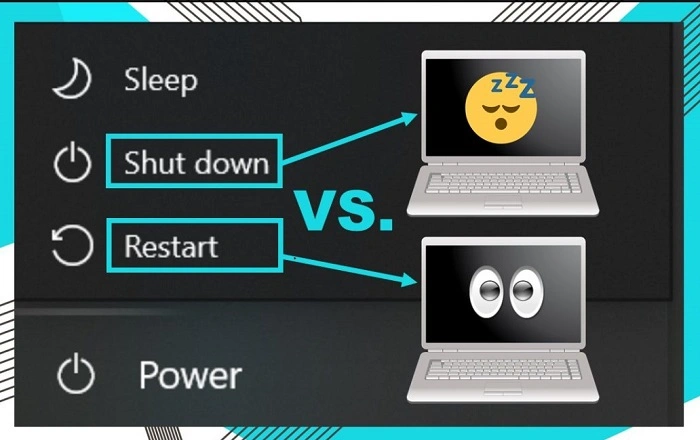
What’s the difference between Restart and Shut Down?
Restart quickly refreshes the system, while Shut Down completely powers off your Mac. Use Restart for quick fixes.