

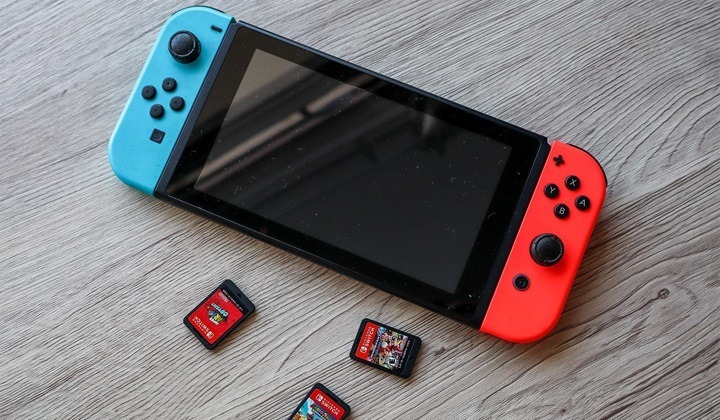
Is your Nintendo Switch frozen, lagging, or not responding during gameplay? A quick reboot can fix most temporary issues without deleting your save data or settings. Whether you’re using the original Nintendo Switch, Switch Lite, or OLED model, rebooting helps reset system memory, close buggy apps, and restore performance. This step-by-step guide covers all the safe ways to reboot your Nintendo Switch.
Understanding the Reboot Process
Why Rebooting Helps
Rebooting your Nintendo Switch refreshes the system by clearing temporary files and restarting internal processes. This can fix common problems like crashes, game freezing, controller lag, or software bugs without affecting your game progress, profiles, or downloaded content.
When Should You Reboot?
- Console is frozen or won’t respond to button presses
- Games crash or fail to load
- Joy-Con or Pro Controller disconnects randomly
- System performance is slow or stuttering
- After a firmware update or game install
- You see black screen or startup issues
How to Reboot Nintendo Switch (Standard Methods)

Soft Reboot Using the Power Button (Recommended)
This is the best method for routine restarts.
- Press and hold the Power button on the top of the console for 3 seconds
- A menu will appear—select Power Options
- Tap Restart
- The system will shut down and automatically reboot
This works on all Nintendo Switch models including the original, Lite, and OLED versions.
Restart from the Home Menu (If Screen Is Responsive)
If the console is still working but acting up:
- Press the Home button on your controller
- Navigate to System Settings > Power Options
- Choose Restart
- Wait for the console to power off and reboot
This method allows you to restart without using physical buttons.
Force Restart (When the Console is Frozen)
Hard Reboot Using Power Button
If your Nintendo Switch is completely unresponsive:
- Press and hold the Power button for 12–15 seconds
- Wait until the screen goes black
- Release the button, then press it once to turn the console back on
This force reboot method is safe and will not delete your saved data or game files.
Advanced Restart Options
Reboot After a System Update
If your Switch installs a new update and is acting glitchy:
- Go to System Settings > System > System Update
- Ensure the update is complete
- Perform a soft reboot using the Power menu to apply changes cleanly
Restarting after updates helps prevent performance hiccups or compatibility issues.
Reboot While Docked (Original & OLED Models)
If your Switch is docked and the display freezes:
- Hold the Power button on the top of the console for 12 seconds
- The screen will go black
- Press the Power button again to turn it back on while still in the dock
You’ll see the Nintendo logo as it restarts. This method is useful if your TV display goes black or frozen.
When Rebooting Doesn’t Work
Console Won’t Turn On
- Charge the Switch for at least 30 minutes using the official charger
- Try a different power outlet or USB-C cable
- Hold the Power button for 15 seconds, then press once to turn it on
Console Stuck on Nintendo Logo
- Hold the Power button for 15 seconds to force it off
- Wait a few seconds, then turn it back on
- If it keeps happening, try starting in Recovery Mode (see below)
Reboot vs. Reset: Know the Difference
Reboot
- Turns off and restarts the Switch
- Keeps all save data, settings, games, and profiles
- Ideal for temporary bugs and freezing
Reset (Factory Reset)
- Erases all user data, games, accounts, and settings
- Used only for serious system issues or preparing to sell the console
Use reset with caution and back up save data via Nintendo Switch Online cloud services if possible.
How to Factory Reset Nintendo Switch
Via System Settings
- Go to System Settings > System > Formatting Options
- Select Initialize Console
- Follow on-screen prompts to complete the reset
Using Recovery Mode (If You Can’t Access Settings)
- Make sure the console is off
- Press and hold Volume Up + Volume Down + Power button at the same time
- Keep holding until Recovery Mode appears
- Select Initialize Console Without Deleting Save Data (if available) or Full Reset
This is useful when your Switch won’t boot normally.
Tips to Keep Your Nintendo Switch Running Smoothly
- Reboot Weekly
Restart your system occasionally to keep it responsive. - Keep Firmware Updated
Enable auto-updates in System Settings for smoother performance. - Avoid Sleep Mode Overload
Fully restart the console instead of relying only on sleep mode. - Monitor Storage Space
Clear unused games or screenshots to avoid lag. - Disconnect Controllers When Not in Use
Reduce system load by disconnecting extra Joy-Con or accessories.
FAQs
How do I reboot my Nintendo Switch?
Hold the Power button for 3 seconds, select Power Options, then choose Restart.
What if my Nintendo Switch is frozen?
Hold the Power button for 12–15 seconds until it shuts off, then turn it back on.
Does rebooting delete saved games?
No. Rebooting does not erase saved data, games, or accounts.
How long does it take to reboot a Nintendo Switch?
Typically 30–60 seconds depending on the system status.
Can I reboot my Switch while it’s docked?
Yes. Use the Power button on the console to restart even if it’s connected to the dock.