

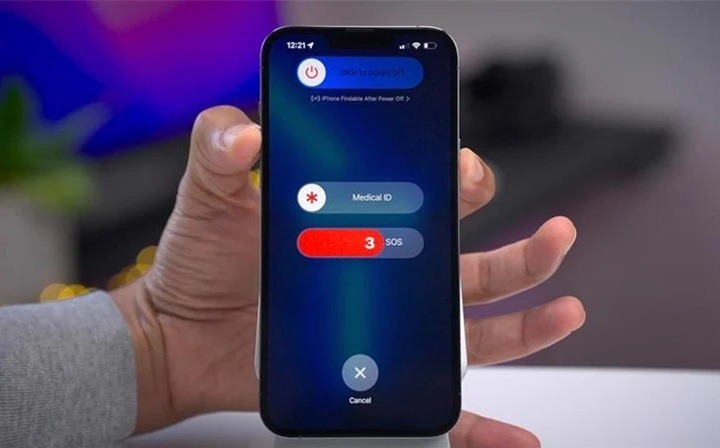
Is your phone lagging, frozen, or not responding properly? A simple reboot can often fix these common issues without erasing your data. Whether you’re using an Android phone or an iPhone, restarting your device helps clear system memory, close background processes, and restore smooth performance. This guide provides step-by-step instructions to reboot any smartphone safely.
Understanding the Reboot Process
Why Rebooting Helps
Rebooting your phone shuts down active background apps, clears temporary system files, and refreshes network and system functions. It’s a safe way to fix issues like app crashes, slow speed, unresponsive screens, and network problems—without deleting any of your personal data.
When Should You Reboot?
- Phone is slow or laggy
- Apps are freezing or crashing
- Screen becomes unresponsive or black
- Wi-Fi, Bluetooth, or mobile data isn’t working
- You just installed a system update or new app
- Device is overheating or battery is draining too fast
How to Reboot a Phone (Standard Methods)
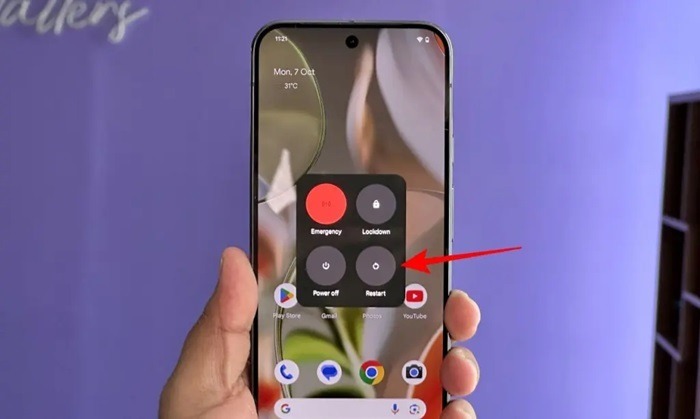
Rebooting an Android Phone (Most Brands)
Standard Restart
- Press and hold the Power button (or Power + Volume Down on some models)
- Tap Restart or Reboot on the screen
- Wait for the phone to power down and automatically restart
This method works for most Samsung, Google Pixel, OnePlus, Xiaomi, Motorola, and other Android devices.
If You Only See Power Off Option
- Press and hold Power button
- Tap Power Off
- Wait for the device to shut down completely
- Press and hold the Power button again to turn it back on
Rebooting an iPhone
iPhone X, 11, 12, 13, 14, 15 Series
- Press and hold the Side button and either Volume button
- Drag the slider to power off
- Wait for 30 seconds
- Press and hold the Side button again to turn the iPhone back on
iPhone SE (2nd/3rd Gen), 8, 7, 6
- Press and hold the Side button
- Drag the slider to power off
- Press and hold the Side button again to turn on the phone
iPhone SE (1st Gen) or Older
- Press and hold the Top button until the slider appears
- Power off, then hold the Top button again to reboot
Force Restart (When Phone is Frozen or Not Responding)
Force Restart on Android
- Press and hold the Power button and Volume Down button together
- Hold for 10–20 seconds until the screen goes black or shows a boot logo
- Release the buttons when the phone restarts
This works on most Android models when the screen is frozen or apps are unresponsive.
Force Restart on iPhone
iPhone 8 and Later
- Quickly press and release the Volume Up button
- Quickly press and release the Volume Down button
- Press and hold the Side button until you see the Apple logo
iPhone 7 and 7 Plus
- Press and hold Volume Down and Side button until the Apple logo appears
iPhone 6s, 6s Plus, and iPhone SE (1st Gen)
- Press and hold the Home button and Top (or Side) button until the Apple logo shows
Use force restart if the device is completely frozen or not turning on properly.
Rebooting Using the Settings Menu
On Android Phones
- Open Settings > System > Reset options (exact path may vary)
- Tap Restart or Reboot if available
- Alternatively, just use the Power menu from the screen
On iPhone (iOS 16 and Later)
- Go to Settings > General > Shut Down
- Slide to power off
- Wait a few seconds, then hold the Side button to turn it back on
This method helps when hardware buttons are not working properly.
When Rebooting Doesn’t Work
Phone Doesn’t Power On After Reboot
- Charge the device for at least 30 minutes
- Try a different charger or power adapter
- Attempt a force restart again after charging
Phone Gets Stuck During Boot
- Hold Power button to force shut down
- Wait 30 seconds and turn it back on
- If issue continues, boot into Safe Mode (Android) or recovery tools
Frequent Freezing or Restarting
- Update all apps and check for system updates
- Clear cache or perform a soft reset
- If the issue remains, consider a factory reset after backup
Reboot vs. Reset: Know the Difference
Reboot
- Turns off and restarts the phone
- Keeps all apps, photos, files, and settings
- Fixes minor bugs and improves performance
Reset (Factory Reset)
- Erases all content and settings
- Used for serious software issues or preparing to sell the device
- Found in Settings > System > Reset options (Android) or Settings > General > Transfer or Reset iPhone
How to Perform a Factory Reset (If Needed)
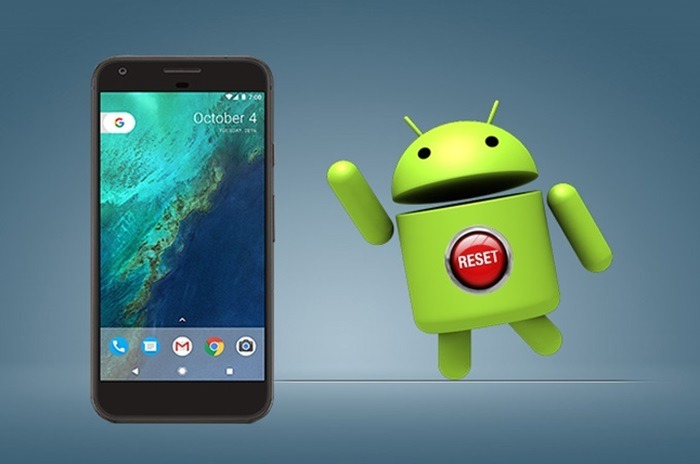
On Android
- Go to Settings > System > Reset > Erase all data (factory reset)
- Confirm the action and follow on-screen steps
On iPhone
- Go to Settings > General > Transfer or Reset iPhone
- Tap Erase All Content and Settings
- Enter your passcode and Apple ID if prompted
Back up important data before resetting, as it cannot be recovered afterward.
Tips to Keep Your Phone Running Smoothly
- Restart Weekly
Rebooting once every week helps maintain good performance. - Update Software Regularly
Stay current with system and app updates for stability and security. - Avoid Running Too Many Apps
Close apps you’re not using to free up memory. - Clear Cache Periodically
Free up storage and improve app performance. - Monitor Battery Health
Use system tools to check battery and charging issues that may cause crashes.
FAQs
How do I reboot my phone?
Hold the power button and select Restart. If your phone is frozen, perform a force restart using the correct key combo.
Will rebooting delete anything?
No. Rebooting only restarts the phone and doesn’t erase data or apps.
How often should I reboot my phone?
Once every few days or weekly is ideal for keeping performance smooth.
What if my phone won’t restart?
Try a force restart. If that doesn’t work, charge your phone and try again.
Can I reboot my phone without buttons?
Yes. Use the Settings menu to power off and restart, or enable accessibility features like AssistiveTouch on iPhone.