

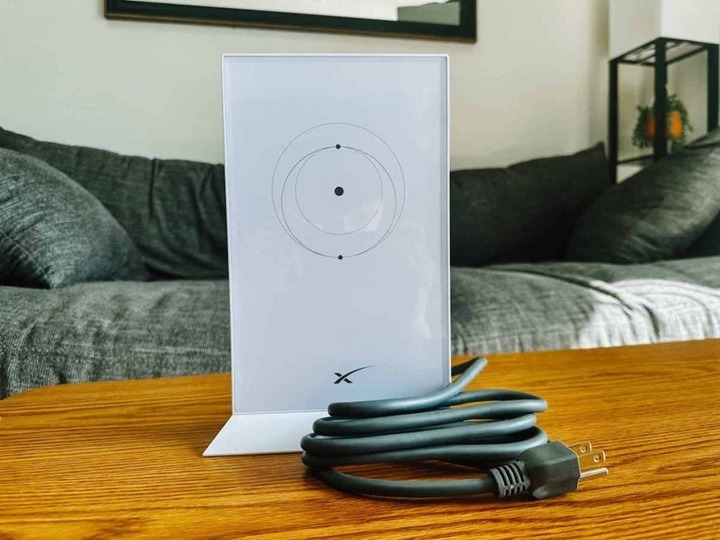
If your Starlink connection is lagging, dropping, or acting unstable, rebooting the system is often the quickest fix. Whether you’re using the standard Starlink Dishy, the newer Gen 2 rectangular dish, or Starlink’s mobile RV setup, a reboot can refresh your connection, fix minor glitches, and restore internet stability—without affecting your settings. This guide explains step-by-step how to safely reboot your Starlink system.
Understanding the Reboot Process

Why Rebooting Helps
Rebooting your Starlink system clears the internal cache, resets the connection to satellites, and restarts network hardware. This can solve issues like slow speeds, dropped Wi-Fi, app disconnection, and DNS failures—without erasing custom Wi-Fi names or passwords.
When Should You Reboot?
- Internet is slow, cutting out, or not working
- Starlink app shows errors or status stuck
- You’ve recently changed router settings or cables
- After a software or firmware update
- The dish isn’t moving or connecting to satellites
- You’re experiencing random disconnections or high latency
How to Reboot Starlink (Standard Methods)
Manual Reboot by Power Cycling
This is the easiest and most effective reboot method.
- Unplug the Starlink power cable (from the wall outlet or power brick)
- Wait at least 10 seconds to allow it to fully power down
- Plug the cable back in and wait for the system to restart
- The Starlink dish will reorient and reconnect—give it 3–10 minutes
This method works for both the round (Gen 1) and rectangular (Gen 2) dishes.
Restart via Starlink App (If Available)
If your system is responsive and connected to the app:
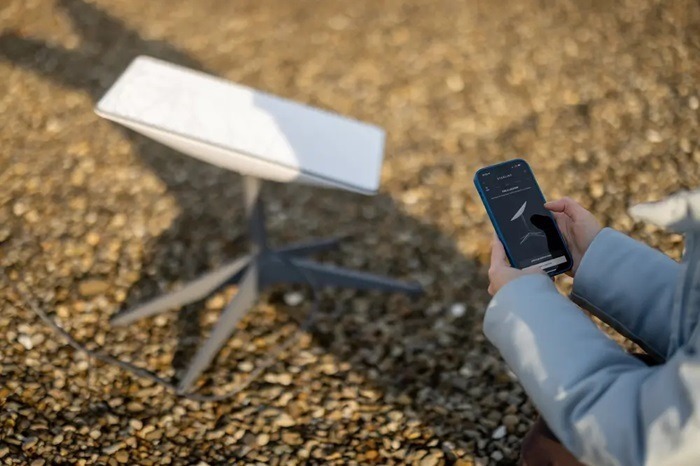
- Open the Starlink app on your smartphone
- Tap on the Settings gear icon
- Scroll down and tap Reboot Starlink
- Confirm the action and wait for the system to restart
This method is convenient if you’re away from the dish or don’t want to unplug cables manually.
Advanced Reboot Options
Factory Reboot via Power Cycle Sequence (Gen 2 Only)
For Starlink rectangular dishes (Gen 2), there’s a special reset method using power cycling:
- Unplug and replug the power cable 6 times in a row, waiting 1–2 seconds between each unplug/replug
- On the 6th time, leave it plugged in
- This initiates a factory reboot, clearing custom settings
Use this only if you’re troubleshooting major issues or preparing to reconfigure the system.
Reboot Router Separately (If Using Ethernet Adapter)
If you’re using a separate router or Ethernet adapter with Starlink:
- Unplug your third-party router or mesh system for 10–15 seconds
- Reconnect it and allow time to establish internet signal
- Then reboot Starlink using the methods above if necessary
This isolates whether the issue is with Starlink or your own network gear.
When Rebooting Doesn’t Work
No Internet After Reboot
- Wait 5–10 minutes—Starlink takes time to reconnect to satellites
- Check the Starlink app for system status
- Make sure all cables (power, Ethernet, adapter) are secure
- If using Gen 2, check if the dish is physically moving to find satellites
Starlink App Not Responding
- Force close and reopen the Starlink app
- Reboot your phone
- Try connecting via another device or using the browser interface
Dish Not Connecting to Satellites
- Make sure the dish has clear line of sight to the sky
- Relocate the dish if trees or buildings block its view
- Open the app and go to Obstructions Tool to test for blockage
Reboot vs. Reset: Know the Difference
Reboot
- Restarts the system
- Keeps your settings, Wi-Fi name, and password
- Best for fixing minor performance issues
Reset (Factory Reboot)
- Clears all custom settings and returns Starlink to default
- Required for serious issues or when transferring ownership
- Initiated through the 6x power cycle method (Gen 2 only)
How to Perform a Factory Reset on Starlink
- Unplug and replug the Starlink power cable six times in a row
- Do it within 1–2 seconds between each plug/unplug
- On the sixth plug-in, leave it connected
- Wait—Starlink will reboot and reset to factory settings
This method applies only to Gen 2 rectangular Starlink systems.
Tips to Keep Your Starlink Running Smoothly
- Reboot Periodically
Restart the system every couple of weeks to avoid speed drops. - Install in a Clear Location
Avoid trees, buildings, and obstructions for optimal satellite connection. - Use Official Accessories
Using Starlink’s official router or adapter avoids compatibility issues. - Check for Firmware Updates
Rebooting regularly helps apply any pending firmware or software patches. - Monitor with the Starlink App
Use the app to check uptime, speed, obstruction data, and error messages.
FAQs
How do I reboot Starlink?
Unplug the power for 10 seconds, then plug it back in. You can also use the Starlink app if connected.
Will rebooting erase my Wi-Fi settings?
No. A standard reboot will not delete your Wi-Fi name, password, or device settings.
How long does Starlink take to reboot?
Usually between 5 to 10 minutes, depending on dish positioning and satellite visibility.
Can I reboot Starlink from my phone?
Yes. Use the Starlink app and tap Reboot Starlink under settings.
What if rebooting doesn’t fix the problem?
Check for obstructions, review Starlink app diagnostics, or contact Starlink support if issues continue.