

Resetting your MacBook Pro to factory settings can be a daunting task, especially if you’re not familiar with the process. However, with the right guidance, it can be a straightforward procedure that revitalizes your device, restoring it to its original state. In this comprehensive guide, we’ll walk you through the steps, ensuring a smooth and successful reset.
Understanding the Importance of a Factory Reset
Before diving into the technicalities, it’s essential to understand why you might want to reset your MacBook Pro to factory settings. Over time, your device can accumulate clutter in the form of unused applications, outdated files, and system errors. These can impact its performance, leading to sluggishness, crashes, and other issues.
By resetting your MacBook Pro to factory settings, you essentially wipe the slate clean, erasing all data and returning the operating system to its original state. This can help resolve performance issues, reclaim storage space, and ensure a fresh start for your device.
Preparing for the Reset
Before initiating the reset process, it’s crucial to back up any important data on your MacBook Pro. This ensures that you don’t lose any valuable files or documents during the reset. You can use built-in macOS features like Time Machine to create a comprehensive backup of your system.
Additionally, make sure your MacBook Pro is connected to a power source to prevent any interruptions during the reset process. It’s also a good idea to disconnect any external devices, such as hard drives or USB drives, to avoid potential complications.
Initiating the Reset Process
Once you’ve completed the necessary preparations, you can proceed with resetting your MacBook Pro to factory settings. Here’s a step-by-step guide to help you through the process:
Restart Your MacBook Pro: Begin by restarting your device. You can do this by clicking on the Apple menu in the top-left corner of the screen and selecting “Restart.”
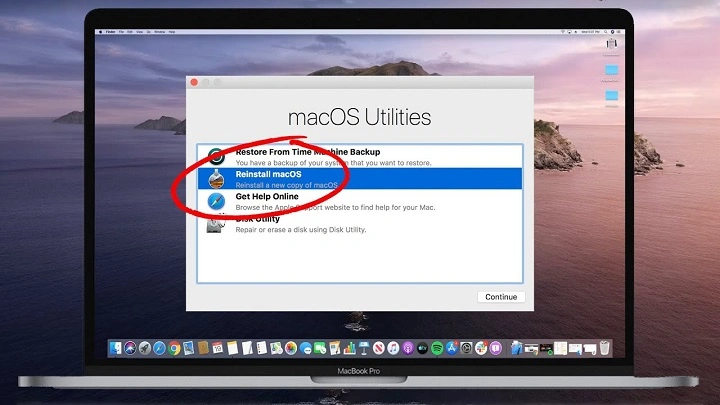
Enter Recovery Mode: As your MacBook Pro restarts, hold down the Command (⌘) and R keys simultaneously until you see the Apple logo or a spinning globe. This will boot your device into Recovery Mode.
Access Disk Utility: In Recovery Mode, you’ll be presented with several options. Choose “Disk Utility” from the list and click Continue. Disk Utility allows you to manage and manipulate the storage devices connected to your MacBook Pro.
Erase the Disk: Within Disk Utility, select your MacBook Pro’s internal storage device (usually named “Macintosh HD” or something similar) from the list of drives. Then, click on the Erase button at the top of the window.
Choose Erase Options: A dialog box will appear, allowing you to specify the format and name for your disk. By default, macOS uses the APFS (Apple File System) format, which is suitable for most users. You can also rename the disk if desired.
Confirm Erase: After selecting the desired options, click on the Erase button to begin the erasure process. This will permanently delete all data on the selected disk, so double-check your selections before proceeding.
Exit Disk Utility: Once the erasure process is complete, close Disk Utility to return to the main menu in Recovery Mode.
Reinstall macOS: From the main menu in Recovery Mode, select “Reinstall macOS” and follow the on-screen instructions to download and reinstall the operating system on your MacBook Pro. This will install a fresh copy of macOS, restoring your device to factory settings.
Completing the Reset
Once the macOS reinstallation process is complete, your MacBook Pro will restart, presenting you with the initial setup screen. Follow the prompts to configure your device, including language preferences, Wi-Fi network connection, and user account setup.
At this point, you have successfully reset your MacBook Pro to factory settings. You can now begin restoring your files and applications from the backup you created earlier using Time Machine or other backup solutions.
Resetting your MacBook Pro to factory settings can breathe new life into your device, providing a clean slate and optimal performance. By following the steps outlined in this guide, you can confidently navigate the reset process, ensuring a smooth and successful outcome.
Remember to back up your data before initiating the reset, and always follow the on-screen instructions carefully to avoid any potential pitfalls. With a fresh installation of macOS, your MacBook Pro will be ready for whatever tasks lie ahead, delivering the performance and reliability you expect from Apple’s iconic devices.
Additional Considerations and Tips
Verify Backup Integrity: Before proceeding with the reset, it’s essential to ensure that your backup is complete and accurate. Double-check that all important files, documents, applications, and settings are included in the backup. This will help prevent data loss and ensure a smooth restoration process.
Update Software and Drivers: After resetting your MacBook Pro to factory settings and reinstalling macOS, it’s a good idea to check for software updates and driver updates. This can help ensure that your device is running the latest security patches, bug fixes, and performance improvements.
Organize and Declutter: Use the opportunity of resetting your MacBook Pro to declutter and organize your files and applications. Take inventory of your installed applications and remove any that you no longer use or need. Organize your files into logical folders and delete any unnecessary or outdated files.
Consider Disk Encryption: If you previously had disk encryption enabled on your MacBook Pro, such as FileVault, you’ll need to re-enable it after the reset. Disk encryption helps protect your data in case your device is lost or stolen, so it’s worth considering for added security.
Optimize System Preferences: Take some time to review and optimize your system preferences after the reset. Customize settings related to energy saving, display, keyboard, trackpad, and more to suit your preferences and usage habits.
Potential Challenges and Solutions
Internet Connection Issues: If you encounter problems connecting to the internet during the macOS reinstallation process, try connecting to a different Wi-Fi network or using an Ethernet connection if available. You can also troubleshoot network issues by resetting your router or modem.
Disk Formatting Errors: In some cases, you may encounter errors or issues when formatting the disk using Disk Utility. If you receive an error message indicating that the disk cannot be formatted, try restarting your MacBook Pro and attempting the process again. If the issue persists, you may need to use Disk Utility to repair disk errors before proceeding with the format.
Reinstallation Failures: If the macOS reinstallation process fails or gets stuck at any point, there are a few troubleshooting steps you can try. First, ensure that your MacBook Pro meets the minimum system requirements for the version of macOS you’re trying to install. You can also try restarting your device and reattempting the installation process. If the problem persists, you may need to create a bootable macOS installer using another Mac or a USB drive.
Data Recovery: In the event that you accidentally erase important data during the reset process, there are data recovery tools available that may help you recover lost files. However, it’s essential to stop using your MacBook Pro immediately to prevent overwriting the deleted data. Consult with a professional data recovery service for assistance if needed.
Resetting your MacBook Pro to factory settings can be a transformative process, rejuvenating your device and restoring it to peak performance. By following the steps outlined in this guide and considering the additional tips and potential challenges, you can navigate the reset process with confidence and achieve a successful outcome.
Remember to back up your data, verify backup integrity, and follow best practices for system optimization and maintenance. With a fresh installation of macOS and a decluttered system, your MacBook Pro will be ready to tackle whatever tasks you throw its way, providing you with a seamless and efficient computing experience for years to come.