

In the fast-paced world of technology, sometimes a fresh start is necessary. Whether you’re experiencing persistent software issues, selling your MacBook Pro, or simply looking to wipe the slate clean, a factory reset can be the solution. This comprehensive guide will walk you through the process step by step, ensuring you can reset your MacBook Pro with confidence.
Understanding Factory Resetting
Before diving into the specifics, it’s essential to understand what a factory reset entails. Essentially, it restores your MacBook Pro to its original factory settings, erasing all data and settings in the process. This means your device will be as if you just took it out of the box, with no trace of your personal files, applications, or configurations remaining.
Backup Your Data
Before proceeding with a factory reset, it’s crucial to back up any important data you have on your MacBook Pro. This ensures that you won’t lose any essential files during the reset process. You can use Apple’s built-in Time Machine feature to create a full backup of your system or manually transfer important files to an external hard drive or cloud storage service.
Preparing Your MacBook Pro
Before initiating the factory reset process, there are a few steps you should take to prepare your MacBook Pro:
Charge Your Device: Ensure your MacBook Pro is sufficiently charged or plugged into a power source to prevent any interruptions during the reset process.
Sign Out of iCloud: If you’re signed in to iCloud, sign out to avoid any potential issues with Activation Lock after the reset.
Deauthorize iTunes: If you’ve authorized your MacBook Pro to play iTunes purchases, deauthorize it to prevent any complications with media playback after the reset.
Factory Resetting Your MacBook Pro
Now that you’ve backed up your data and prepared your MacBook Pro, it’s time to initiate the factory reset process. There are several methods you can use to perform a factory reset, depending on your specific requirements and preferences:
- Using macOS Recovery:
- Restart your MacBook Pro and hold down Command (⌘) + R until the Apple logo appears.
- Release the keys when you see the macOS Utilities window.
- Select “Disk Utility” and click “Continue.”
- Choose your startup disk and click “Erase.”
- Enter a name for your disk, select a format (usually APFS or Mac OS Extended (Journaled)), and click “Erase.”
- Once the erase process is complete, quit Disk Utility and select “Reinstall macOS” from the macOS Utilities window.
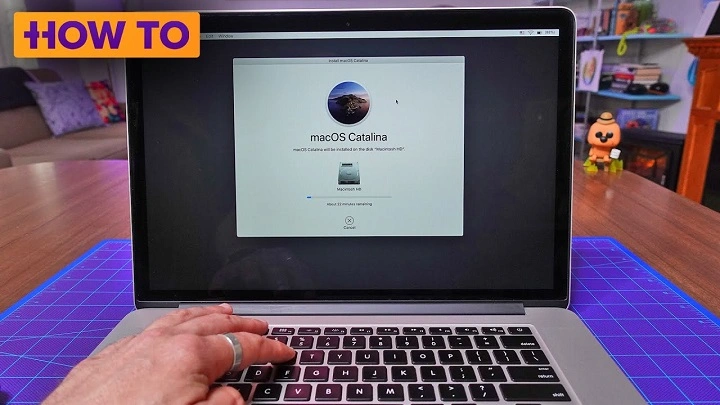
- Follow the on-screen instructions to reinstall macOS and complete the factory reset.
- Using Internet Recovery:
- If you’re unable to access macOS Recovery using Command (⌘) + R, you can use Internet Recovery by holding down Option (⌥) + Command (⌘) + R instead.
- Follow the same steps as outlined above for macOS Recovery to erase your disk and reinstall macOS.
- Using Terminal (Advanced Users Only):
- For advanced users comfortable with the command line interface, you can perform a factory reset using Terminal.
- Boot your MacBook Pro into macOS Recovery or Internet Recovery.
- Select “Utilities” from the menu bar and choose “Terminal.”
- Enter the following command to erase your disk:
bash
Copy code
diskutil eraseDisk JHFS+ “Macintosh HD” /dev/disk0
- Replace “Macintosh HD” with your preferred disk name if desired.
- Once the erase process is complete, quit Terminal and reinstall macOS as usual.
Post-Reset Setup
After completing the factory reset process, your MacBook Pro will restart and prompt you to set up your system as if it were new. Follow the on-screen instructions to select your language, region, and other preferences. You can then restore your data from your backup using Time Machine or manually transfer files from external storage.
Factory resetting your MacBook Pro can be a powerful solution for resolving software issues, preparing your device for sale, or simply starting fresh. By following the steps outlined in this guide, you can confidently reset your MacBook Pro and enjoy a clean, optimized system. Remember to back up your data beforehand and follow the appropriate reset method for your needs. With a little preparation and know-how, you’ll be well on your way to mastering the art of factory resetting your MacBook Pro.
Additional Tips and Considerations
While the factory reset process outlined in the previous section provides a comprehensive guide for resetting your MacBook Pro, there are additional tips and considerations to keep in mind to ensure a smooth and successful reset.
Securely Erase Your Data: If you’re concerned about the security of your data, especially if you’re selling or giving away your MacBook Pro, consider securely erasing your disk before initiating the factory reset. macOS offers an option to securely erase your disk, which overwrites your data multiple times to prevent recovery by unauthorized parties.
Check for Firmware Updates: Before performing a factory reset, it’s a good idea to check for any firmware updates available for your MacBook Pro. Firmware updates can improve system stability and performance, ensuring that your device is running the latest software before resetting it.
Disable FileVault Encryption: If you’ve enabled FileVault encryption on your MacBook Pro, be sure to disable it before initiating the factory reset. Disabling FileVault ensures that the reset process is not hindered by encryption processes and allows for a smoother reset experience.
Verify Your Backup: After backing up your data, take the time to verify that your backup is complete and error-free. This ensures that you have a reliable copy of your data to restore from after the factory reset. You can verify your Time Machine backup by accessing Time Machine preferences and selecting “Verify Backups.”
Consider Cloning Your Disk: If you have a large amount of data or complex system configurations that you want to preserve, consider cloning your disk before performing a factory reset. Disk cloning creates an exact copy of your disk, including all files, applications, and settings, which can be restored after the reset to maintain your system’s state.
Prepare for Activation Lock: If your MacBook Pro is associated with your Apple ID and Find My is enabled, you may encounter Activation Lock after the factory reset. To prevent this, ensure that you’ve signed out of iCloud and deactivated Find My before initiating the reset. You can do this by accessing iCloud settings in System Preferences and selecting “Sign Out.”
Document Your Settings and Preferences: Before performing the factory reset, take note of any custom settings, preferences, or configurations that you want to replicate after the reset. This can include network settings, display preferences, application configurations, and more. Keeping a record of these settings will make it easier to set up your system to your liking after the reset.
Test Your Backup Restoration Process: After completing the factory reset and reinstalling macOS, test the restoration process using your backup. Verify that you can successfully restore your data, applications, and settings from your backup without any issues. This ensures that your backup is reliable and that you can quickly recover your data if needed in the future.
By following the additional tips and considerations outlined above, you can enhance the factory reset process for your MacBook Pro and ensure a successful outcome. Whether you’re resetting your device to resolve software issues, prepare it for sale, or simply start fresh, taking the time to properly prepare and execute the reset will help you achieve your desired results with confidence. Remember to back up your data, disable encryption and security features, and document your settings to streamline the reset process and minimize any potential complications. With these tips in mind, you’ll be well-equipped to master the art of factory resetting your MacBook Pro and enjoy a clean, optimized system.